
Check your usage and account limits
Open Settings → Usage to see how much storage your account uses and what your plan allows. Files in a task comment use the list owner’s storage. Files in a group chat use the chat owner’s storage.
Mobile screenshots show TaskPal on iPhone.
In this guide
Check your usage
- Open Settings from your account menu and select Usage.
- Find Disk space. The first number is the space used by attachments in the lists and chats you own. The second is your storage allowance.
Usage also shows limits for your account, including team members and tasks per list. The current plan shown in Subscription is your own. Joining someone else’s team keeps your current plan.
- Tap your profile icon at the top of Lists and choose Settings → Usage.
- Scroll down to Disk space. The first number is the space used by attachments in the lists and chats you own. The second is your storage allowance.
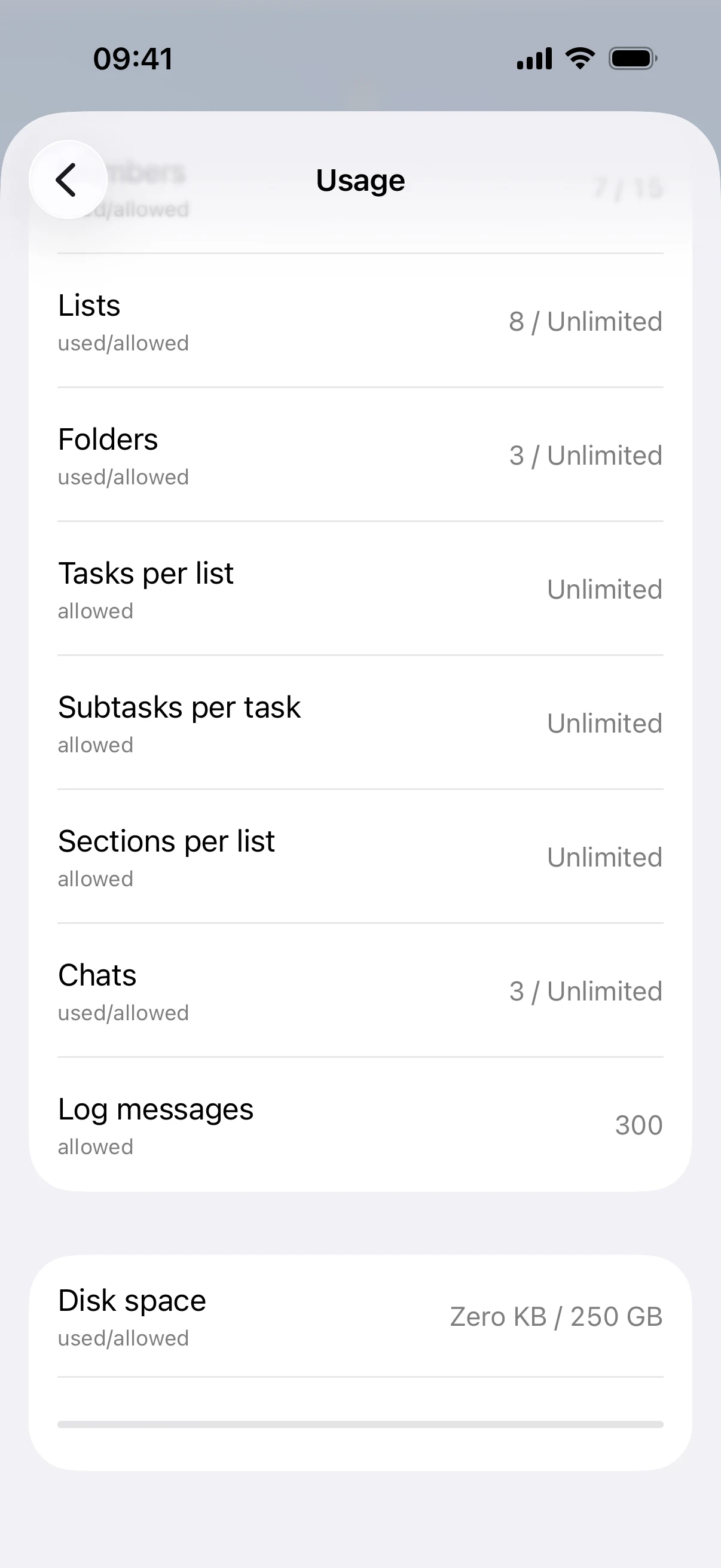
Usage also shows other limits for your account. Subscription shows your own plan, which stays the same when you join someone else’s team.
How the team member limit works
Your team limit includes you as the owner. For example, if your limit is three and you’re the only person on the team, you can select two people who are new to your team. TaskPal warns you if you try to select a third. Someone already on your team can join another list or chat you own without using another place in the team.
If you reach your team limit, choose Upgrade in the warning to see your plan options. If you’re adding someone to a list or chat owned by someone else, ask that owner for help when their team is full. See what to do if you cannot add someone.
Whose storage does an attachment use?
Each owner has one storage allowance across all their personal and shared lists and the group chats they own. Everyone who adds files to a list or chat uses the allowance of its owner, regardless of their own plan.
If you attach a file to a task in a colleague’s list, it counts towards your colleague’s allowance. Your own Disk space total stays the same. If a group chat is linked to that list, a file sent in the chat uses the chat owner’s allowance, even if someone else owns the list.
What to do when storage is full
- If you own the list or chat, check Settings → Usage → Disk space and free enough space for the file before trying again.
- If someone else owns it, ask the list or chat owner to free space. Your own remaining allowance applies to the lists and chats you own.
When you move a task with attachments to a list owned by someone else, TaskPal checks that the destination owner has enough space for the task’s and subtasks’ files. If there is too little space, the task stays in its original list.
Free up space
Start with files you no longer need. Delete the task comment or group chat message that contains them. This removes the whole comment or message and all of its attachments. Save any files you still need before deleting.
Deleting a task with attachments or deleting a list or chat also frees the space used by the files it removes. Completing a task keeps its attachments, and leaving a shared list or chat keeps the files there.
For help saving copies or checking a failed upload, see Add, view and download attachments.
