
Share lists and chats with other people
Share a list to work on its tasks together, or share a group chat to have a conversation. Add someone who already uses TaskPal, or invite a new person by email. You choose the people for each list or chat.
Screenshots show the macOS app.
In this guide
Share an existing list
Open the list you want to share. In this example, John is adding Anna to Website launch.
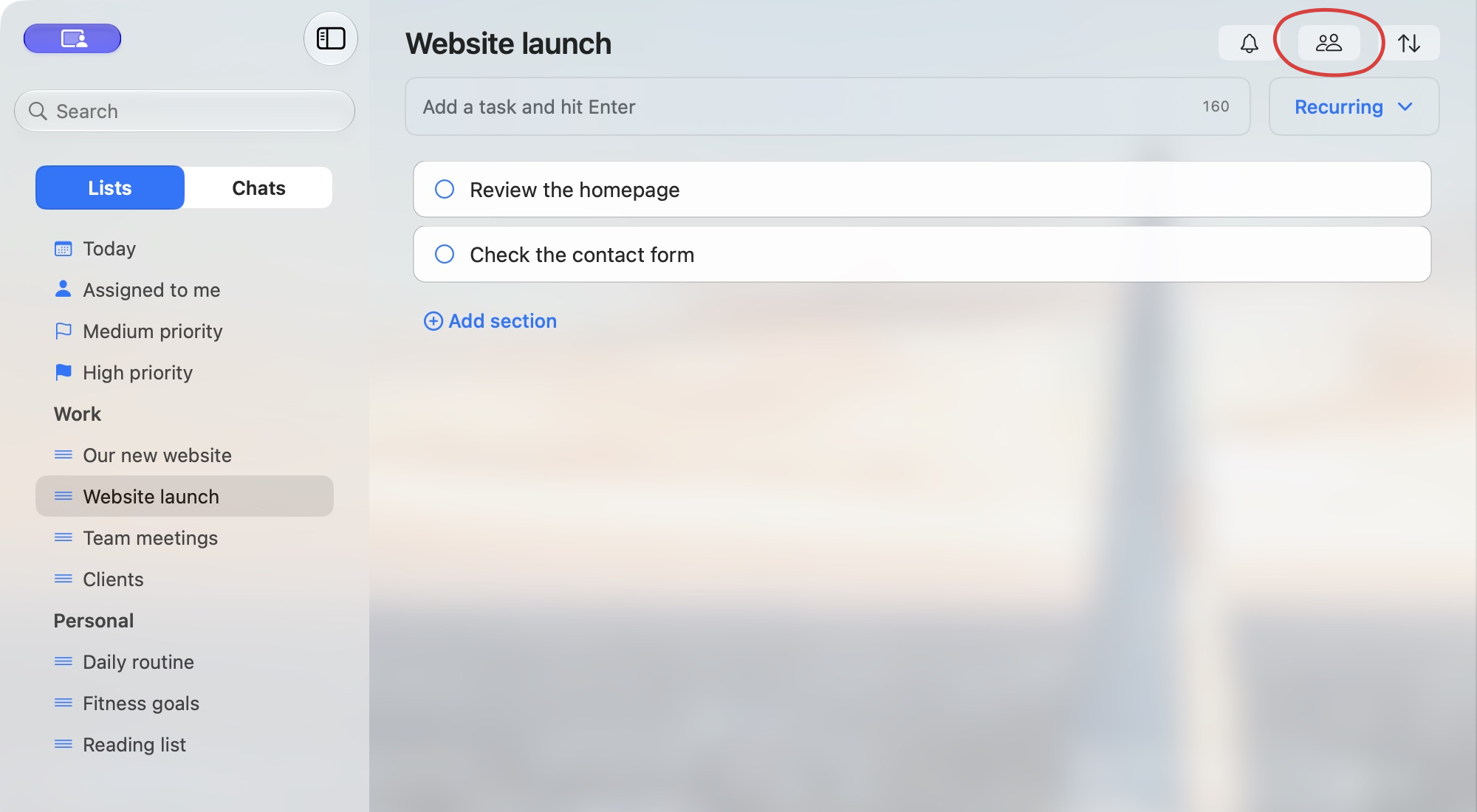
- Click Manage Members, the people icon beside the list heading, in macOS, or Share on Web and Windows. This opens List members.
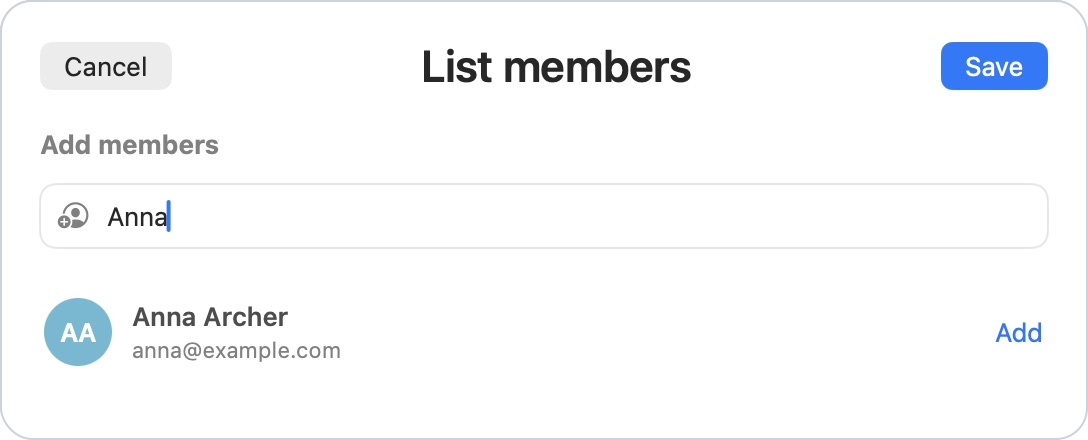
- Under Add members, enter the person’s name or email. Use their full email address if they are not already among your contacts.
- Check the name and email in the result, then click Add.
- Click Save to apply the membership changes.
After the membership change is saved, the person can work on the shared list and its tasks. Sharing this list does not also share your other lists or folders. See Understand access to lists and chats before adding someone to work that contains private information.
Share a group chat
Choose Chats in the sidebar, then open the conversation you want to share.

- Click the people icon in the chat heading (Manage Members in macOS; Members on Web and Windows).
- In the members panel, click Manage in macOS, or the add-member icon on Web and Windows, to open Chat members.
- Search for the person’s name or email, check the result and click Add.
- Click Save.
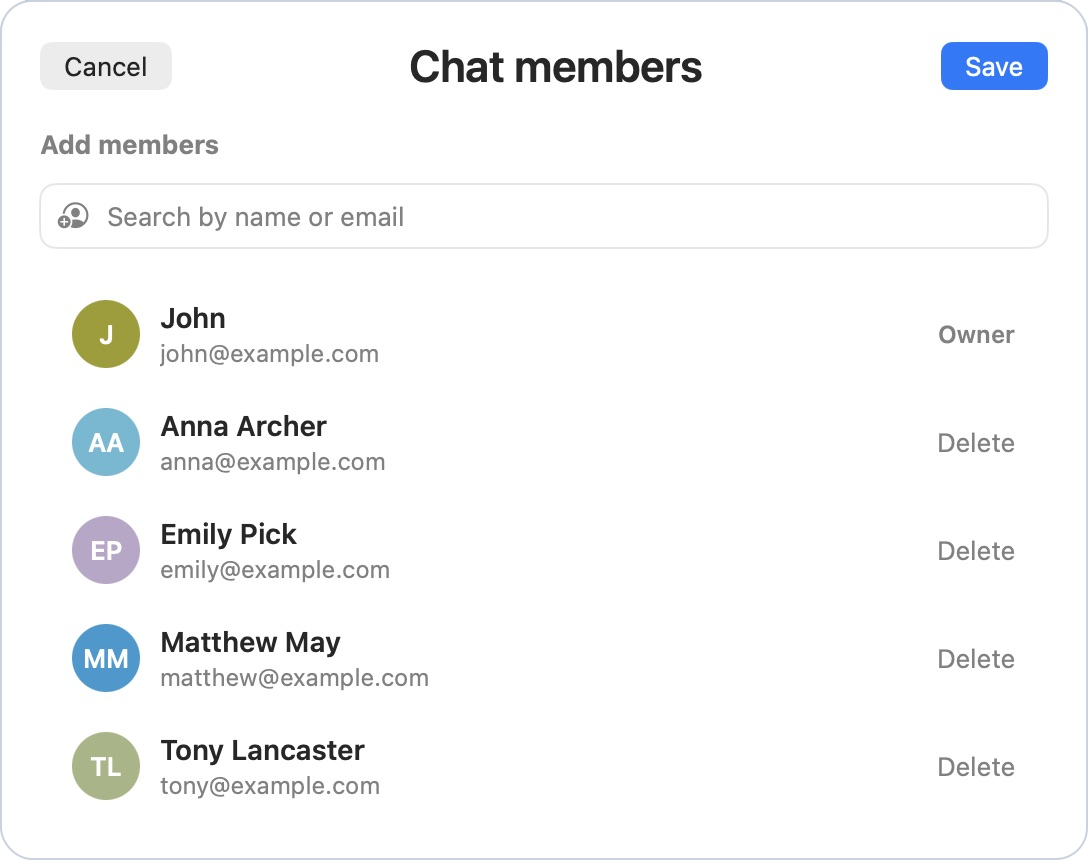
If the chat is linked to a list, TaskPal may ask you to approve giving the new chat member access to that list too. Read the message before approving: they will be able to see the linked list’s work, as well as the chat. Learn how linked lists and chats affect access.
To display a list beside the conversation, follow Link a group chat to a list.
Invite someone who does not use TaskPal yet
- Open the list or chat’s member editor.
- Enter the person’s full email address under Add members.
- If TaskPal does not find an existing account, click the Invite option shown for that email.
- Ask the person to open their invitation email, sign up using the invited email address and confirm their email.
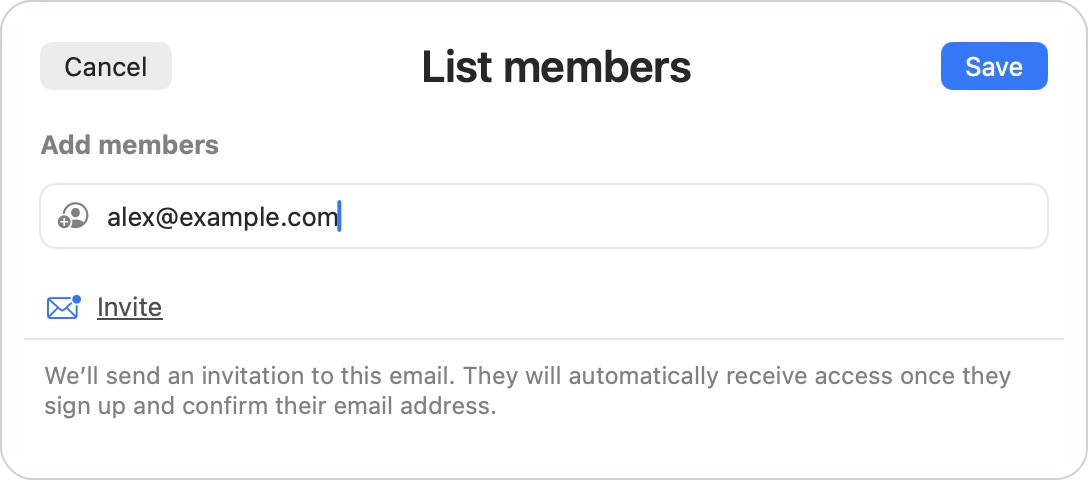
In an existing list or chat, click Invite to send the invitation. You do not need to click Save. Wait for TaskPal to confirm it was sent. After that, closing the window or clicking Cancel will not cancel the invitation.
The invitation is valid for seven days. If it has expired, invite the person again. Access is added after sign-up and email confirmation, subject to the applicable limits. Check the member list to confirm they have joined.
If the person already has a TaskPal account, find that account and use Add instead of sending a sign-up invitation. If no invitation email arrives, check the address and ask the recipient to check their spam folder.
If you cannot add someone
Read the message TaskPal shows. Adding a person can be blocked by a list or chat member limit, the owner’s team limit, or the other person’s plan limits. Clicking Add or sending an invitation does not override those limits.
Check that you are sharing the intended list or chat and using the right email address. After saving, reopen its members to confirm the change. If TaskPal reports a limit, ask the owner to review it in Settings → Usage.
