
Create and manage tasks and subtasks
Add a task to a list, edit its details and break larger pieces of work into subtasks.
Screenshots show the macOS app.
In this guide
Before you start
Open Lists and select a list. If you need a new list first, follow Create a list.
Create a task
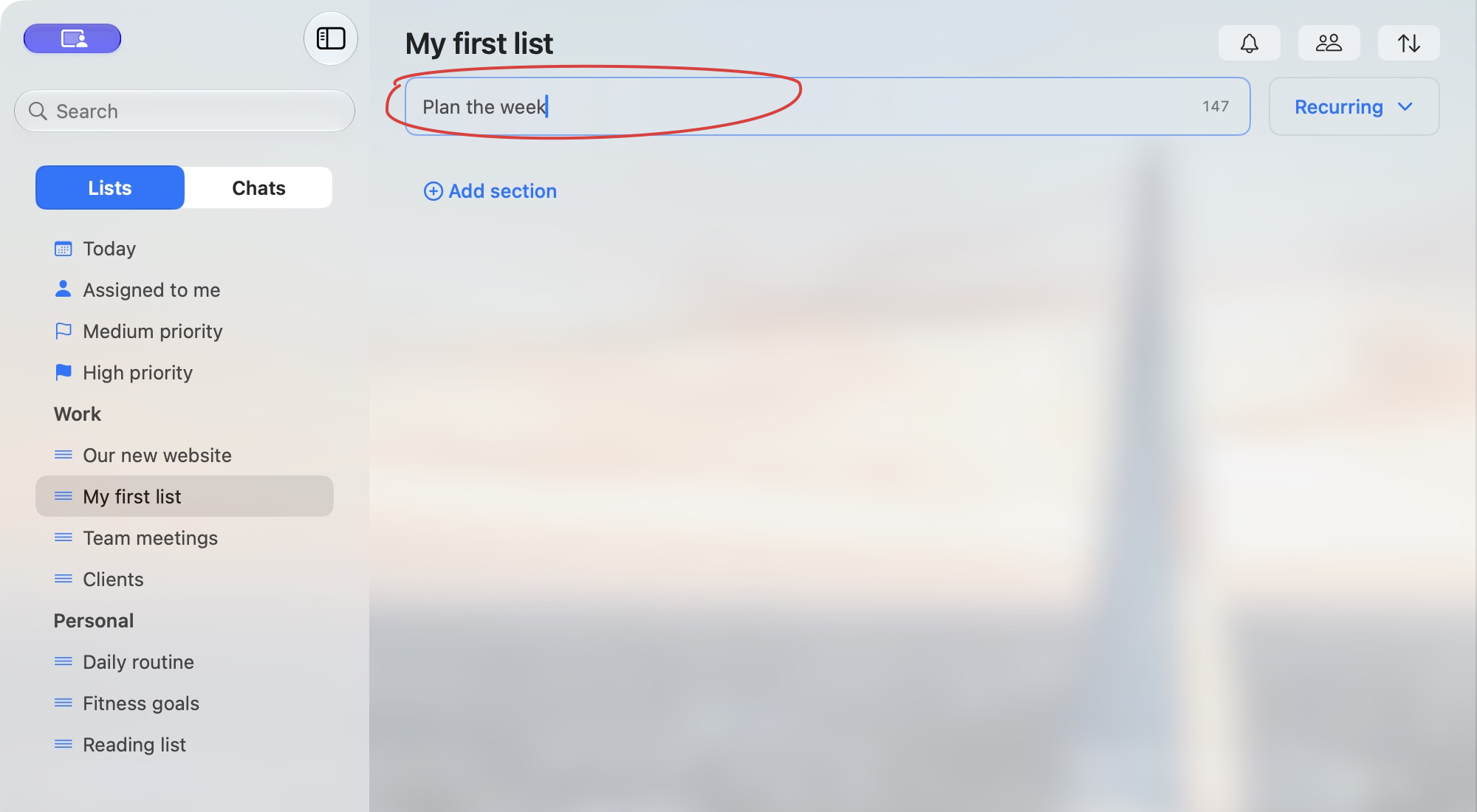
- Click Add a task and hit Enter below the list heading.
- Enter a title, such as Plan the week.
- Press Enter. The task appears in the list.
Use the same field for more tasks. The main task-entry field allows up to 160 characters. New tasks start without an assignee or a section.
Edit a title or add notes
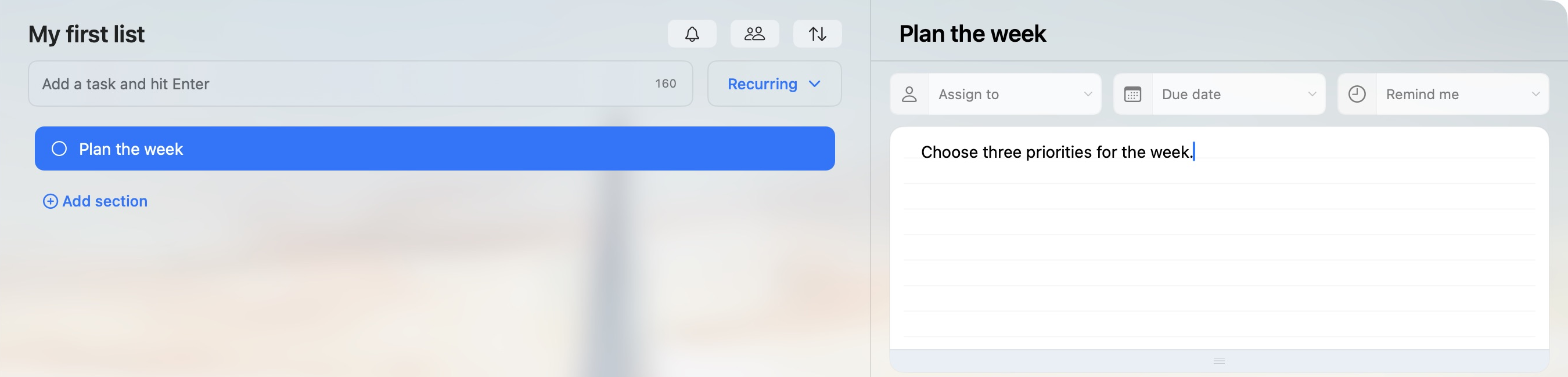
Select a task to open its details on the right. Click its title to edit it, then finish editing to save the change. Alternatively, right-click the task, choose Rename task, edit the title in its row and press Enter.
Use notes for information you want to keep with the task, such as Choose three priorities for the week. When you finish entering a note, click outside the notes field. On Web and Windows, leaving the field saves your changes. The macOS app saves changes after about three seconds without typing. There is no separate Save button.
Add and manage subtasks
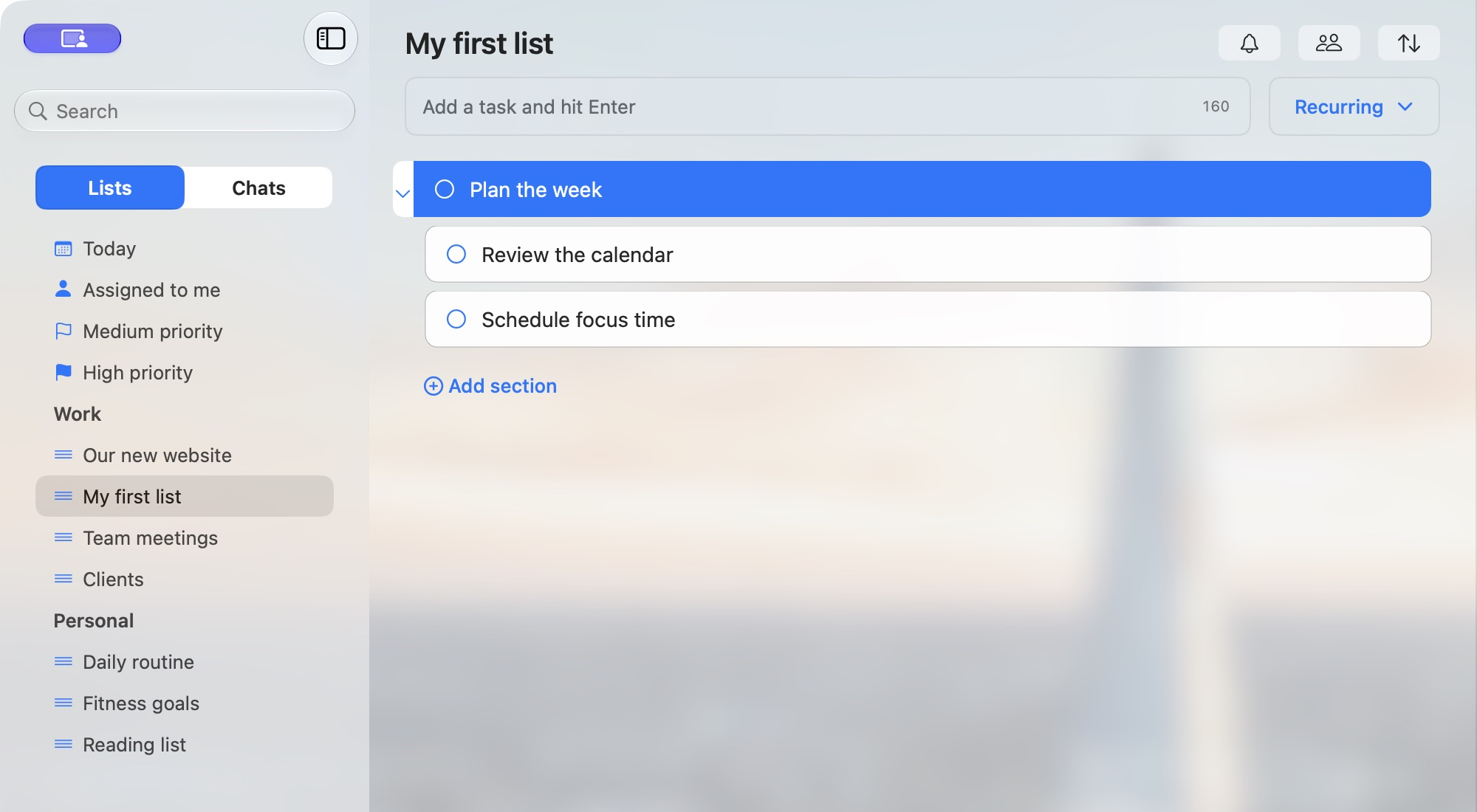
- Move your pointer over an active, top-level task such as Plan the week.
- Click the + Subtask button that appears on the task row.
- Enter a smaller step, such as Review the calendar, and press Enter.
- Use the next empty field for another step, such as Schedule focus time. When finished, leave it empty and click elsewhere.
In macOS, you can also right-click the parent task and choose Add subtask. Web and Windows use the button on the task row; their context menu does not include Add subtask.
Press Enter to add the subtask. You can also add it by clicking outside the field after entering the subtask text.
Subtasks appear indented beneath their parent. Click the arrow beside the parent to collapse or expand them. To rename a subtask, right-click its row and choose Rename task. Subtasks can be added to top-level tasks.
Set a priority
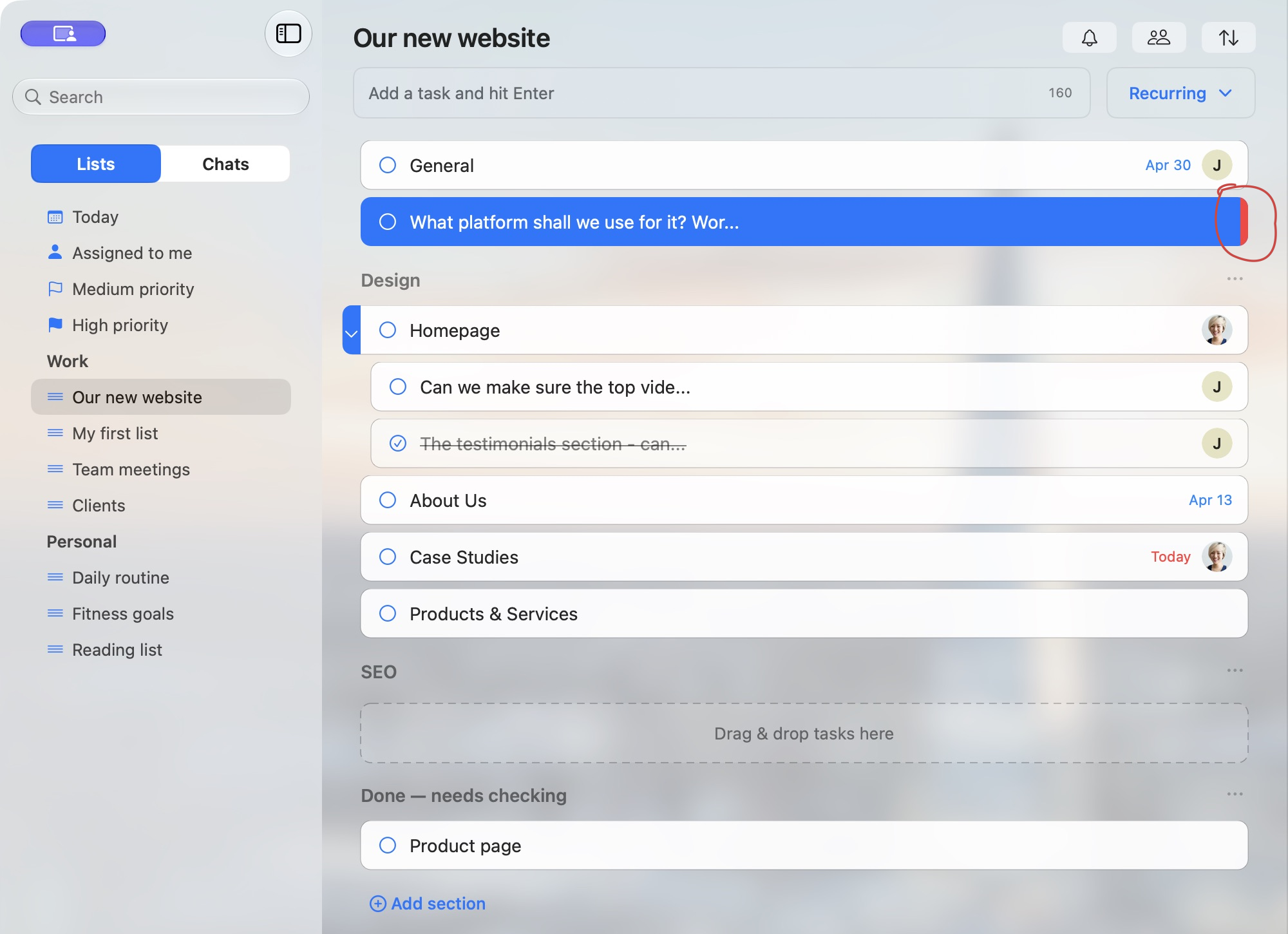
Right-click a task and choose Priority → Normal, Medium or High. Priority is separate from a due date or an assignee. In the macOS list, a red strip at the right edge marks High priority; a yellow strip marks Medium.
Move and order tasks
Drag and drop task rows to change their order or move them between sections. Drop a task above the first section to keep it outside the named sections. See Create sections and group tasks.
Alternatively, right-click a top-level task and choose Move to → Section, then a section or No section. To move it to another list, choose Move to → List and the destination. A parent’s subtasks are included in its move to another list.
Use Sort by near the list heading to choose Name, Created (creation date) or Priority. Sorting updates the saved task order; it is not a temporary filter. To arrange tasks yourself, drag their rows into the order you want.
Complete or reopen a task
Click the circle beside a task when it is finished. To find it again or return it to active work, follow View and reopen completed tasks.
Delete a task or subtask
- Right-click the task or subtask and choose Delete task.
- Read the confirmation, then choose Delete to proceed or Cancel to keep it.
Deleting a parent task also deletes its subtasks. The confirmation warns that deletion cannot be undone. To keep a record of finished work, complete the task instead of deleting it.
