
Understand access to lists and chats
Access in TaskPal belongs to each list and group chat. Check their members to see who can use them. Being in your Team or receiving a link does not automatically give someone access to all your work.
Screenshots show the macOS app.
In this guide
Who can see a list or chat?
When you create a list or chat without adding anyone else, it is for you. Adding members shares that particular list or chat.
- List members can access the list’s tasks, subtasks, notes, task conversations and attachments. Sharing a list shares the work inside it, not just one selected task.
- Chat members can access the group conversation and its attachments.
- Other lists and chats keep their own members. Adding Anna to Website launch does not automatically add her to Team meetings.
Lists and chats have separate membership controls. When you add an existing TaskPal user to a linked chat, TaskPal also checks their access to the linked list; see Linked lists and chats.
Check who has access
- Open the list or group chat.
- In macOS, click Manage Members, the people icon beside the heading. On Web and Windows, click Share for a list, or the people icon for a chat.
- For a list, review the people in List members. For a chat, review the members panel. To open Chat members, click Manage in macOS, or the add-member icon on Web and Windows.
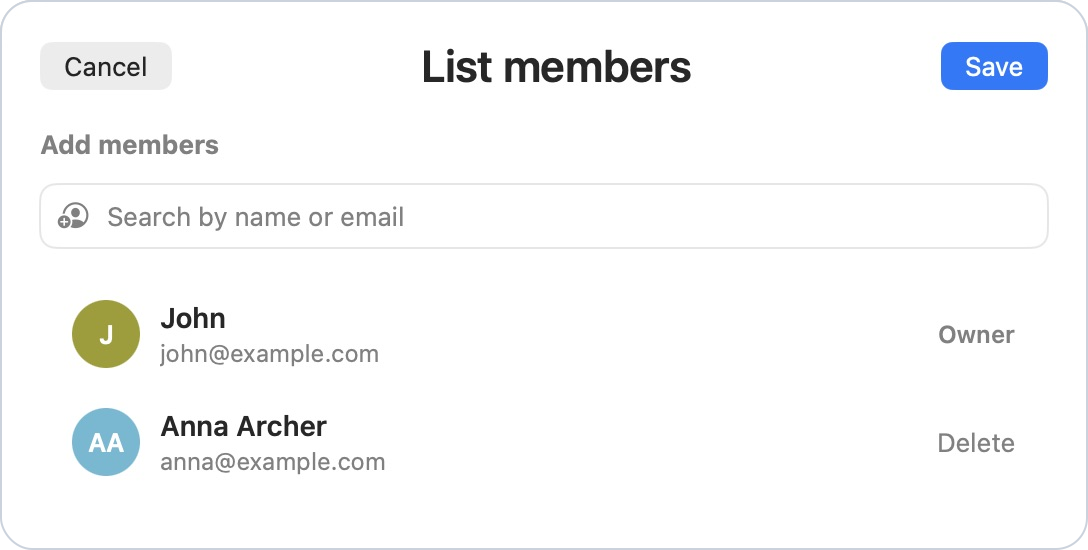
These windows manage membership. To change a list or chat’s name, right-click it in the sidebar and choose Rename.
The person who created the list or chat is labelled Owner. The owner cannot be removed through this member editor.
To add someone or invite them by email, follow Share lists and chats with other people.
What can members do?
Every list member can add, edit, complete and delete tasks in that list, including tasks created by someone else. Members can also organise sections and take part in task conversations. Group chat members can send messages and attachments. The member editor does not offer separate viewer and editor roles.
Task additions and deletions update the shared list for everyone. They are also recorded in the other list members’ Log, showing who made the change. If they are also in the linked chat, they see the updated list there too. See View recent activity in Log.
Members can use the membership controls to add people and manage participants, subject to the checks and limits TaskPal shows. The owner has a separate Delete action for the whole list or chat. Other participants have Leave instead.
Assigning a task is not a separate access setting. An assignee is chosen from the list’s members. Other members can still see the task, even when it is assigned to someone else.
Folders, Team contacts and copied links
- Folders organise your sidebar. Moving a list into Work or Personal does not grant access to other people, and moving it out does not remove its members.
- Team contacts are not the members of every list. Check the members of the particular list or chat to confirm access.
- A copied task link does not grant access. The recipient still needs access to the list containing the task. Add them to the list if you want to work on it together.
For ways to arrange your sidebar without changing who can see the work, see Organise your work with lists, folders and sections.
Linked lists and chats
To set up or remove the connection, follow Link a group chat to a list.
A list can have more members than its linked group chat. These rules apply when you add someone who already has a TaskPal account:
- Add someone to the list: they get access to the list and its tasks. They are not automatically added to the linked chat.
- Add a list member to the chat: they already have list access, so only their chat membership changes.
- Add someone to the chat who is not a list member: TaskPal shows an alert explaining that they will also be added to the linked list. Choose Approve to add them to both, or Cancel to leave them out.
Plan and membership limits still apply when adding people.
Removing someone from a chat does not remove their list access. To remove someone from both, remove them from the chat first, then from the list. The list editor prevents removing a person who is still in its linked chat.
Remove someone from a list or chat
- Open List members for the list. For a chat, open its members panel and click Manage in macOS, or the add-member icon on Web and Windows, to open Chat members.
- Click Delete beside the person you want to remove.
- Click Save to apply the change.
The Delete control beside a person removes their membership; it does not delete the whole list or chat. Removing someone from a list also clears tasks assigned to that person in the list. The tasks remain for the remaining members.
Leave a list or chat, or delete one you own
To leave shared work you do not own, right-click the list or chat in the sidebar and choose Leave. Read the confirmation before proceeding. Leaving removes your participation; it does not delete the shared list or chat for everyone else.
Leaving a group chat does not remove your access to its linked list.
If you own the list or chat, its sidebar menu shows Delete instead. This removes the shared list or chat for its participants. Use it only when you intend to delete the shared work, and read the confirmation carefully.
Before deleting a list linked to a group chat, open the chat and use the unlink control beside its name (Unlink List in macOS). Then delete the list. Unlinking disconnects the list from the chat for everyone; the chat and its messages remain.
