
Add, view and download attachments
Add files to a task’s comments or a group chat to keep useful documents and images beside the conversation. You can find a task’s files together in Attachments, preview supported images and save files to your computer.
Screenshots show the macOS app.
In this guide
Add files to a task or chat
- Open a task and choose Comments below its notes, or open a group chat from Chats.
- Click the paperclip beside the Message field.
- Choose the file or files from your computer and confirm the selection.
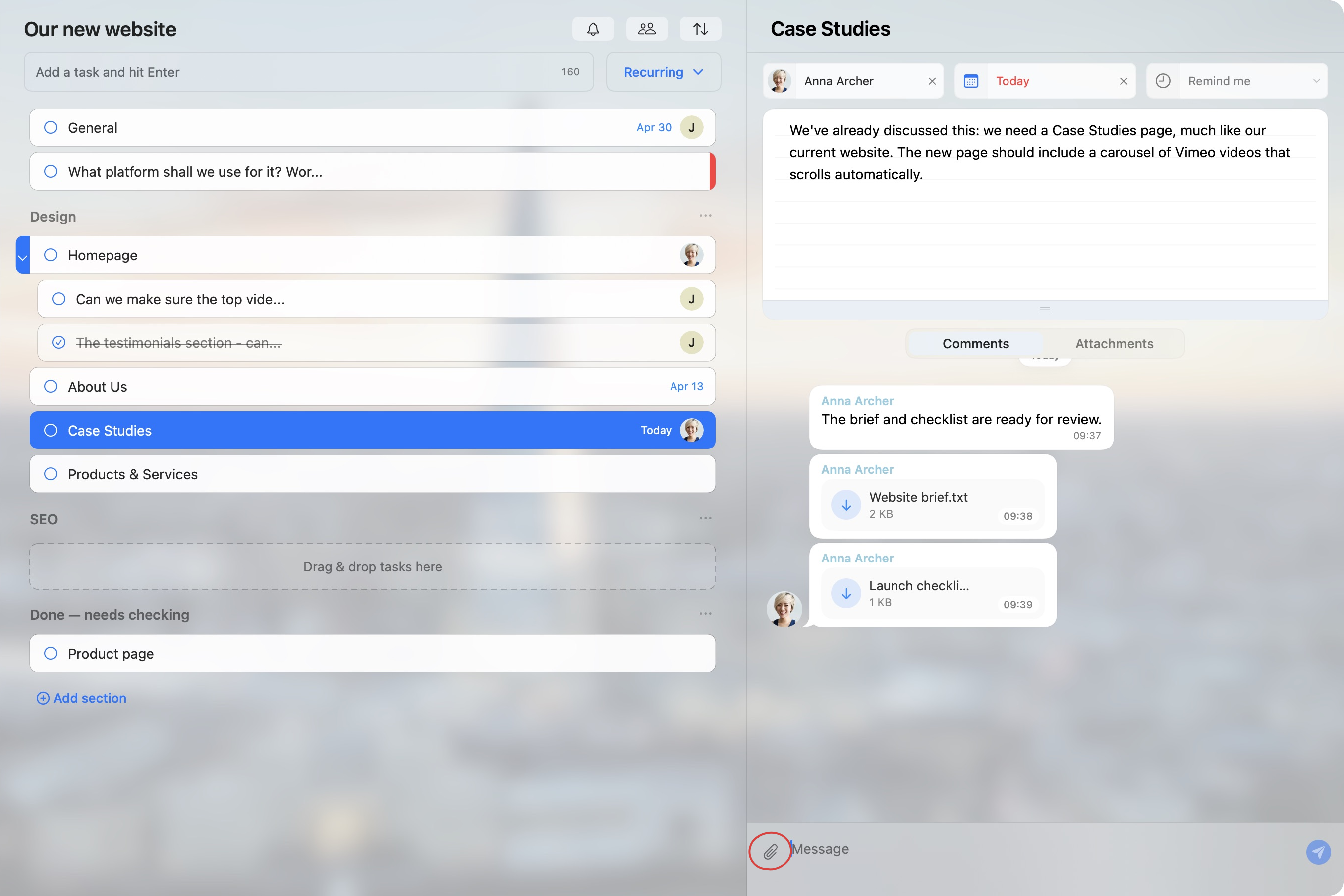
In macOS, confirming the file selection starts sending the files immediately. You do not need to type a message or click Send afterwards.
On Web and Windows, the selected files appear beside the message field first. Add a message if you want, then click the send arrow or press Enter to send the files.
Wait for the upload to finish. Choosing a file is not confirmation that it has reached the other members.
Find all the files attached to a task
- Open the task.
- Choose Attachments beside Comments, below the notes.
- Find the file by its name. The list also shows its size and date.
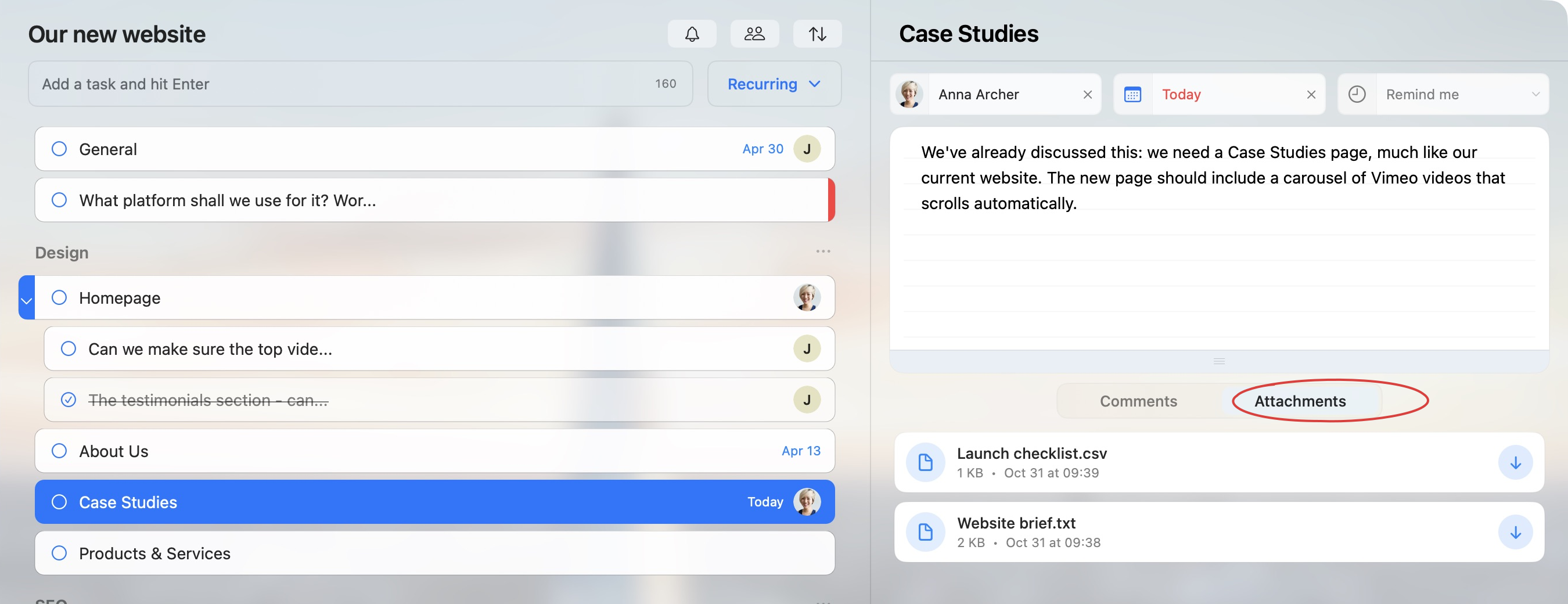
This tab belongs to the selected task. For files shared in a group chat, open that chat and find the file in the conversation.
Download a file to your computer
For a document or other non-image file in macOS:
- Click the file’s download arrow in the conversation or the task’s Attachments tab.
- Wait for the file to download.
- When the save window opens, choose a location and click Save.
For images in macOS, use Download in the image preview.
On Web and Windows, click the file’s download control. Your browser or desktop app handles where the downloaded file is saved.
Saving a copy to your computer keeps the original attachment in TaskPal.
View an image at a larger size
Click an image thumbnail in the conversation to open its preview. In macOS, JPG and PNG images support this view. Use the left and right arrows to browse other images in the conversation when available, and × to close the preview.
To keep a copy, use Download in the preview and choose where to save it. Other file types may appear as downloadable files instead of image previews.
Who can see the attachments?
- Files in task comments are shared with the list’s members.
- Files in a group chat are shared with that chat’s members.
Assigning the task to one person does not make its attachments private to that person. Check the members before uploading private material. See Understand access to lists and chats.
If a file will not upload or download
- Check your connection. Keep TaskPal open while a transfer is in progress.
- Read any size or storage message. Uploads are subject to available storage. Review Settings → Usage if TaskPal reports that space has run out.
- On Web and Windows, choose up to five files at once. If you need to share more, send them in smaller batches. These clients also check the combined size of the selected files.
- Check that you still have access. If you were removed from the list or chat, you may no longer be able to download its files.
If an upload appears to fail, check the conversation before trying again so you do not send the same file twice. If the problem continues, contact support with the filename, file size, the app you are using and any message shown.
