
Manage your profile and account details
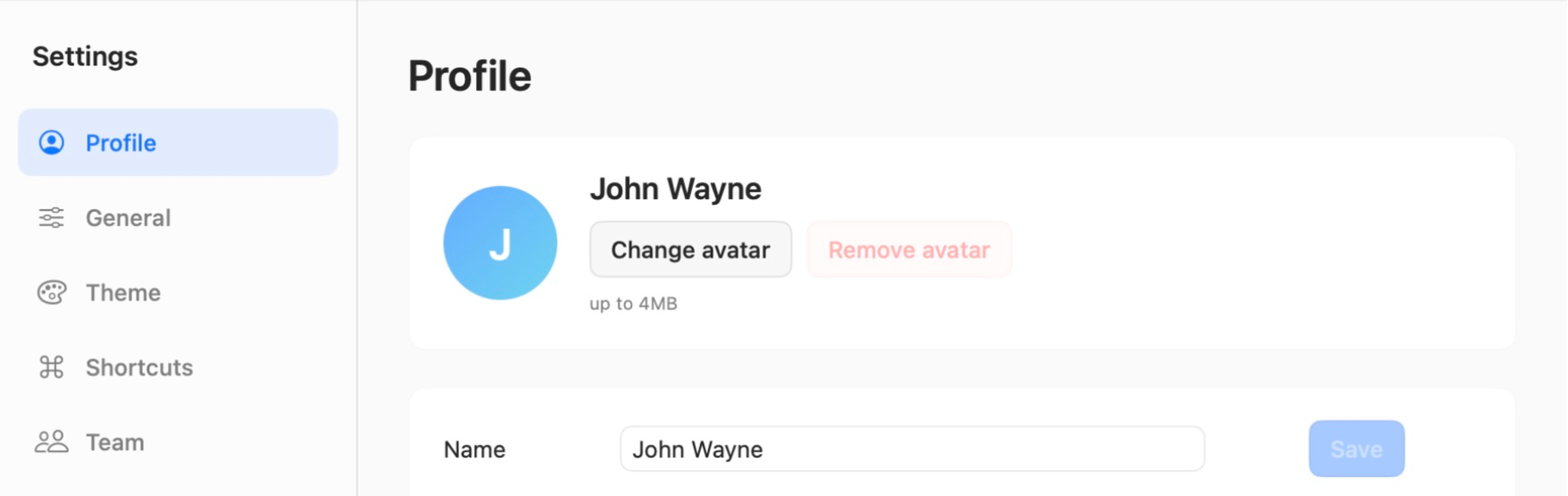
Open Settings → Profile to change the name and photo people see in TaskPal or update your sign-in details.
Screenshots show the macOS app.
Mobile screenshots show TaskPal on iPhone.
In this guide
Open your profile
- Open the account menu at the bottom of the sidebar.
- Choose Settings, then Profile.
In Lists, tap your profile icon at the top, then tap Settings. Tap your name or avatar at the top of Settings to open Profile.
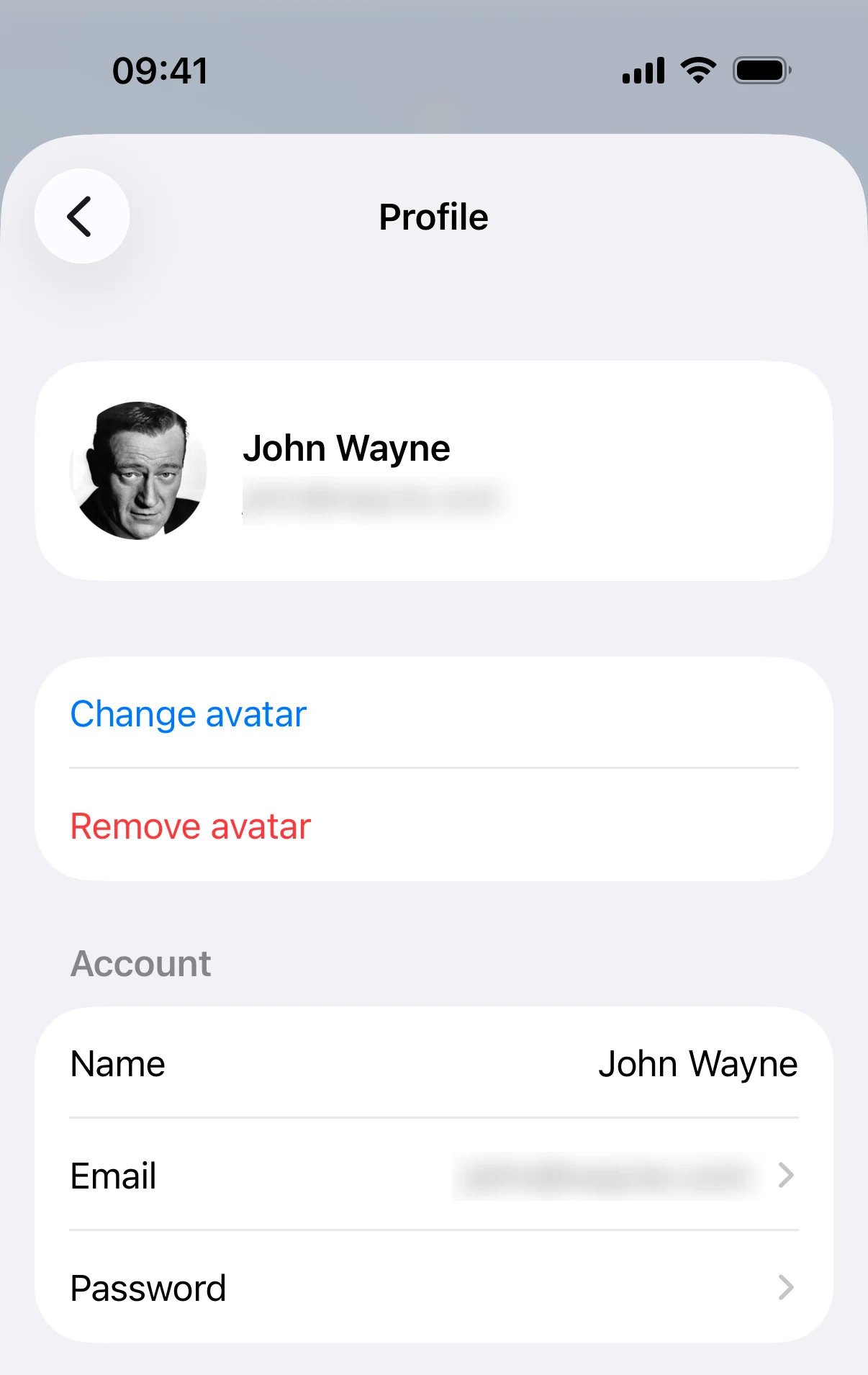
Change your name or profile photo
Update the Name field and choose Save.
- macOS. Choose Change avatar and select an image. To remove your current image, choose Remove avatar.
- Web and Windows. Choose Upload photo or Change photo and select a JPG or PNG. To clear it, choose Remove photo.
Tap Name and edit it. TaskPal saves it automatically. To update your photo, tap Add avatar or Change avatar and choose an image from Photos. Tap Remove avatar to clear your current photo.
Change your email address
- Next to Email, choose Edit on macOS or Change on Web and Windows.
- Enter your new email address and your current TaskPal password. On Web and Windows, enter the new address again in Confirm email.
- Choose Save on macOS or Change on Web and Windows.
- Open the verification email sent to the new address and follow its link. Use the updated email address the next time you sign in with email.
If you sign in with Google or Apple and have never set a TaskPal password, add a TaskPal password first.
- In Profile, tap Email.
- Enter your new email address and your current TaskPal password, then tap Save.
- Open the verification email sent to your new address and follow the link.
If you sign in through Google or Apple and have never set a TaskPal password, add a password first.
Change your TaskPal password
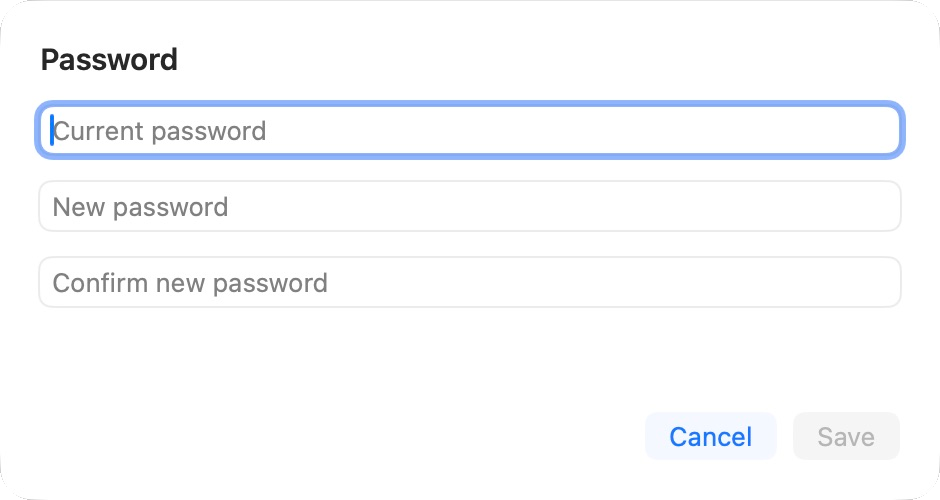
- Next to Password, choose Edit on macOS or Change on Web and Windows.
- Enter your current password, then enter your new password twice.
- Choose Save on macOS or Change on Web and Windows.
Sign in again with the new password on your other devices. If you do not know the current password, reset it from the sign-in screen.
In Profile, tap Password. Enter your current password and enter the new password twice. Tap Save. If you forgot the current password, reset it from the sign-in screen.
Add a password after signing in with Google or Apple
If you have never set a TaskPal password, you can add one from Profile.
- macOS. Choose Edit next to Password. Leave Current password empty, enter and confirm the new password, then choose Save.
- Web and Windows. Enter a password in Add password and choose Add.
In Profile, tap Password. Leave Current password empty, enter and confirm a new password, then tap Save.
