
Sign in and recover access to your account
Use the email and password for your TaskPal account, or sign in with the Google or Apple account you used before. If you forgot your TaskPal password, request a reset from the sign-in screen.
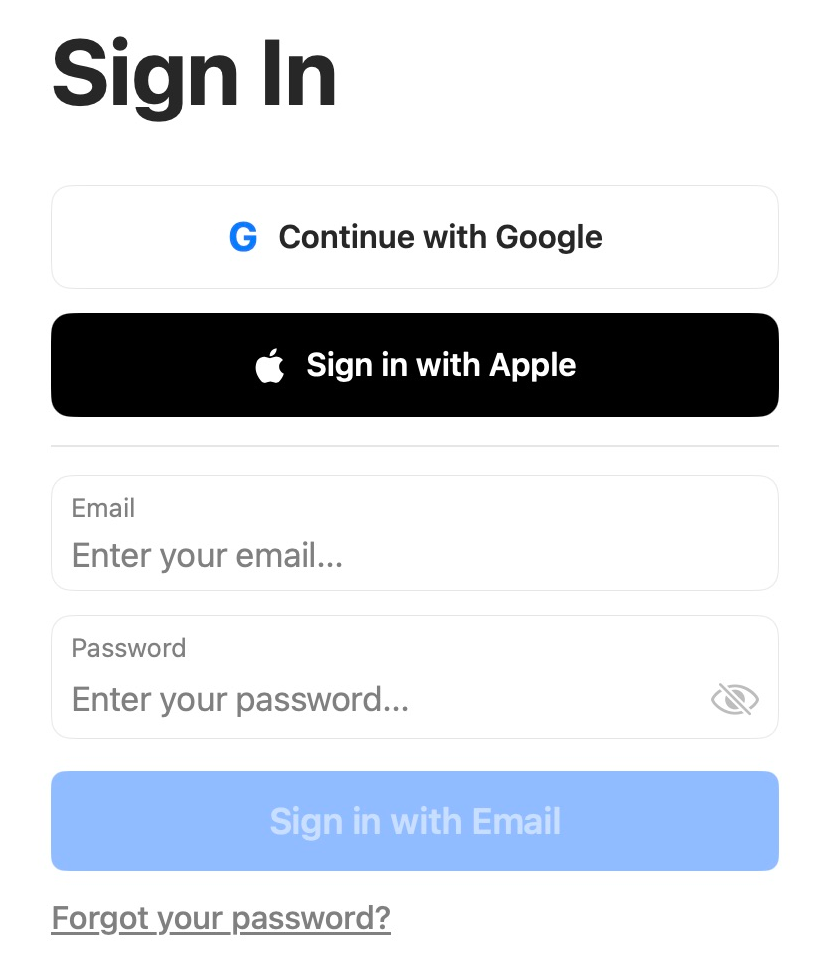
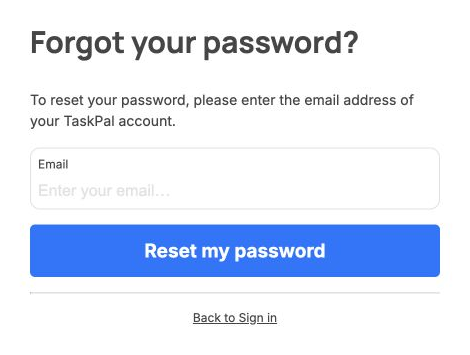
Screenshots show the macOS sign-in screen and the reset form in a browser.
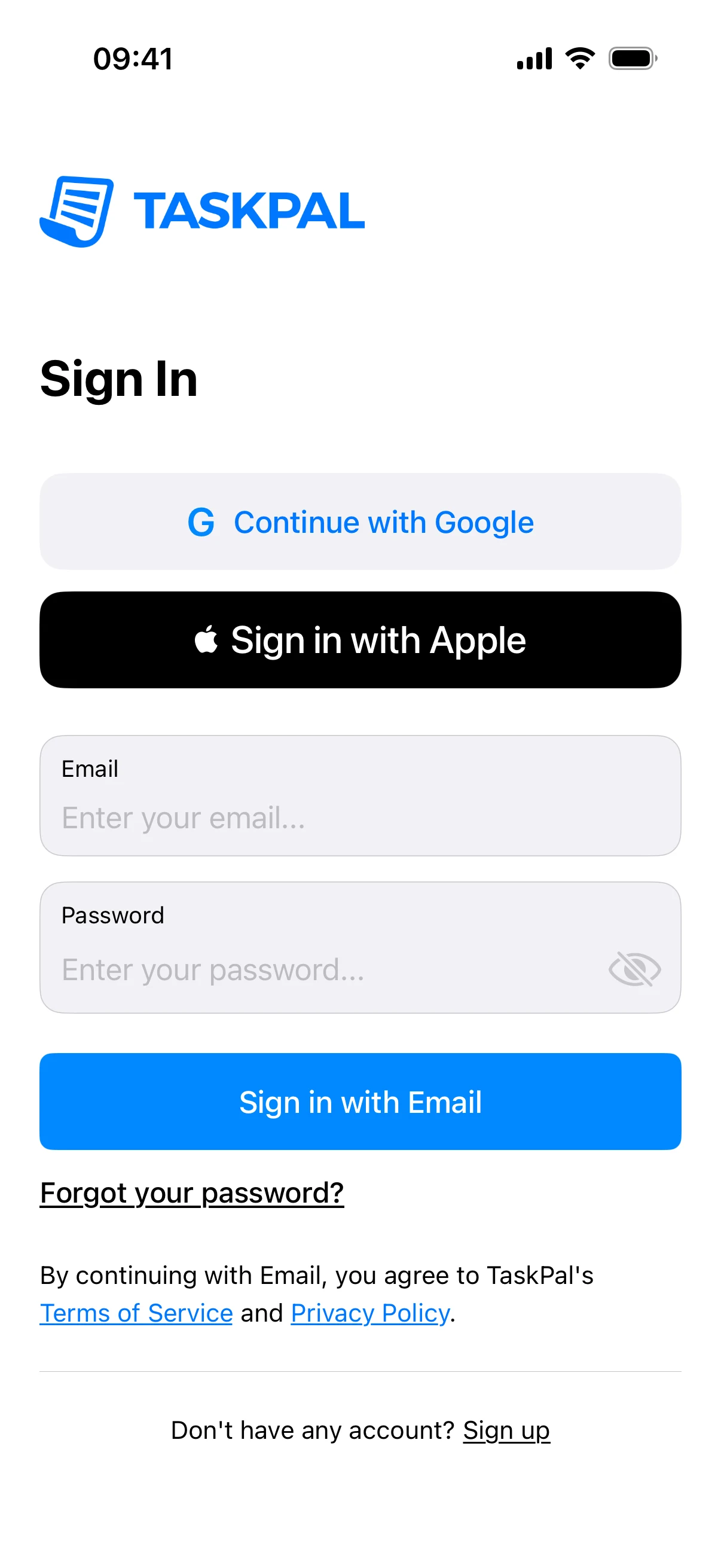
Mobile screenshots show TaskPal on iPhone.
In this guide
Sign in to your account
- Open TaskPal or go to the TaskPal sign-in page.
- Enter your account email and TaskPal password, then choose Sign in with Email.
If you usually sign in with Google or Apple, choose that option and select the same account you used with TaskPal.
- Open TaskPal on your phone.
- Enter your email and password, then tap Sign in with Email.
- If you use Google or Apple to sign in, tap that option instead and choose the same account you used with TaskPal.
Reset your TaskPal password
- On the sign-in screen, choose Forgot your password?. The macOS app opens the reset form in your browser.
- Enter the email address on your TaskPal account and choose Reset my password.
- Open the link in the password reset email. Enter a new password and choose Reset my password again.
- Sign in with your new password. Resetting the password ends your active TaskPal sessions.
- Tap Forgot your password? on the sign-in screen. The reset form opens in your browser.
- Enter your TaskPal email and tap Reset my password.
- Open the link in the email, set a new password and tap Reset my password again.
- Return to TaskPal and sign in with the new password. Resetting it ends your active sessions.
If you still cannot sign in
- The email has not arrived. Check your spam folder and confirm you entered the email address on your TaskPal account.
- The reset link has expired or was already used. Request a fresh link and use the newest email.
- You cannot access Google or Apple. Recover access to that provider account, then try signing in with it again.
If you no longer have access to the email address on your TaskPal account or still cannot get in, contact TaskPal Support with your account email, sign-in method and the error you see.
Still have a question? Contact support
