Customise your TaskPal settings
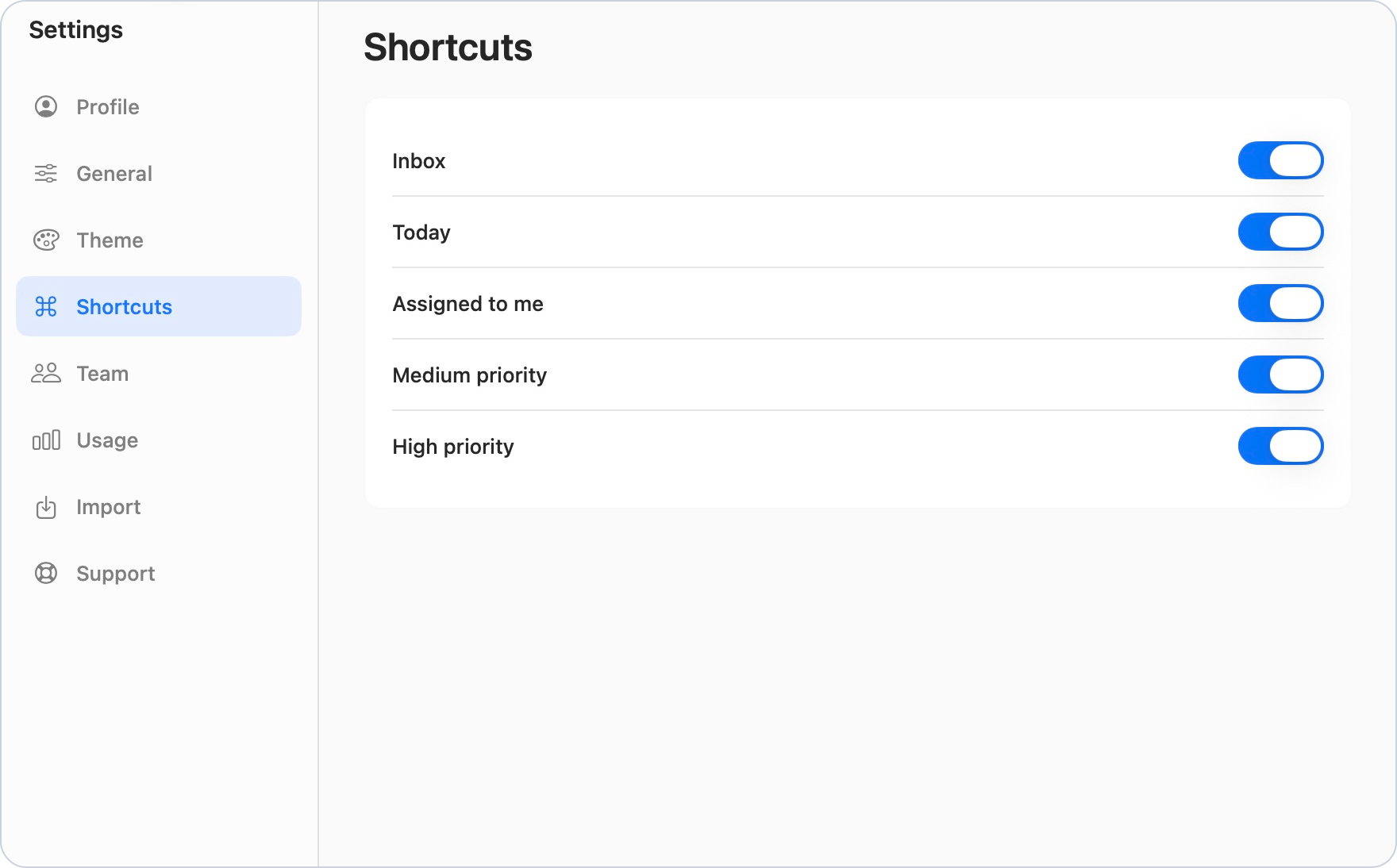
Choose the language and starting screen for TaskPal, set how dates and times are displayed, and adjust how you work with tasks. Use Shortcuts to choose which task views appear in your sidebar.
Screenshots show the macOS app.
In this guide
Open General settings
- Click your profile icon at the bottom of the sidebar and choose Settings.
- Select General.
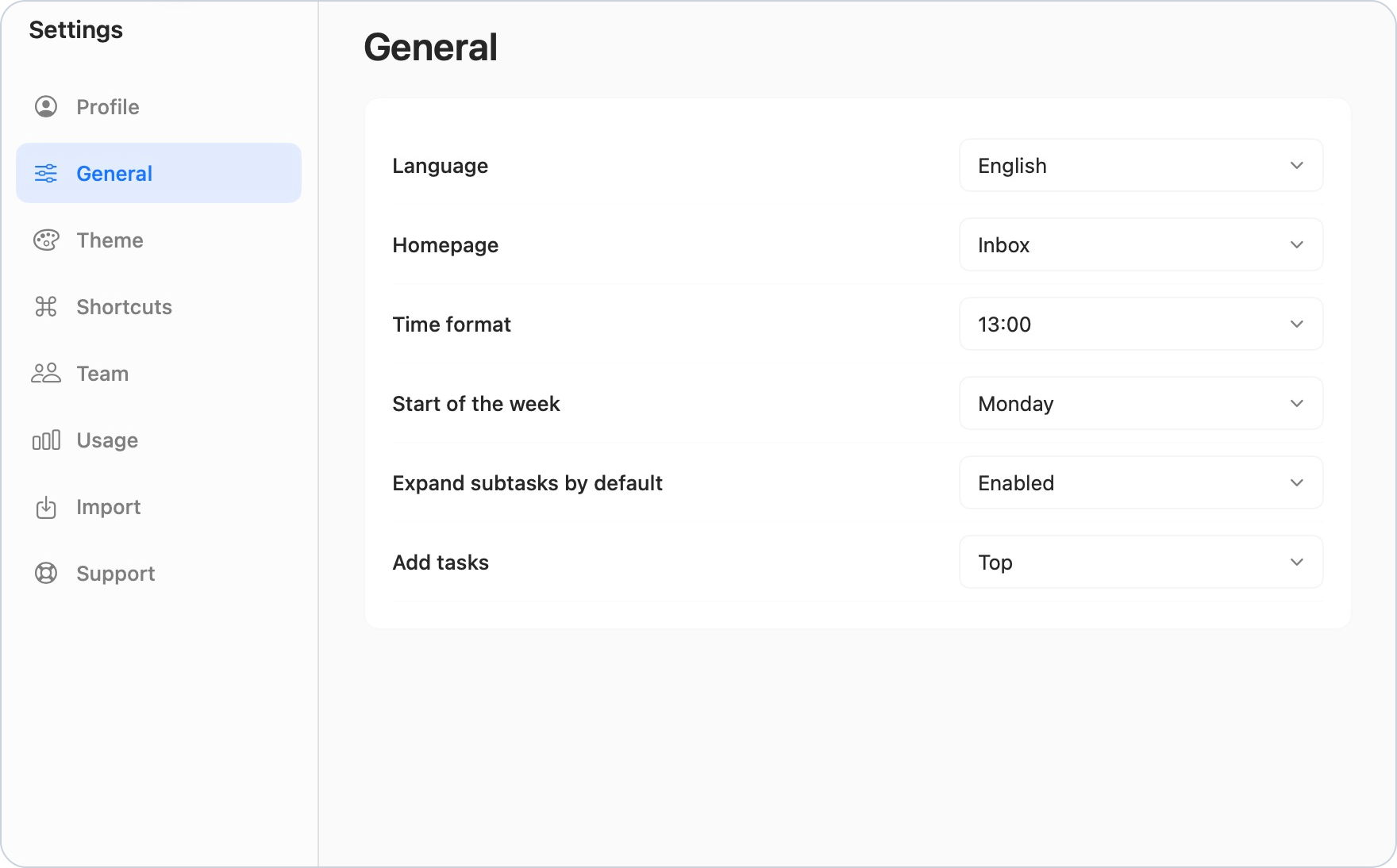
- Choose your preferred options. Changes apply automatically.
For backgrounds, colours, icons and light or dark appearance, see Change themes, backgrounds and appearance sync.
Change the app language
Open Language and choose English, German, Polish, Czech or Russian. The interface updates to the selected language.
Choose your starting screen
Use Homepage to choose the screen TaskPal starts on. You can select an available shortcut, one of your lists or a group chat.
For example, choose Today to start with work due today, or select your main project list. The available shortcuts follow your Shortcuts settings.
To understand the task views before choosing one, see Use Inbox, Today, Assigned to me and priority views.
Choose date, time and calendar preferences
- Time format: choose 13:00 for a 24-hour clock or 1:00 PM for a 12-hour clock.
- Start of the week: choose Monday or Sunday for your calendars.
On Web and Windows, General also includes Date format, with DD/MM/YYYY and MM/DD/YYYY. This separate date-format selector is not currently available in the Mac app.
Set your task preferences
- Expand subtasks by default: choose Enabled to show subtasks beneath their parents, or Disabled to start with them collapsed. You can also expand or collapse a parent using its arrow in the list.
- Add tasks: choose Top or Bottom for where newly added tasks appear in the list.
For adding subtasks, moving tasks and sorting a list, see Create and manage tasks and subtasks.
Choose the shortcuts in your sidebar
- In Settings, select Shortcuts.
- Turn on the views you want to see: Inbox, Today, Assigned to me, Medium priority and High priority.
- Turn a view off to hide its shortcut from the sidebar.