
Use task comments and group chats
Use a task’s comments to discuss that piece of work, and a group chat for a wider conversation. Both support messages, replies and mentions. Task comments are shared with the list’s members; a group chat has its own members.
Screenshots show the macOS app.
In this guide
Discuss a task in Comments
- Open the list and select the task you want to discuss.
- In its details, choose Comments below the notes.
- Type your message in the Message field.
- Press Enter or click the send arrow to post it. Use Shift + Enter for a new line without sending.
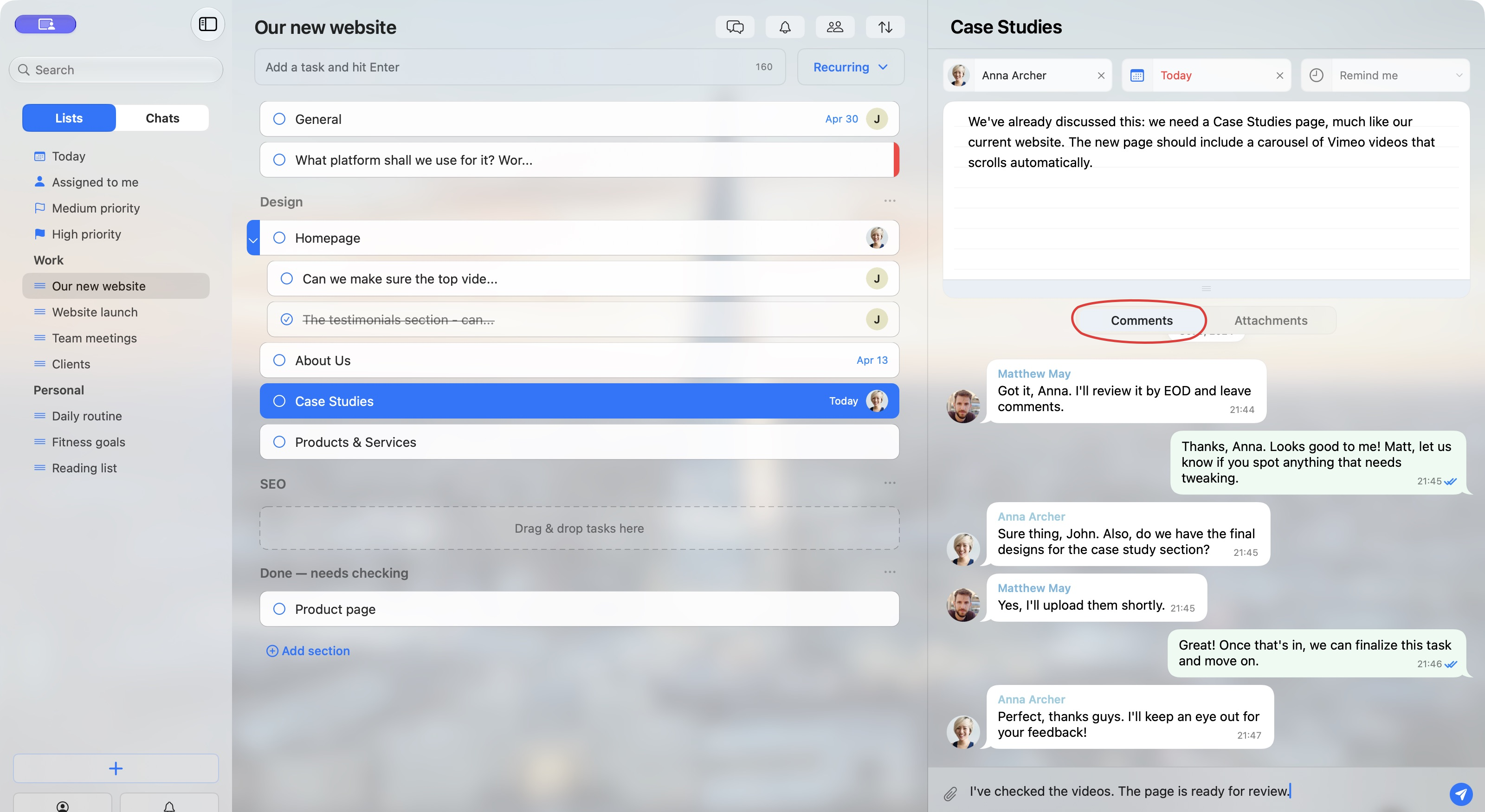
Comments stay with the task. They are not a private conversation with its assignee: the other list members can access them too. Check how list and chat access works before sharing sensitive information.
Talk in a group chat
Choose Chats in the sidebar, then select a conversation. Type in Message and press Enter or click the send arrow. As in task comments, Shift + Enter adds a new line.

To create a group chat, click + at the bottom of the sidebar and choose Chats. Give it a name, add the people you want to include and click Create. For invitations and adding people later, follow Share lists and chats with other people.
A chat can exist on its own or show a linked list beside the conversation. Linking can affect who has access to that list; review linked membership before approving a change. Scroll up in a conversation to view older messages.
Reply to a particular message
- Right-click the message you want to answer and choose Reply.
- Check the original message shown above the Message field.
- Type your answer and press Enter or click the send arrow.
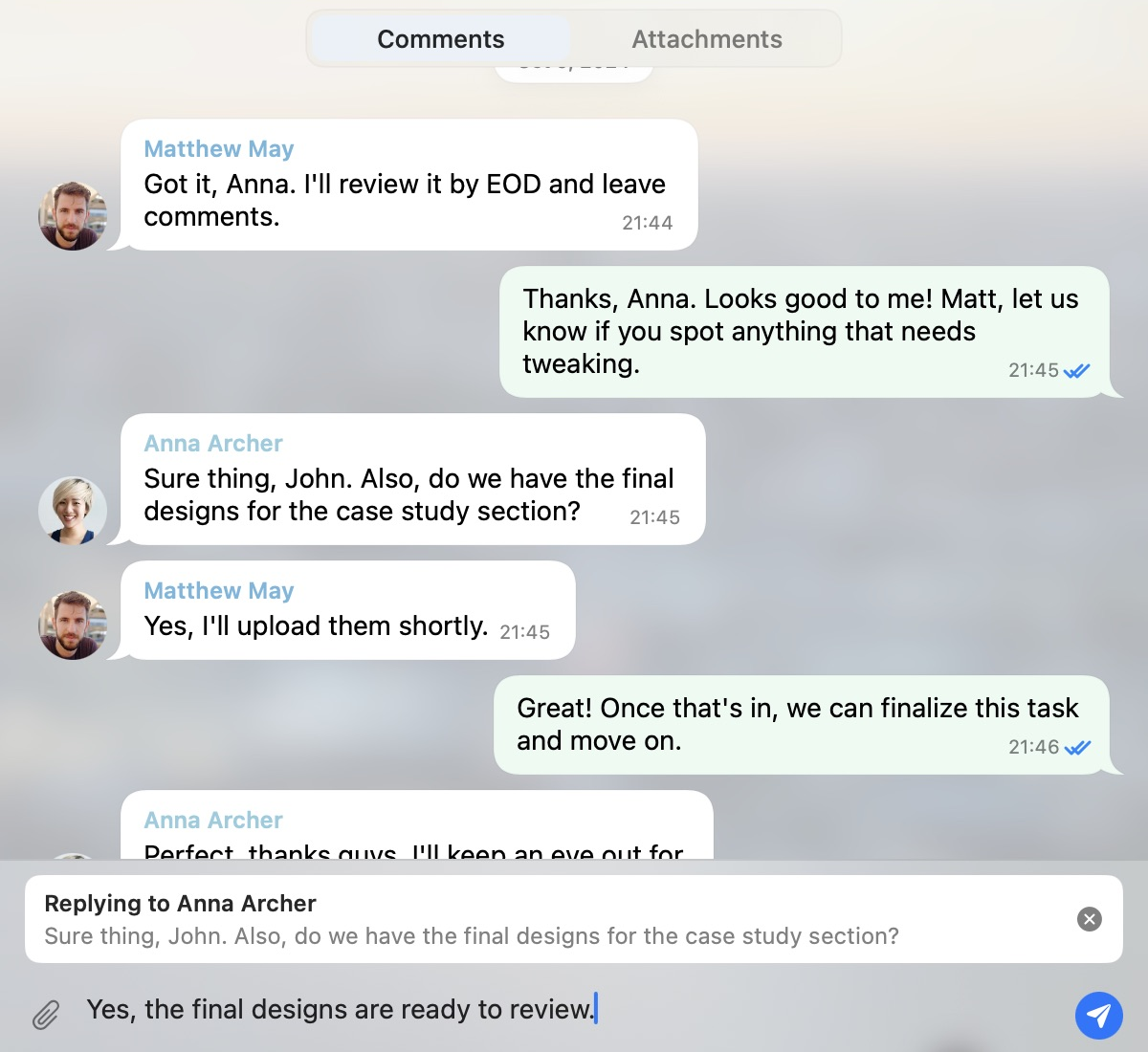
The reply includes a preview of the original message. Click that preview in the conversation to return to the original. To cancel a reply before sending, click × on the reply banner.
A reply can notify the person even when they have muted the list or chat. See Notifications and files.
Mention someone with @
- In Message, type @ followed by part of the person’s name.
- Click their name in the suggestions to select them.
- Continue writing your message, then send it.

Suggestions come from the current list or chat’s members. Mentioning someone does not invite them or give them new access.
On Web and Windows, an @ beside the unread-message count tells the recipient that they have been mentioned. The macOS app does not currently show this badge.
A mention can notify the person even when they have muted the list or chat. See Notifications and files.
Edit, copy or delete a message
Right-click a message for its available actions:
- Edit: available for your own text messages. Update the text in Message, then press Enter to save it. The macOS submit button becomes a checkmark while editing; use × on the editing banner to cancel.
- Copy: copy the message text.
- Delete: available for your own messages. Read the confirmation before deleting the message from the shared conversation.
Reply and Copy are also available on other people’s messages.
Understand read marks and reader avatars
Ticks in task comments
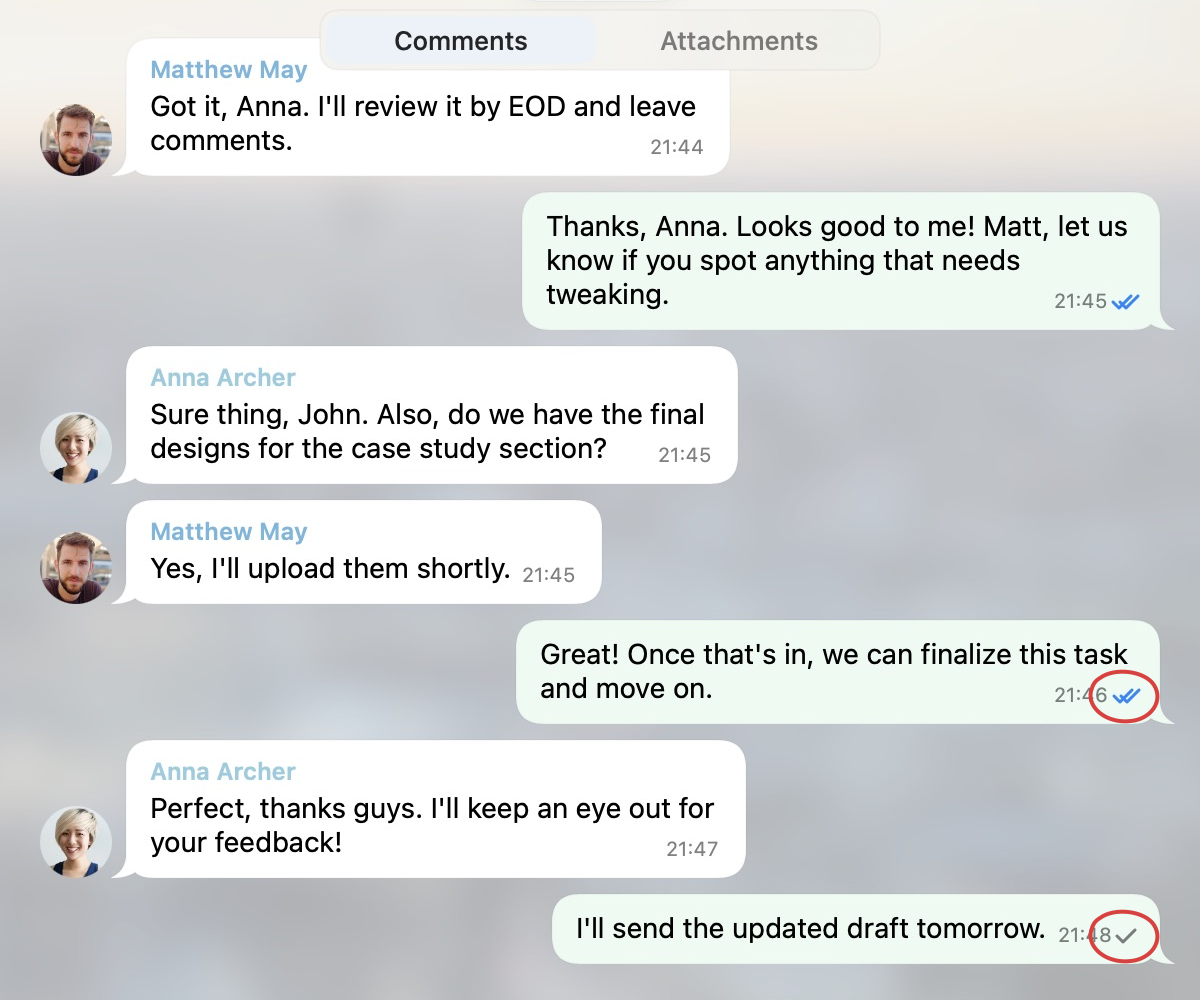
Look beside the time on a comment you sent:
- One tick: sent, not read yet.
- Two blue ticks: at least one other person has read it.
See who has read a comment
- Open the task’s Comments and right-click the comment.
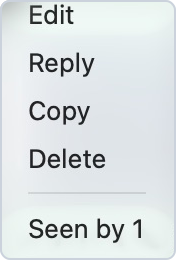
- Once someone has read it, the macOS menu shows Seen by followed by the number of readers, such as Seen by 1.
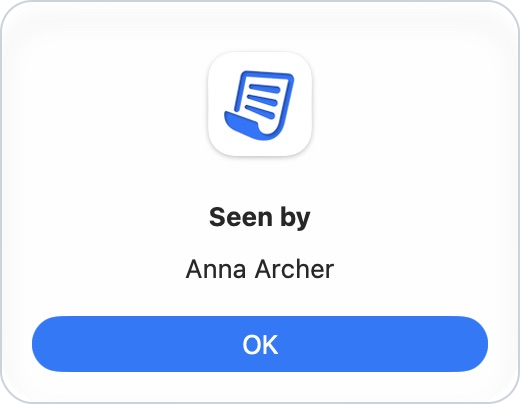
- Click that menu item to open Seen by and see their names. Click OK to close it.
On Web and Windows, look for the read information in the right-click menu. With several readers it shows a count, such as 2 Seen; with one reader it shows their name. Move your pointer over that row to see the reader list.
Reader avatars in group chats
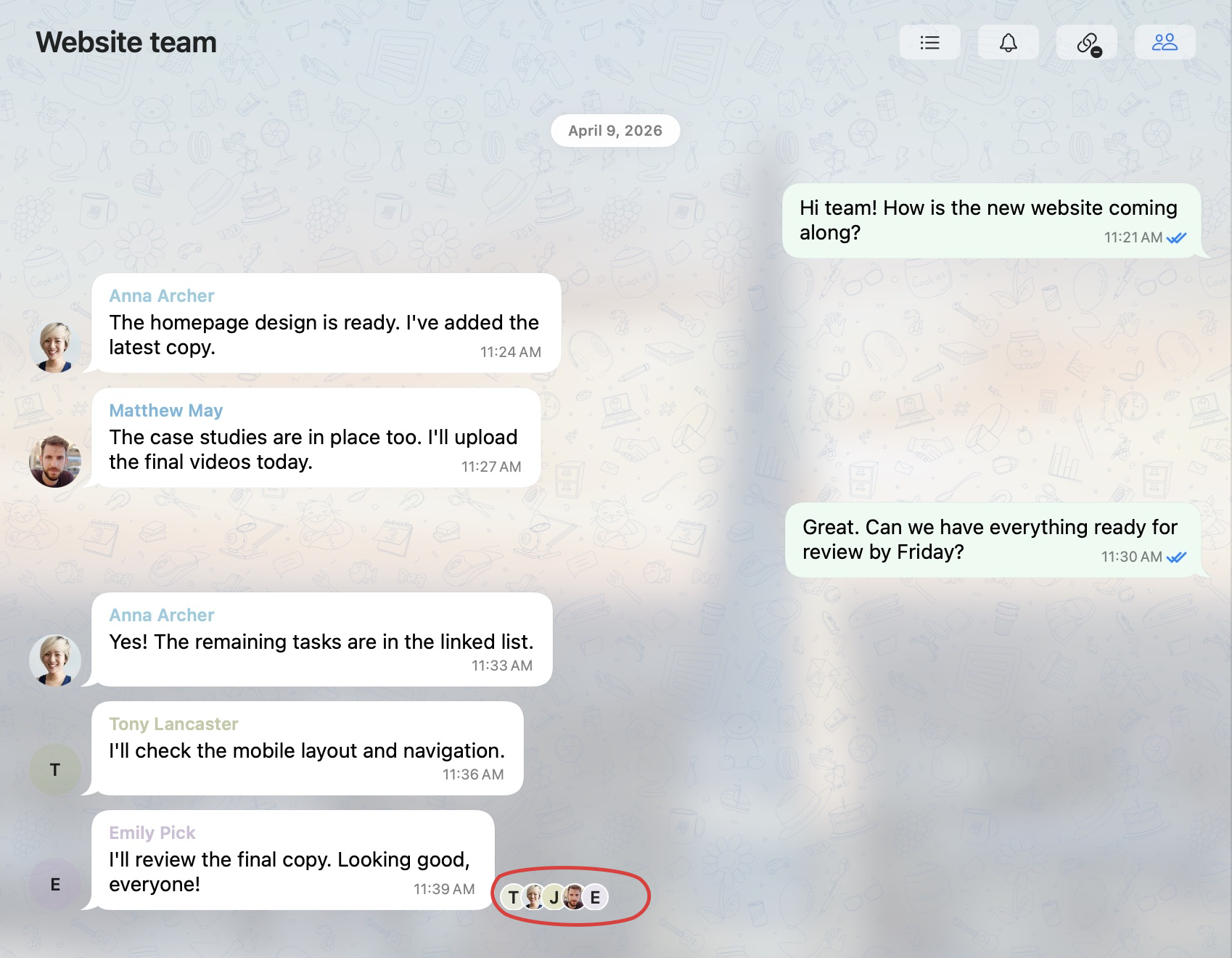
A small avatar beside a message means that person has read it. These reader avatars are separate from the larger avatar identifying who sent the message.
Notifications and files
Use the bell in the list or chat heading to mute ordinary message alerts. Mentions of you and replies to your messages can still notify you while the list or chat is muted. App, browser and system notification permissions still apply. An extra alert may not appear while you are already viewing the conversation. Muting keeps messages arriving and leaves your access unchanged.
The paperclip beside Message lets you add files. In macOS, confirming the file selection starts sending them immediately. On Web and Windows, choose the files, then click the send arrow or press Enter. In a task, the Attachments tab brings together files from that task’s comments. See Add, view and download attachments.
