
Link a group chat to a list
Link an existing list to a group chat to see its tasks beside the conversation. For example, keep Website launch beside Website team so you can discuss the project and work through its tasks in one place.
Screenshots show the macOS app.
In this guide
Before you link a list
- You must be a member of both the list and the chat. You do not have to own them.
- Create the list and chat first. The link picker selects an existing list; it does not create one. See Create a list and Talk in a group chat.
- Inbox cannot be selected. Choose a regular list instead.
- A list can be linked to one group chat at a time. A group chat also has one linked list at a time.
Link a list to your group chat
- Choose Chats in the sidebar and open the group chat.
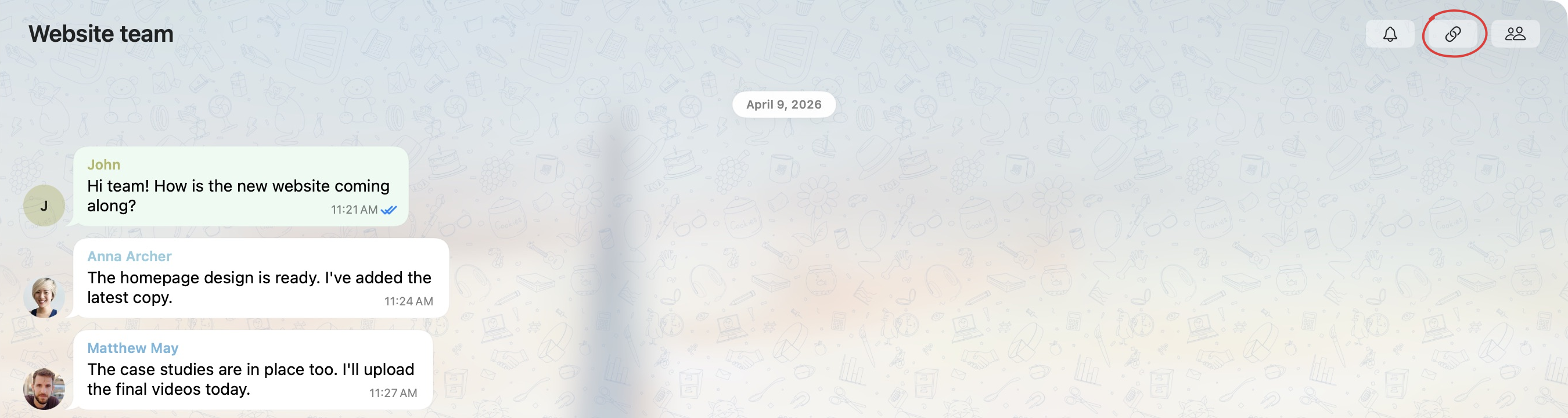
- Click the chain icon in the chat heading: Link List in macOS, or Link to list on Web and Windows.
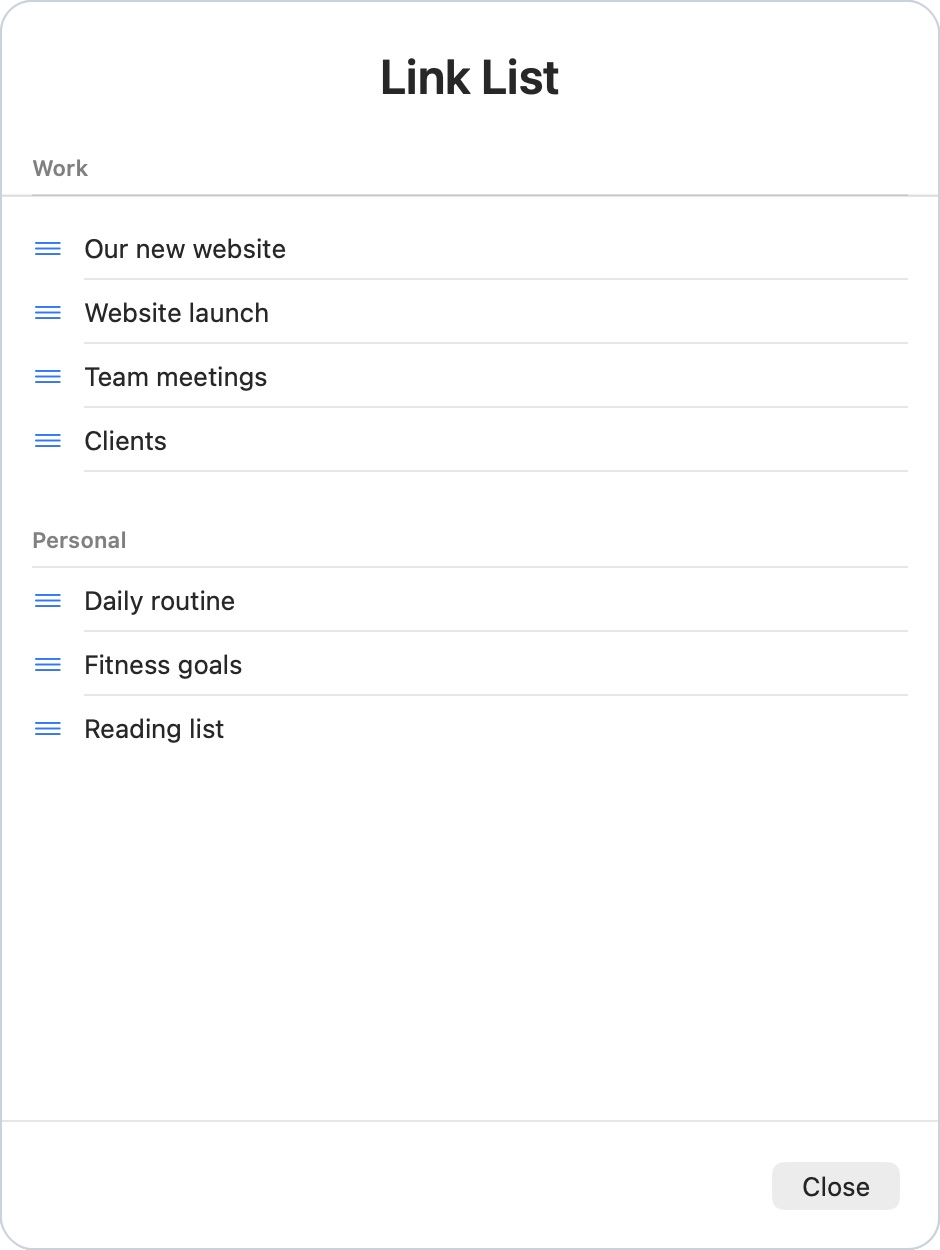
- Choose the list in the picker. Lists are grouped by their folders; in this example, choose Website launch under Work.
- If some chat members do not have access to the list, TaskPal asks whether to add them. Choose Proceed to give them list access and continue, or Cancel to stop.
Read that confirmation before proceeding: the added members will be able to access the list’s tasks, notes, task comments and files. Membership limits still apply. For the full rules, see how linked lists and chats affect access.
Once linked, the list appears beside the conversation.
Work with the linked list
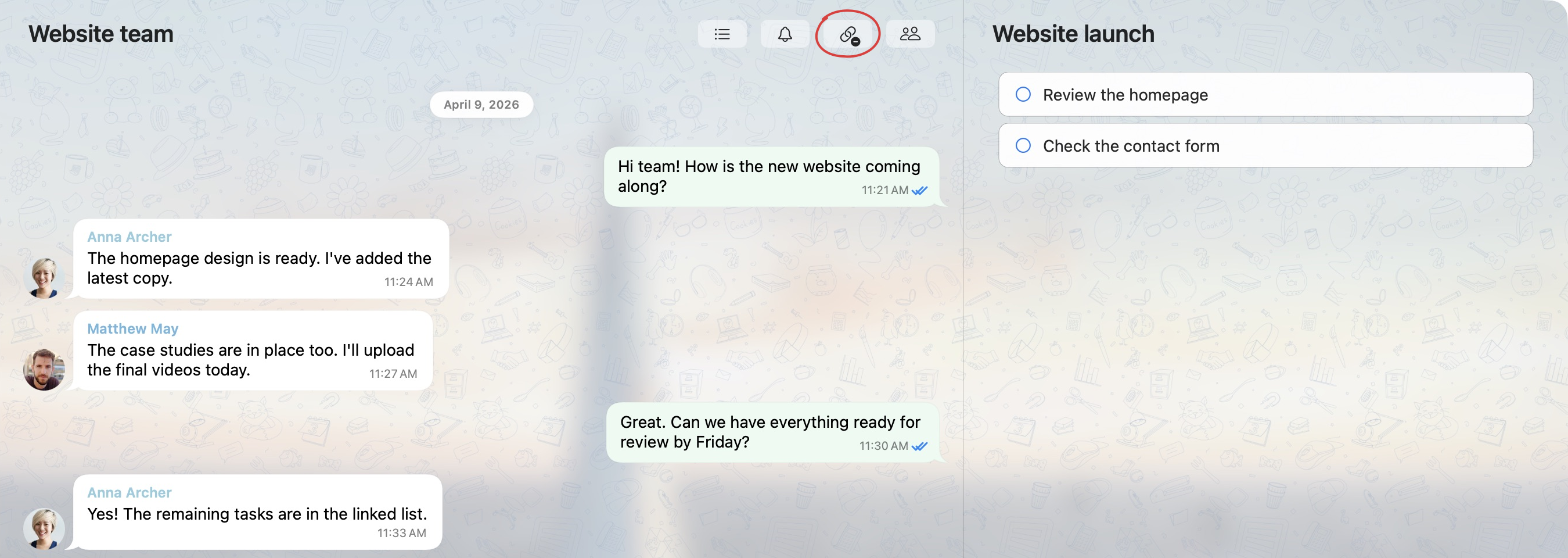
This is the same list you open from Lists, with the same tasks and members. Linking does not make a second copy. Changes to its tasks are shared with the list’s members.
The group chat remains a separate conversation. Messages sent there stay in the group chat; use a task’s Comments for a discussion attached to that task.
In macOS, use Open linked list, the list icon in the chat heading, to switch to the list in Lists. From the list heading, Open linked chat takes you back to the chat.
Unlink a list or connect a different one
Unlinking disconnects the list and chat for everyone. It keeps the list, its tasks, the chat messages and the existing members. It does not remove anyone’s access.
- Open the group chat.
- Click the chain icon with a minus sign in the chat heading: Unlink List in macOS, or Unlink on Web and Windows.
The list is removed from beside the conversation. You can still open it from Lists and continue using the chat separately.
To connect a different list, unlink the current one, then use Link List or Link to list to choose another.
Unlinking is a shared change, rather than leaving the list or chat yourself. For membership changes, see Leave a list or chat, or delete one you own.
If you cannot link a list
- The list is missing from the picker: check that you are a member of it. If necessary, ask someone with access to add you to the list. Inbox is not available here.
- TaskPal says the list is already linked: choose another list, or agree with the people using its current chat before unlinking that connection.
- TaskPal reports a membership limit: follow the message and ask the owner to review the relevant limits. Approving the link does not override them.
