
Assign tasks to list members
Assign a task to the person responsible for it, or assign it to yourself. Each task has one assignee, chosen from the members of its list. Use Assigned to me to find your active work across lists.
Screenshots show the macOS app.
In this guide
Make sure the person is a list member
Open the list containing the task. Click Manage Members in macOS, or Share on Web and Windows, to see its members. If the person is missing, add them to the list first.
Assigning a task does not make it private. Other members of the list can still see it and work on it. See Understand access to lists and chats.
Assign a task
- Open the list and select the task.
- In the task details, click Assign to. If someone is already assigned, click their name.
- Choose the person responsible for the task. You can choose your own name too.
The selection applies immediately; there is no separate Save button. In Web and Windows, you can also type a name in the assignment field to find a member.
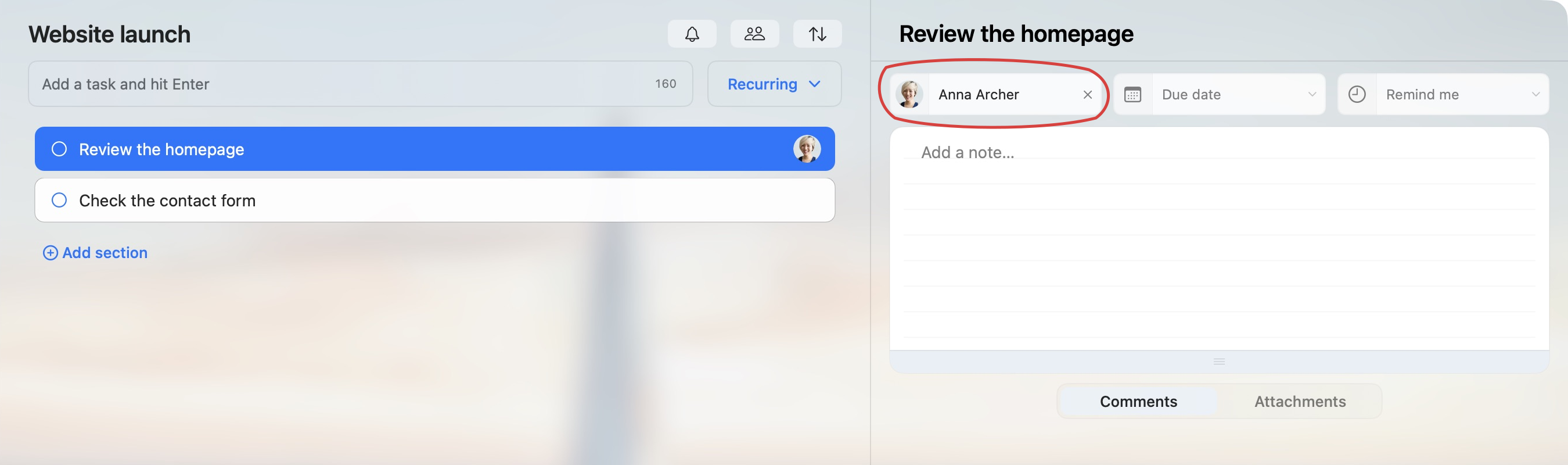
You can select a subtask and assign it separately in the same way. A task or subtask has one assignee at a time.
Change or remove the assignee
To hand the task to someone else, click the current assignee’s name and choose another list member. The new person replaces the previous assignee.
To remove the assignment, click the × beside the assignee. In macOS, you can also open the assignment menu and choose Unassigned. The task stays in its list and remains available to its members.
Changing the assignee does not complete the task or change its due date, priority or personal reminders. You can manage dates separately in Set due dates and personal reminders.
Find tasks assigned to you
- Choose Lists in the sidebar.
- Click Assigned to me.
- Select a task to open its details.
This view brings together active tasks assigned to your account, grouped by their original lists. A task does not need a due date to appear here. Tasks assigned to other people are not included.
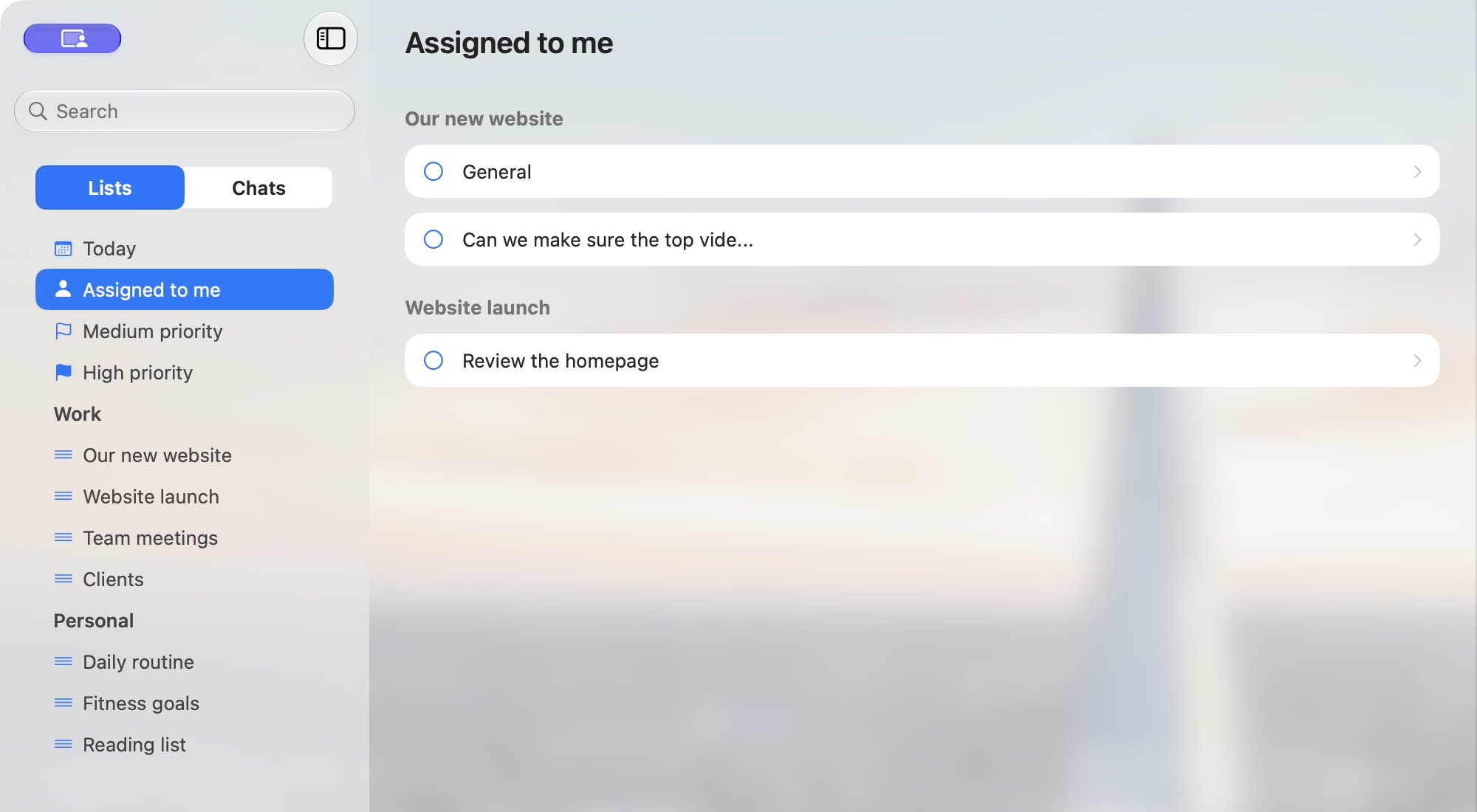
Completing a task removes it from this active view. If its assignment changes to someone else or is cleared, it also leaves Assigned to me. The task remains in its original list. To look back at finished work, view completed tasks in that list.
If a person or task is missing
- A person is missing from Assign to: check that they have joined this particular list. Being in your Team or in a group chat is not enough.
- A task is missing from Assigned to me: open its original list and check that it is still active and assigned to your account.
- The shortcut is not in your sidebar: review your shortcuts in Settings. Learn about TaskPal’s task views.
