
Organise your work with lists, folders and sections
Use lists to collect tasks, folders to group your lists, and sections to organise tasks within a list.
Screenshots show the macOS app.
In this guide
Choose a structure that fits your work
Open Lists at the top of the sidebar. Use these three levels:
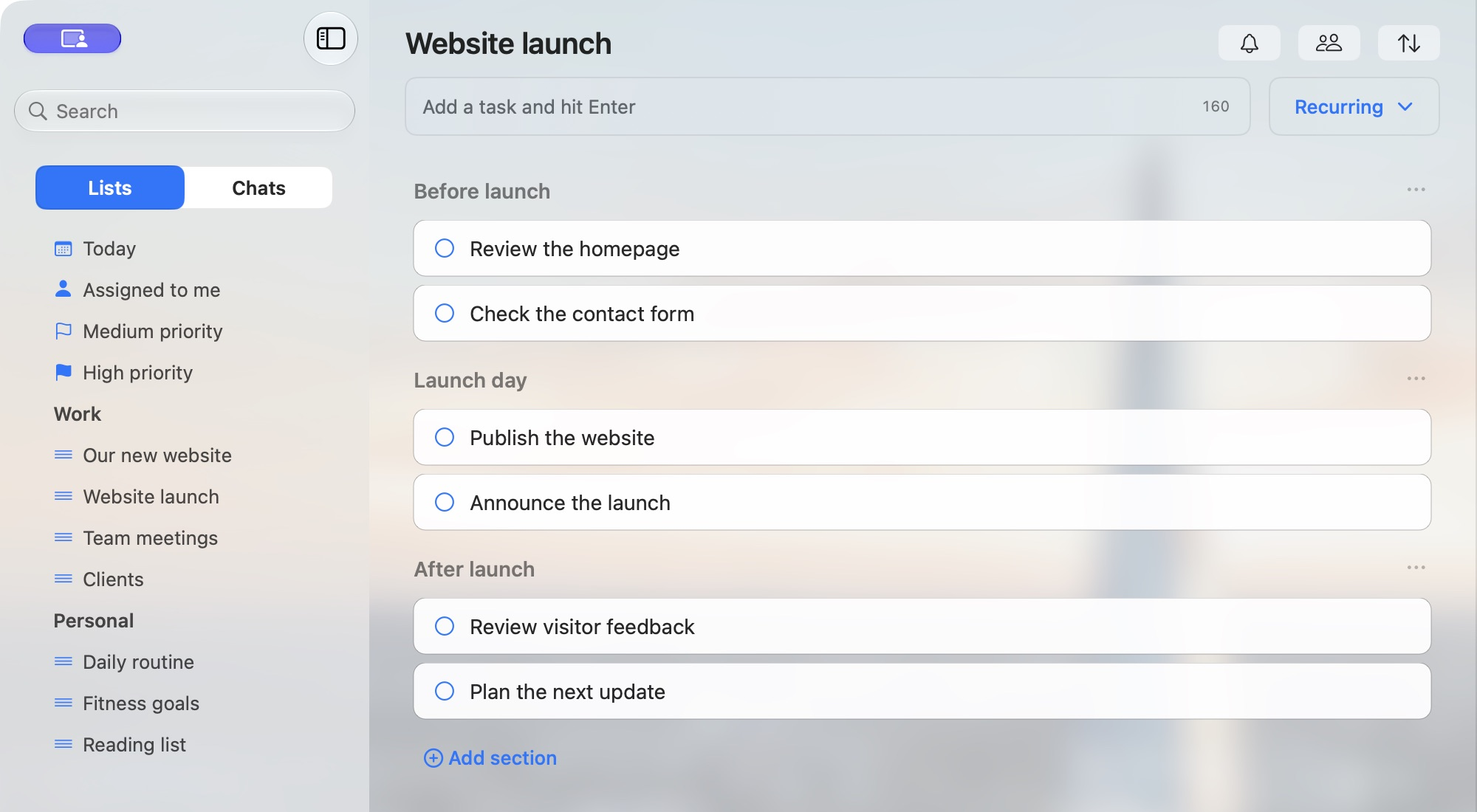
- Lists hold tasks for a project or area of work, such as Website launch.
- Folders group lists in your sidebar, such as a Work folder. A list can also sit outside a folder.
- Sections group tasks inside a list, such as Before launch.
You can start with just a list and add folders or sections when you need them. Folders organise your own sidebar; they do not grant other people access to the lists inside.
Create a folder
- Click + at the bottom of the sidebar and choose Folder.
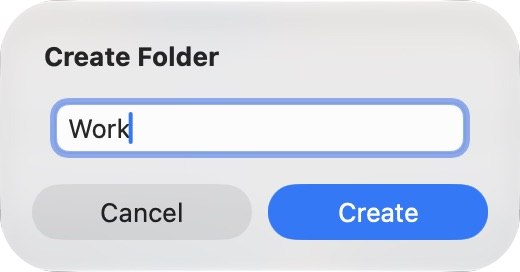
- Enter a name, such as Work.
- Click Create. The folder appears in the sidebar.
Create a list
- Click + in the sidebar and choose List.
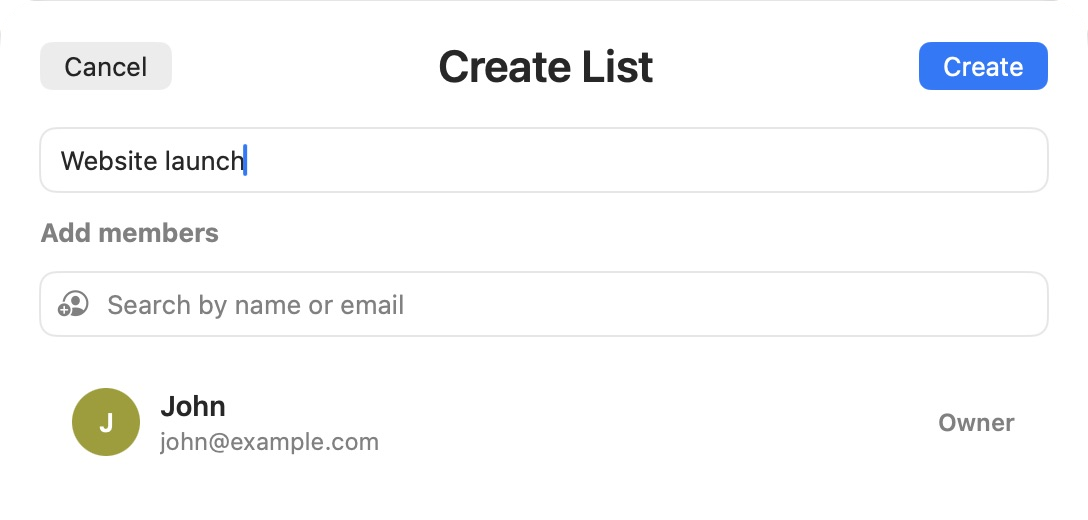
- Enter a name, such as Website launch.
- Leave the member fields empty if you are setting up the list for yourself.
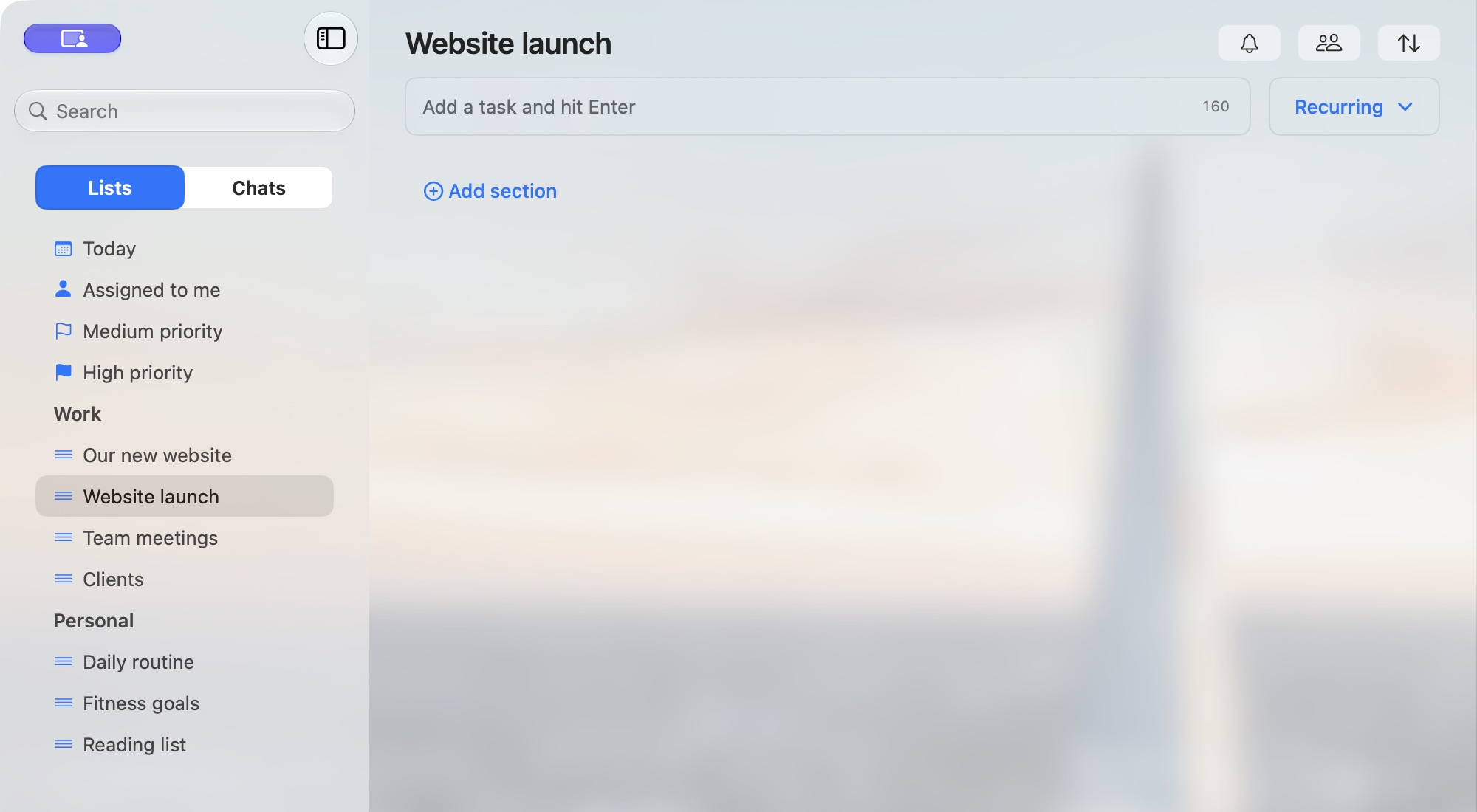
- Click Create, then select the new list in the sidebar.
For a walkthrough of adding your first task, see Get started with TaskPal.
Move a list into or out of a folder
Drag and drop: drag the list in the sidebar into the destination folder. You can move a list between folders, or drag it out to the area outside the folders. Release it at the position where you want it to appear.
For example, drag Website launch into Work. To keep it outside a folder, drop it among the lists outside the folders.
Alternatively, use the menu: right-click the list and choose Move to folder, then select a folder. Choose Move to folder → No folder to move it outside all folders.
Create sections and group tasks
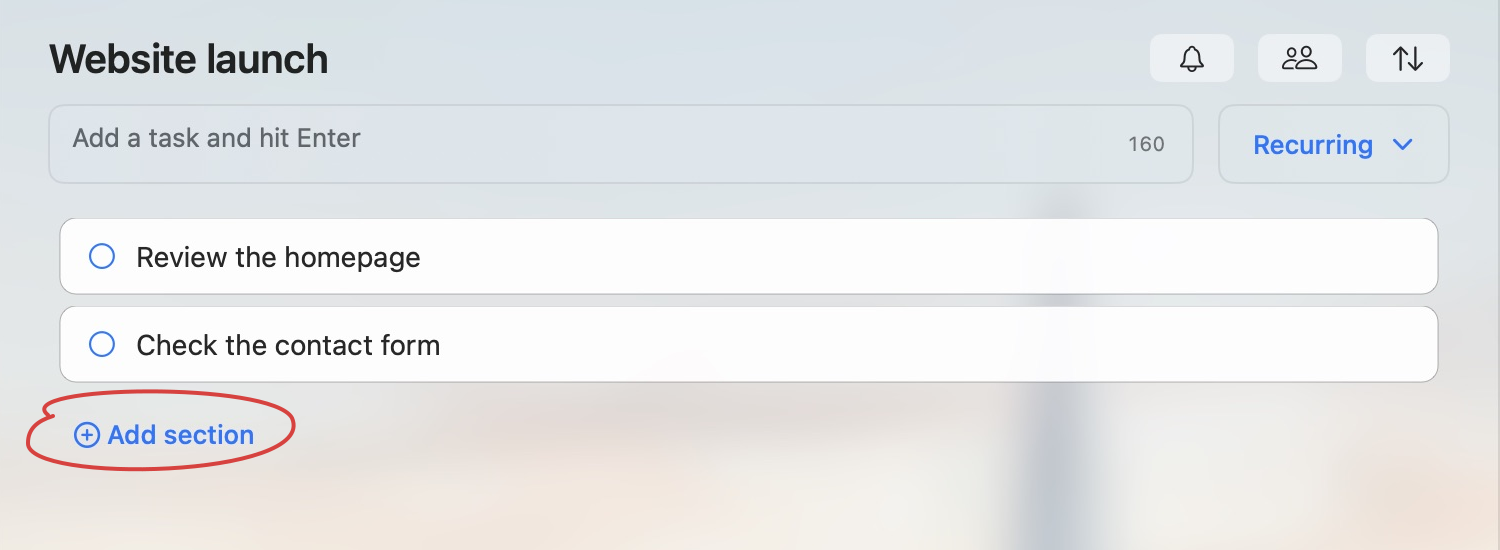
- Open the list and click Add section below its tasks.
- Enter a name, such as Before launch.
- Click Create.
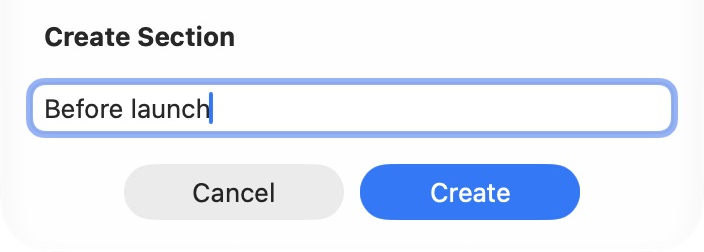
New tasks initially appear above the named sections.
Drag and drop: drag a task into the section where you want it. You can move tasks between sections or drag them out to the area above the first section. Release the task at the position where you want it to appear.
Alternatively, use the menu: right-click the task and choose Move to → Section, then select a section such as Before launch. Choose No section to move it outside the named sections.
As the project grows, you can add more sections. For example, use Before launch, Launch day and After launch to group work by stage.
Rename and reorder your structure
- Folder: right-click its name and choose Rename Folder. Enter the new name and click Save.
- List: right-click its name and choose Rename. Enter the new name and click Save.
- Section: click its … menu and choose Rename section. Enter the new name and click Save.
Drag lists and folders in the sidebar to change their order. Within a list, drag tasks to change their order, or drag a section heading to move that section and its tasks to a new position.
Remove a section
- Click the section’s … menu and choose Delete section.
- Review the confirmation. Leave Delete all tasks in this section unchecked to delete only the section and keep its tasks. Select it only if you also want to delete those tasks.
- Click Delete, or Cancel to keep the section.
Deleting a section and deleting its tasks are separate choices. Check the option before confirming.
