
View recent activity in Log
Use Log to catch up on recent changes to shared work. See who made a change and when, then open the related list, task or comment to continue working.
Screenshots show the macOS app.
In this guide
Open Log
- Click the bell at the bottom of the sidebar.
- Review the entries in Log. The newest entries appear at the top; scroll down to see earlier activity.
- Use the back arrow beside Log to return to your lists or chats.
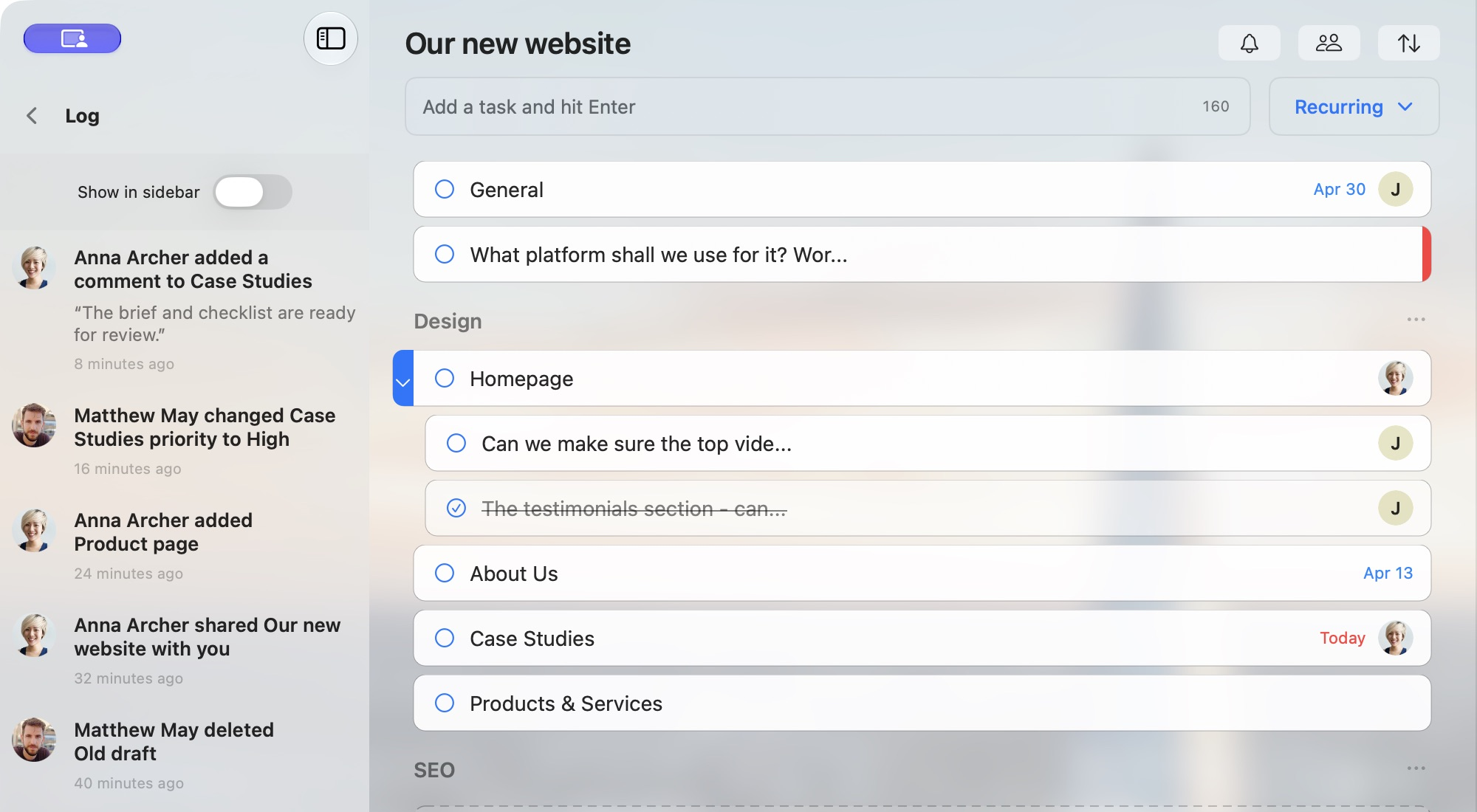
What appears in Log?
Entries can include:
- Tasks added, completed, reopened or deleted.
- Changes to task priority.
- New task comments and comment deletions.
- Lists or chats shared with you, and changes to participation.
A comment entry can include a short preview of the message. The avatar helps you recognise the person who made the change.
Log brings together recent activity from your shared work. Selecting a list does not filter Log to that list alone.
Keep Log visible in the sidebar
- Open Log using the bottom sidebar bell.
- Turn on Show in sidebar.
- Use the back arrow to return to your lists or chats. A compact Log now appears below them.
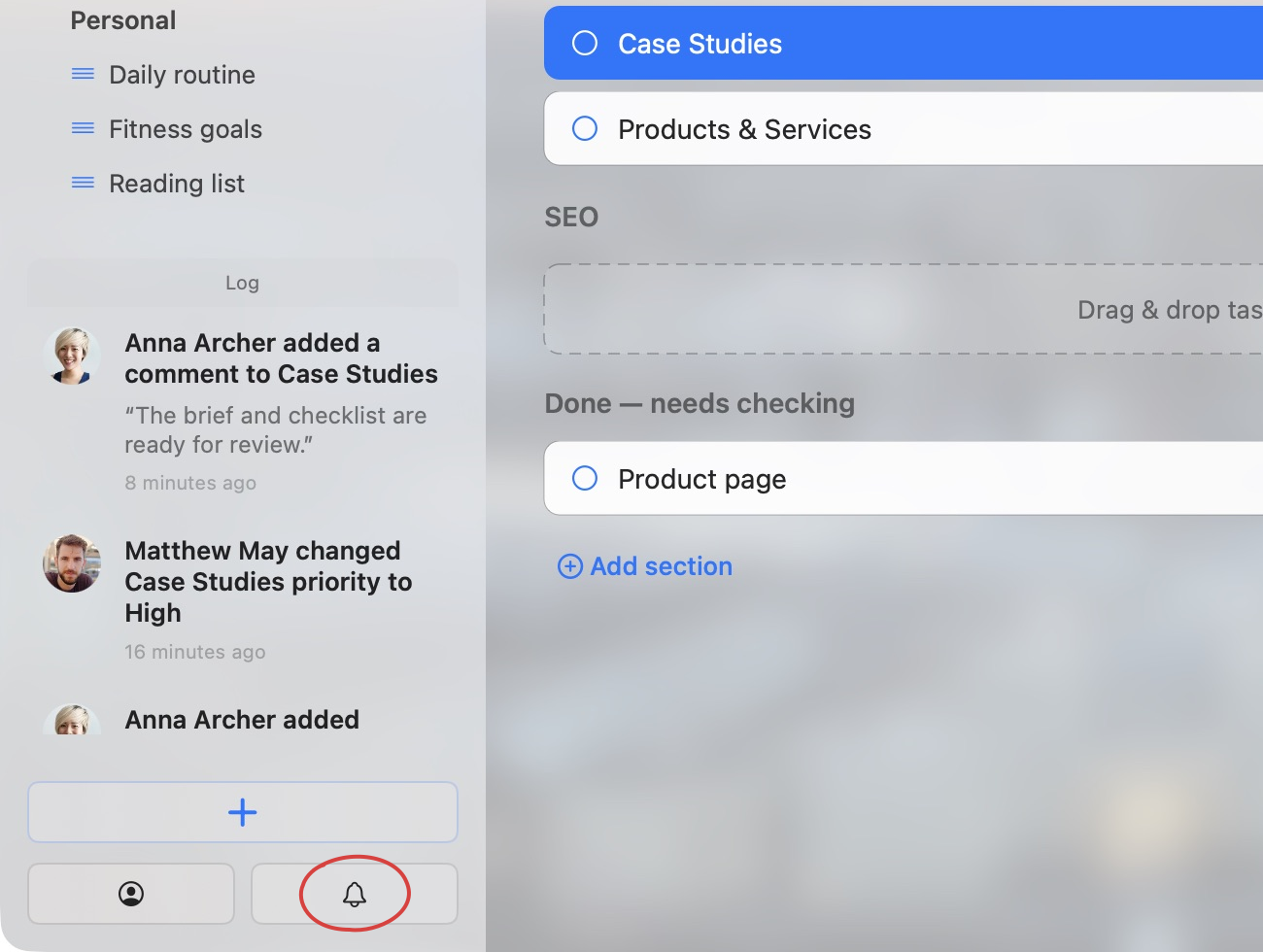
To hide the compact feed, open Log again and turn Show in sidebar off. You can still open Log with the bell.
How much history does Log keep?
Log keeps recent activity. The number of retained entries depends on the account’s limits; older entries can be removed as new ones arrive. Use Log to catch up, rather than as a permanent record of every change.
Completed tasks remain available through their list’s completed-task controls. See View and reopen completed tasks.
