
View and reopen completed tasks
Find finished tasks in their list and reopen them when work needs another pass. These examples use an ordinary task without a repeat schedule.
Screenshots show the macOS app.
In this guide
Mark a task complete
Open its list and click the empty circle beside the task’s title. A checked circle and struck-through title identify a completed task. It moves into the completed tasks area below your active tasks.
Completing a task keeps it available for review. It does not delete it.
View completed tasks
- Open Lists and select the list the task belongs to.
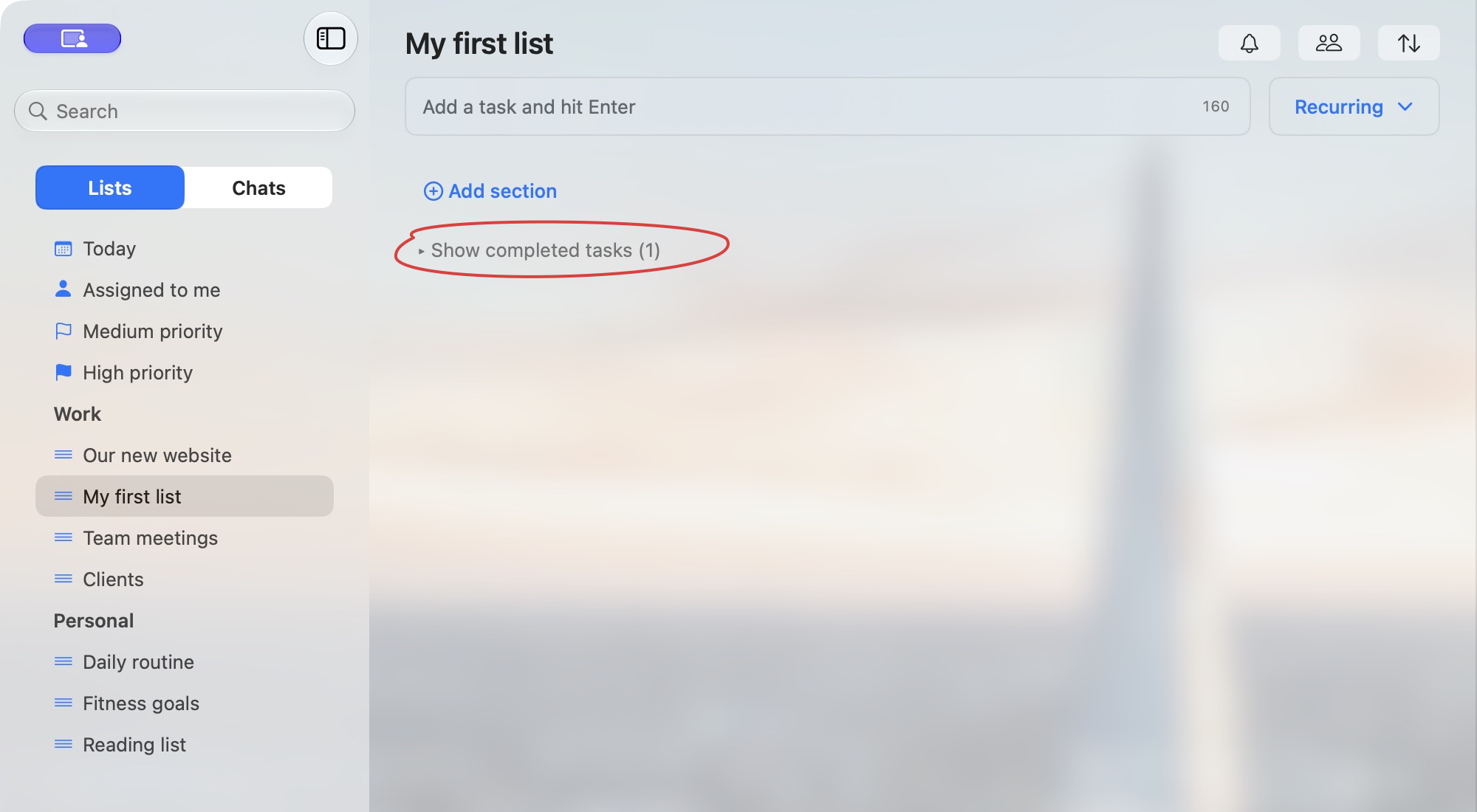
- Below the active tasks, click Show completed tasks.
- Select a completed task to view its details and notes.
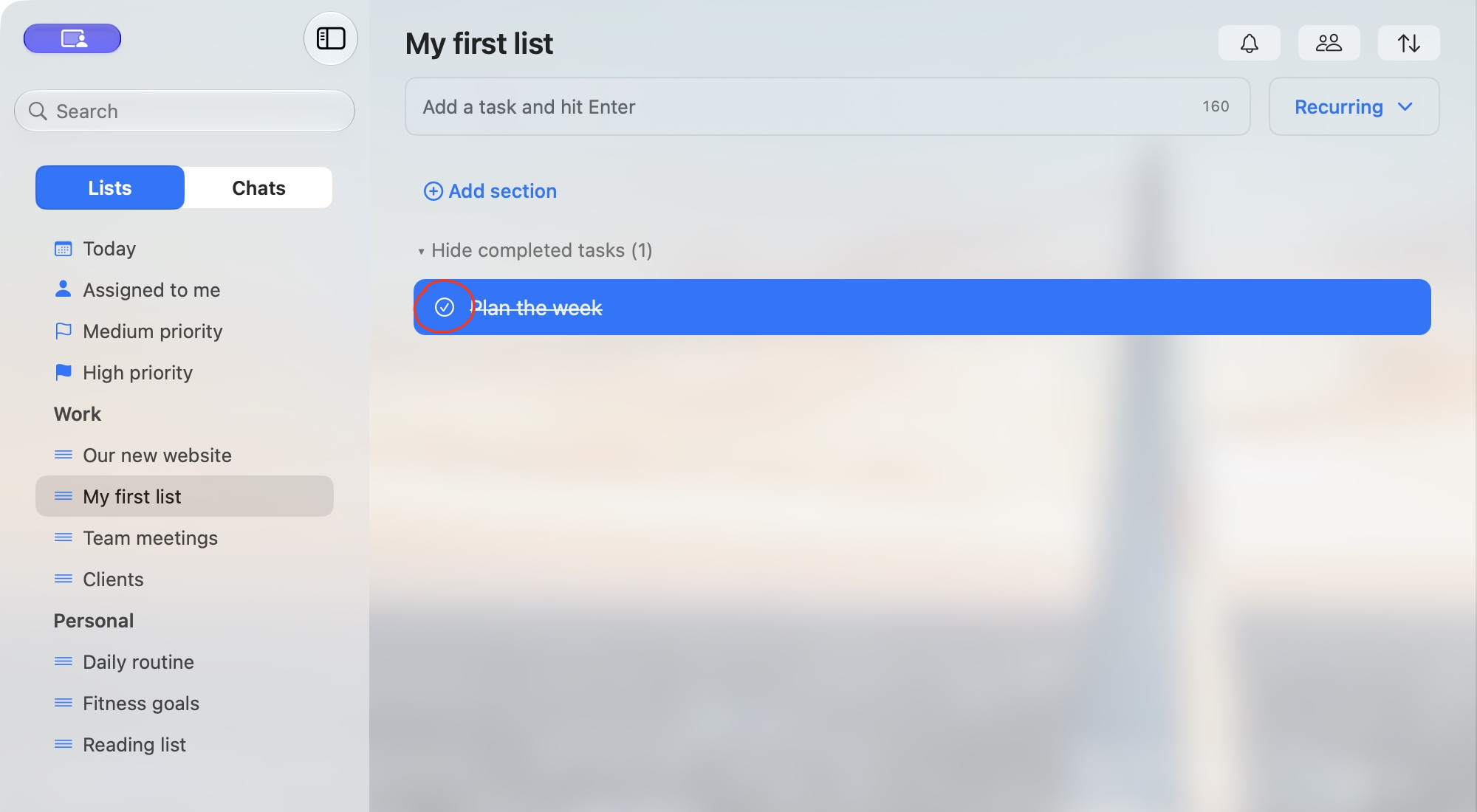
If the group is already open, the control reads Hide completed tasks. Click it to collapse the group; the tasks stay completed.
Reopen a completed task
- Expand the completed tasks area in the task’s list.
- Click the checked circle beside the task.
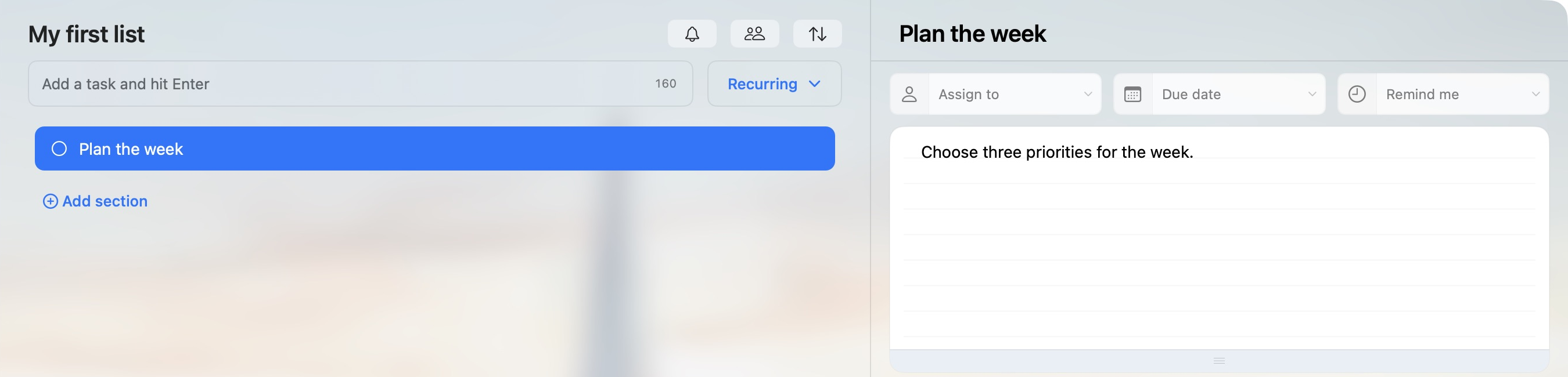
The task becomes active again and keeps its note. On macOS, an ordinary top-level task returns to the top of the active tasks outside the named sections, even if it previously belonged to a section. You can then drag it into the section you want.
If you cannot find a finished task
Check its original list and expand the completed group. Today, Assigned to me and priority shortcuts show unfinished matching tasks, so a completed task no longer appears in those views.
You can also use sidebar Search in Lists mode: enter part of the task’s title. Title search includes active and completed matches, grouped by list.
Reopening applies to completed tasks. It does not restore deleted tasks; the Delete task confirmation warns that deletion cannot be undone.
