
Use Inbox, Today, Assigned to me and priority views
Use the shortcuts in the Lists sidebar to find tasks by due date, assignee or priority. Inbox gives you a place to capture work before organising it.
Screenshots show the macOS app.
In this guide
Open a task view
Open Lists, then choose a shortcut above your folders. Today, Assigned to me and the priority views collect matching unfinished tasks from your lists. They show the same tasks you see in those lists, so changes apply to the original task.
Capture tasks in Inbox
Use Inbox to add tasks before deciding where to organise them. It is a list, rather than a view of every task without a due date or assignee.
When you are ready to organise a task, move it to another list. Follow Move and order tasks.
See what is due today
Today shows unfinished tasks whose due date is today. It uses the due date, not the personal reminder time. Tasks due on earlier days do not appear in this view in the macOS app.
If a task is missing, check its due date in its list. To set one, follow Set due dates and personal reminders.
Find tasks assigned to you
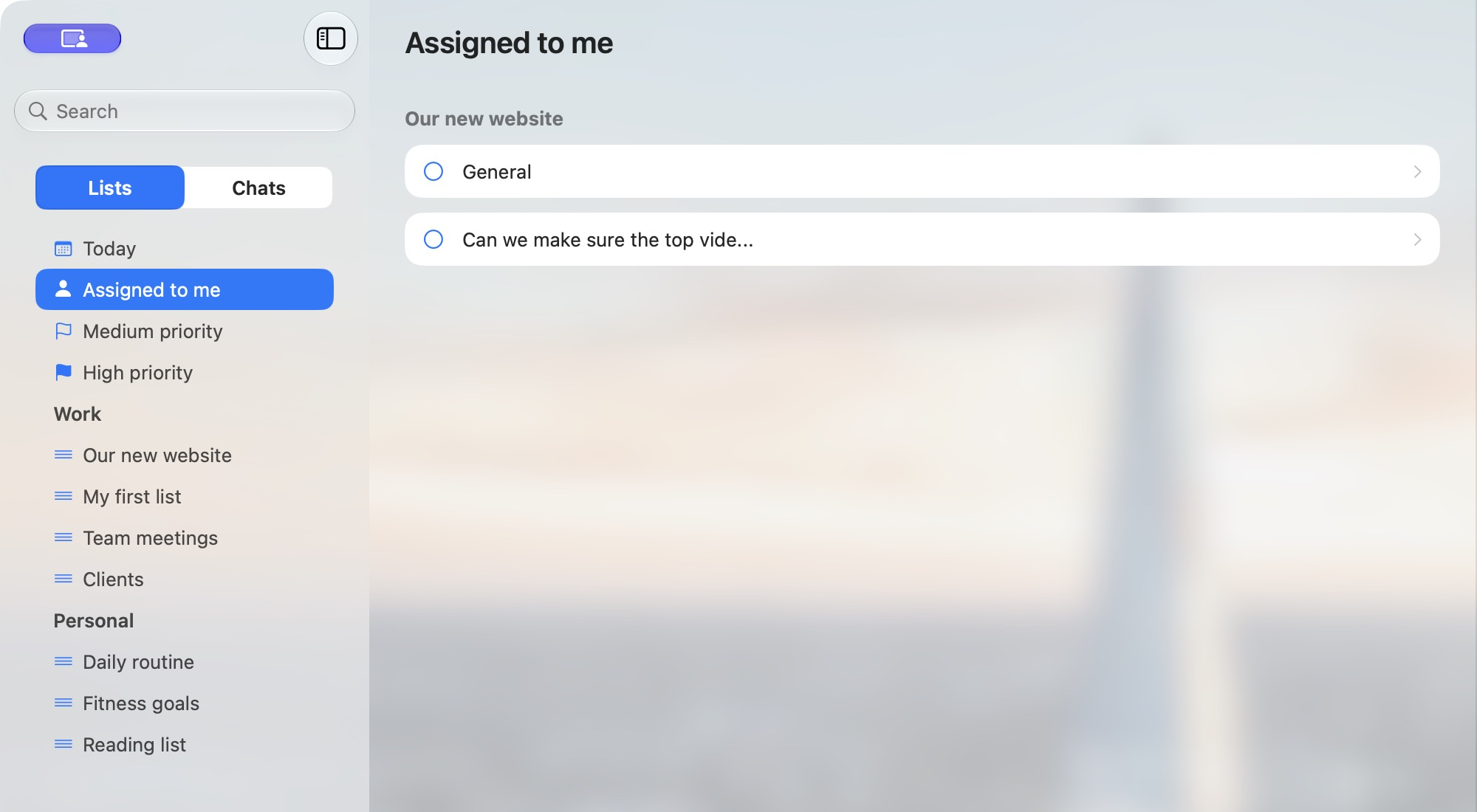
Assigned to me shows unfinished tasks where you are the assignee. A task does not appear here just because you created it or have access to its list.
Select a result to open its details. In macOS, results are grouped under their list names.
Focus on priority tasks
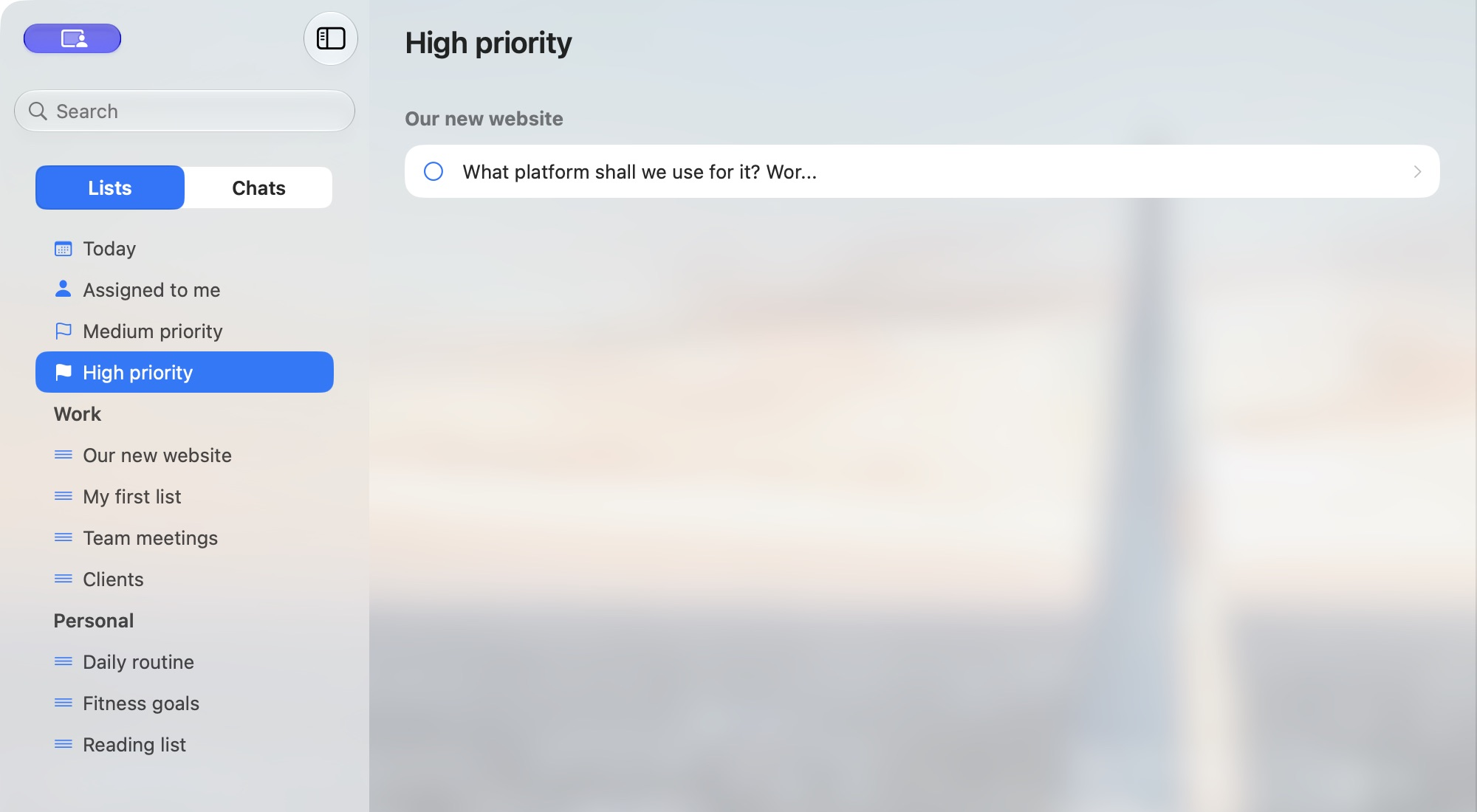
High priority shows unfinished tasks marked High. Medium priority shows unfinished tasks marked Medium. Normal-priority tasks do not appear in either view.
Priority is separate from the due date and assignee. A high-priority task can appear here even if it has no due date or is assigned to someone else. See Set a priority.
Show or hide sidebar shortcuts
In macOS, open the account menu at the bottom of the sidebar, choose Settings → Shortcuts, and turn the shortcuts you want on or off. Changes apply without a separate Save button.
Hiding a shortcut does not delete its tasks. If a view is empty, open the task’s list and check whether it still matches the view’s due date, assignee or priority.
Where completed tasks go
Completed tasks no longer appear in Today, Assigned to me or the priority views. Open the task’s list and click Show completed tasks. Follow View and reopen completed tasks if you want to return one to active work.
