
Set due dates and personal reminders
Give a task a due date so everyone knows when it is due. Set a personal reminder when you want TaskPal to remind you about it.
Screenshots show the macOS app.
In this guide
Due date or reminder?
A due date belongs to the task and is shared with people who have access to it. It sets a day, without a due time.
Remind me sets a date and time for you. It does not set a reminder for everyone else, change the task’s assignee or replace its due date. You can use either setting on its own, or both.
Set or change a due date
- Open a list and select the task.
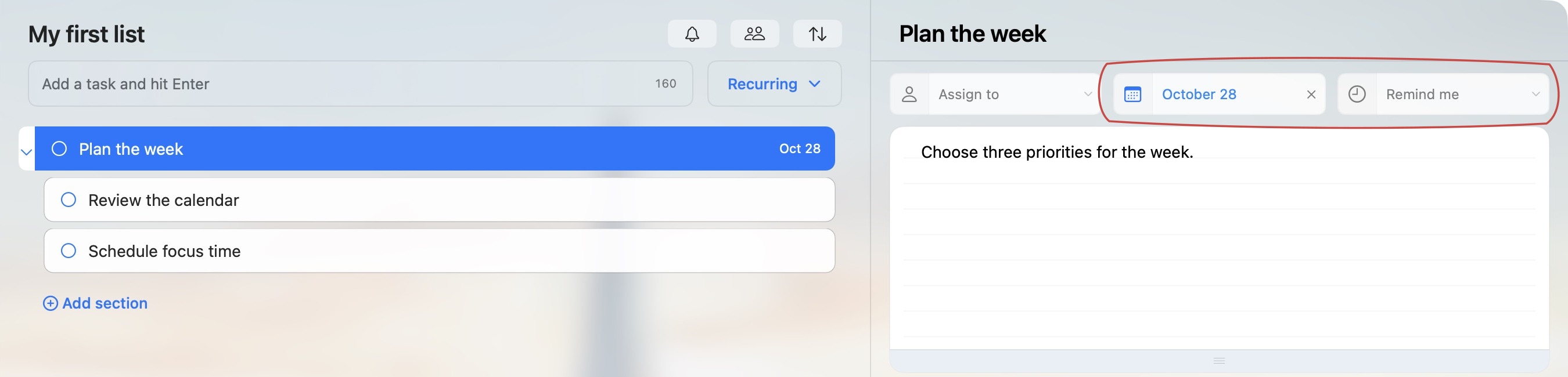
- In the details pane, click Due date, or the date already shown there.
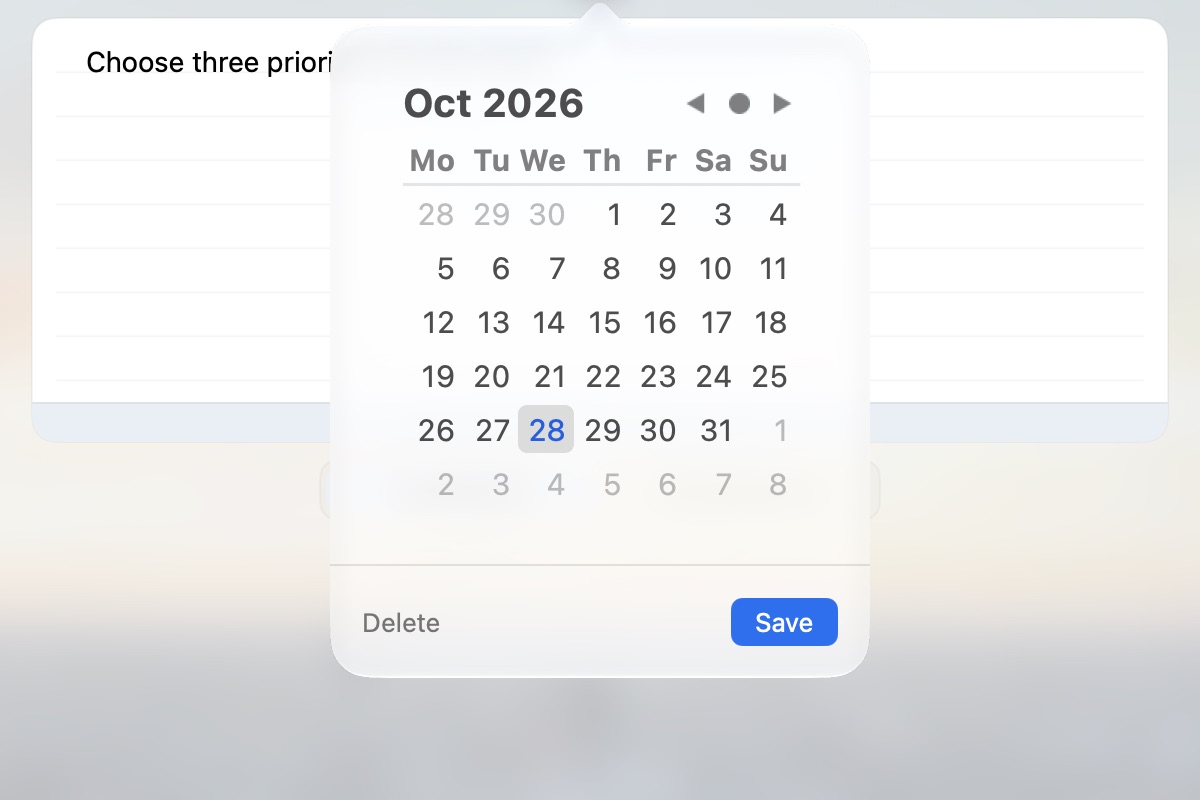
- Choose a day in the calendar. Use the month arrows if you need another month.
- In macOS, click Save. Web and Windows apply the date when you choose it.
These steps are for a task without a repeat schedule. A recurring task’s date is controlled by its repeat schedule.
Set or change a personal reminder
- Select the task and click Remind me, or its existing reminder.
- Choose the day you want to be reminded.
- Set the hour and minute. Choose a time in the future.
- Click Save.
To change it later, open the same control, choose the new date and time, and save again. Changing the due date does not choose a reminder time for you.
How you receive a reminder
When the reminder time arrives, TaskPal sends you a push notification and an email.
If you use the iOS app, you can receive the push notification on your iPhone. On Web, macOS or Windows, you receive it on your computer. Allow notifications for TaskPal on the device or browser where you want to receive them.
Remove a due date or reminder
Click the × beside the date or reminder to clear that setting. In macOS, you can also open its calendar and click Delete. This removes the date or reminder, not the task. Clear each setting separately if you want to remove both.
Find tasks due today
Open Today in the Lists sidebar to see unfinished tasks due on the current day. A reminder alone does not put a task there. See Use Inbox, Today, Assigned to me and priority views.
If a reminder does not appear
On macOS, open System Settings → Notifications → TaskPal and check that notifications are allowed. Check Focus settings too, and confirm the reminder’s date and time in TaskPal.
If it still does not appear, contact support with the reminder time, your time zone, and whether TaskPal was open or the Mac was asleep.
