
Set up recurring tasks
Set up a recurring task once, then use the same task each period. Learn when it appears, where it waits after a tick, and what happens if you miss a period or the schedule ends.
Screenshots show the macOS app.
In this guide
How recurring tasks work
A recurring task is one task that you use again on a schedule. Your notes, subtasks and conversation stay with it as its due date changes.
It moves between three states:
- Active: it appears among the active tasks in your list.
- Waiting: it is hidden from the active list until its next period begins. Open Show recurring tasks to see it.
- Finished: its repeat schedule has ended. It belongs in Show completed tasks, rather than waiting to repeat again.
An occurrence is one scheduled round of the task: this week’s review, for example. While repetitions remain, completing it prepares the same task for its next round.
Create a recurring task
Set up a weekly review due on Friday, with the task appearing among your active tasks from Thursday.
- Open the list where you want the task. If you need one first, create a list.
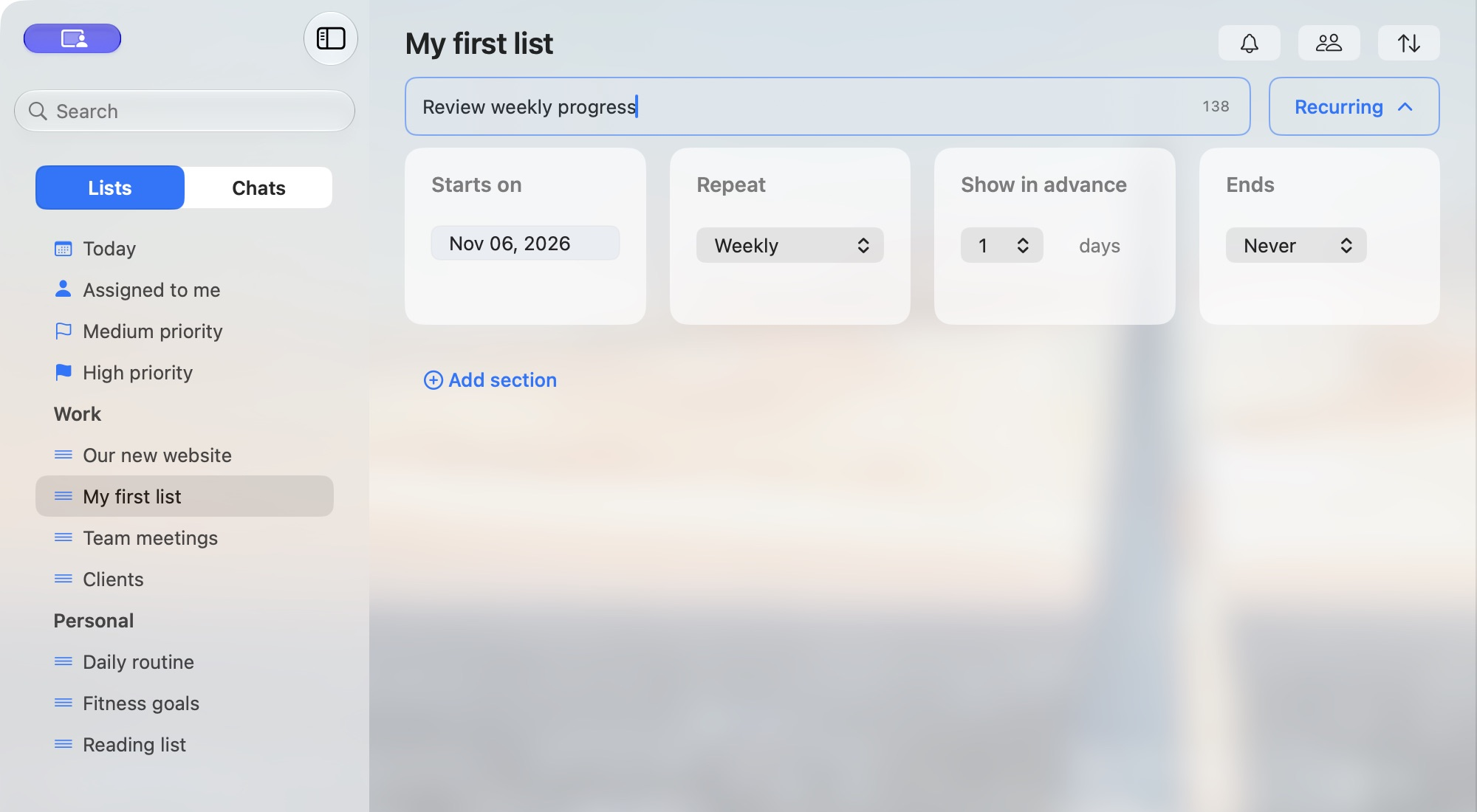
- Click Recurring beside Add a task and hit Enter to open the schedule fields.
- Set Starts on to the first due date. For our example, choose Friday 6 November 2026.
- Set Repeat to Weekly.
- Set Show in advance to 1 day. The task will appear among the active tasks in your list from Thursday.
- Set Ends to Never for an ongoing review. Other end options are explained below.
- Enter the task text, such as Review weekly progress.
- Keep the Recurring fields open and press Enter.
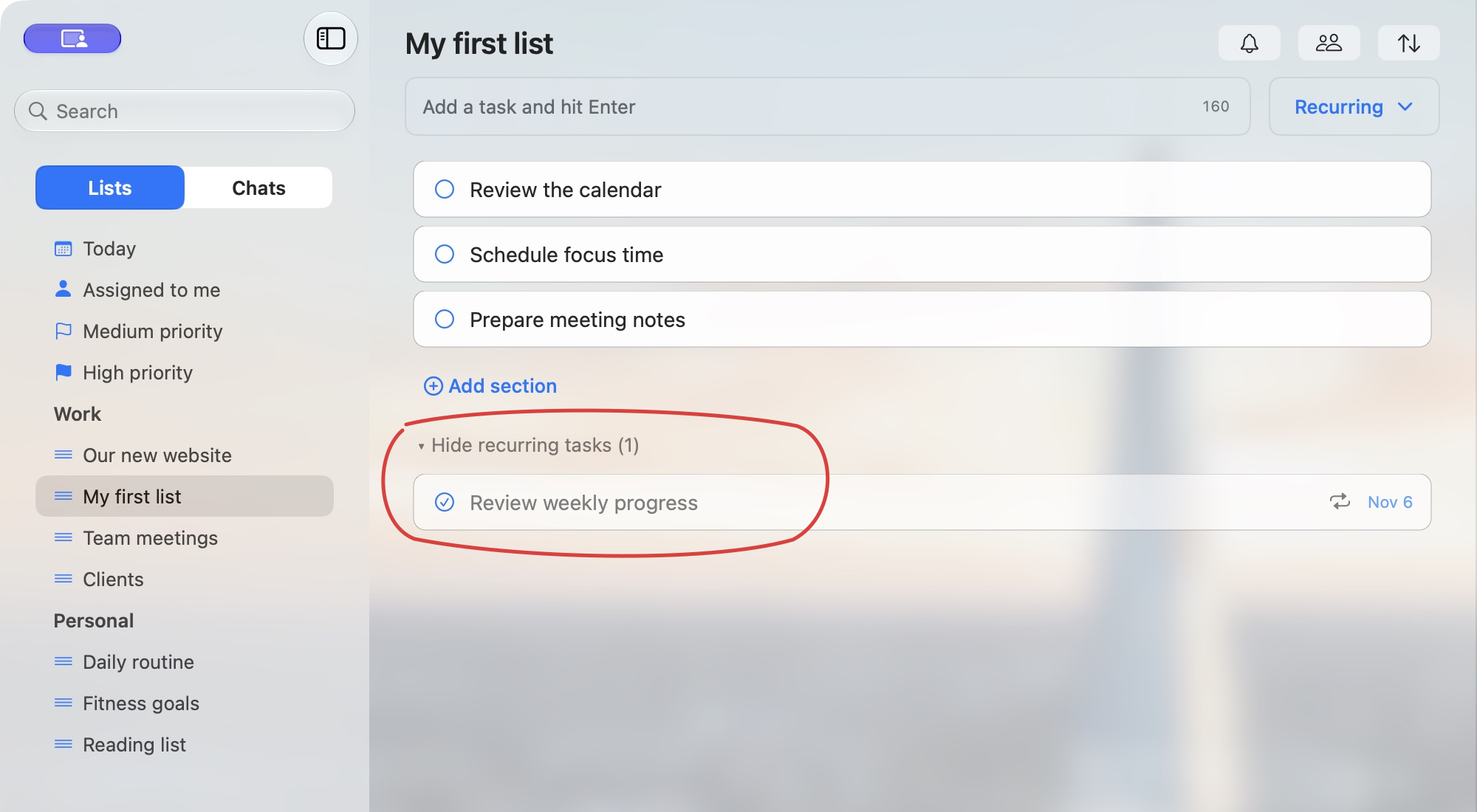
If the first active period has not started yet, the new task waits under Show recurring tasks. It has not disappeared and you have not missed its first occurrence.
In macOS, submitting the task with the Recurring fields closed creates an ordinary task instead.
Follow one weekly example
With Friday 6 November as the first due date, Weekly and 1 day in advance, this is the normal cycle:
- Before Thursday 5 November: the task is waiting under Show recurring tasks.
- Thursday 5 November: it becomes active. Its due date is still Friday 6 November.
- When you finish the review: click its circle. The due date moves to Friday 13 November and the task waits again.
- Thursday 12 November: the next active period begins and the task returns to your active list, due Friday 13 November.
Finishing on Thursday does not turn this into a Thursday schedule. Finishing on Saturday does not turn it into a Saturday schedule. The due dates continue to follow the original weekly schedule.
The due date is when the review is due. The active period is when ticking it advances the schedule. In this example, the first period runs from Thursday 5 November through Wednesday 11 November, inclusive. The next starts on Thursday 12 November.
Complete the current occurrence
While the task is active, click the circle beside its task text when you finish. If the schedule continues:
- The same task receives its next scheduled due date.
- It moves out of the active list into Show recurring tasks.
- It returns automatically when the next active period begins.
You can finish early once the active period has started. You can also finish after the due date, as long as the same active period has not ended. For our Friday review, a tick on Saturday 7 November still completes that week’s occurrence and prepares the review due Friday 13 November.
You do not need to create a new task or change its due date after every review.
Find a task that is waiting to repeat
Open its list and click Show recurring tasks below the active tasks. Click Hide recurring tasks to collapse the group.
Tasks in this group have faded text and are never crossed out. Ordinary completed tasks in Show completed tasks are crossed out.
This is a waiting area, not a completed-task history. It can contain both a review you have just finished and a future first occurrence you have never ticked. They are waiting for their scheduled active periods.
A future due date on a waiting task is expected: completing this week’s occurrence has already moved its due date to next week. Expanding the group only shows you the waiting tasks; it does not start their next periods.
What if you do not complete a period?
Passing the due date does not immediately end the active period. Our review due Friday 6 November can still be completed through Wednesday 11 November.
If you leave it unfinished for that whole period, the normal schedule transition on Thursday 12 November moves its due date to Friday 13 November. It remains unfinished and available for the new period, provided the repeat schedule has not ended.
TaskPal keeps the same task. It does not create another overdue copy for the missed review. With After, the missed period still uses one occurrence: the setting counts scheduled periods, not only the ones you tick.
Automatic transitions can take a little time to appear. If the old date remains after the next period should have begun, see If a task does not appear or its date looks wrong.
What if you tick a waiting task?
A tick only advances the schedule when it happens inside the task’s active period.
For example, a review due Friday 6 November with 1 day in advance does not become active until Thursday 5 November. If you open Show recurring tasks before then, remove its tick and tick it again, you cannot complete that future occurrence early.
The task returns to its waiting state. Its due date and remaining occurrence count do not advance. You may see a warning explaining that the task was completed outside its active period, so the due date was not updated.
Wait until the active period begins, then tick the task when you finish the work.
If you accidentally complete an active occurrence and then remove its tick, the previous due date and used occurrence are not restored. The task still has its advanced schedule. If you need to correct it, contact support with the task’s schedule and what happened.
Choose a repeat interval and advance time
Starts on is the first due date, not necessarily the first day the task is visible. Repeat sets how due dates move: Daily, Every weekday, Weekly, Every two weeks, Monthly, Every two months or Yearly.
Show in advance sets how many days before each due date the task becomes active:
- Daily / Every weekday: 0 days.
- Weekly / Every two weeks: 0–3 days.
- Monthly / Every two months: 0–7 days.
- Yearly: 0–30 days.
For an ongoing schedule, each active period runs from the due date minus this advance time through the day before the next active period starts. An end setting can shorten the final period.
Check Show in advance after changing Repeat. Web and Windows reset it to 3 for weekly or longer intervals. macOS keeps your previous choice if it fits, or reduces it to the new maximum. Daily and Every weekday use 0.
Show in advance is not a reminder. Use Remind me separately for a personal reminder.
Short months and leap years
Monthly dates move from the current scheduled date. A task due on 31 January can next be due on 28 February, then 28 March. It does not automatically return to the 31st or remain on the last day of every month. Likewise, a yearly task due on 29 February can move to 28 February in a non-leap year.
Choose when the repeat schedule ends
Use Ends when creating the task:
- Never: keep the schedule going without a set end.
- After: choose an occurrence count from 1 to 100. Each scheduled period is an occurrence, including a missed one. The total includes the first period. For example, After 2 gives the task two scheduled periods in total.
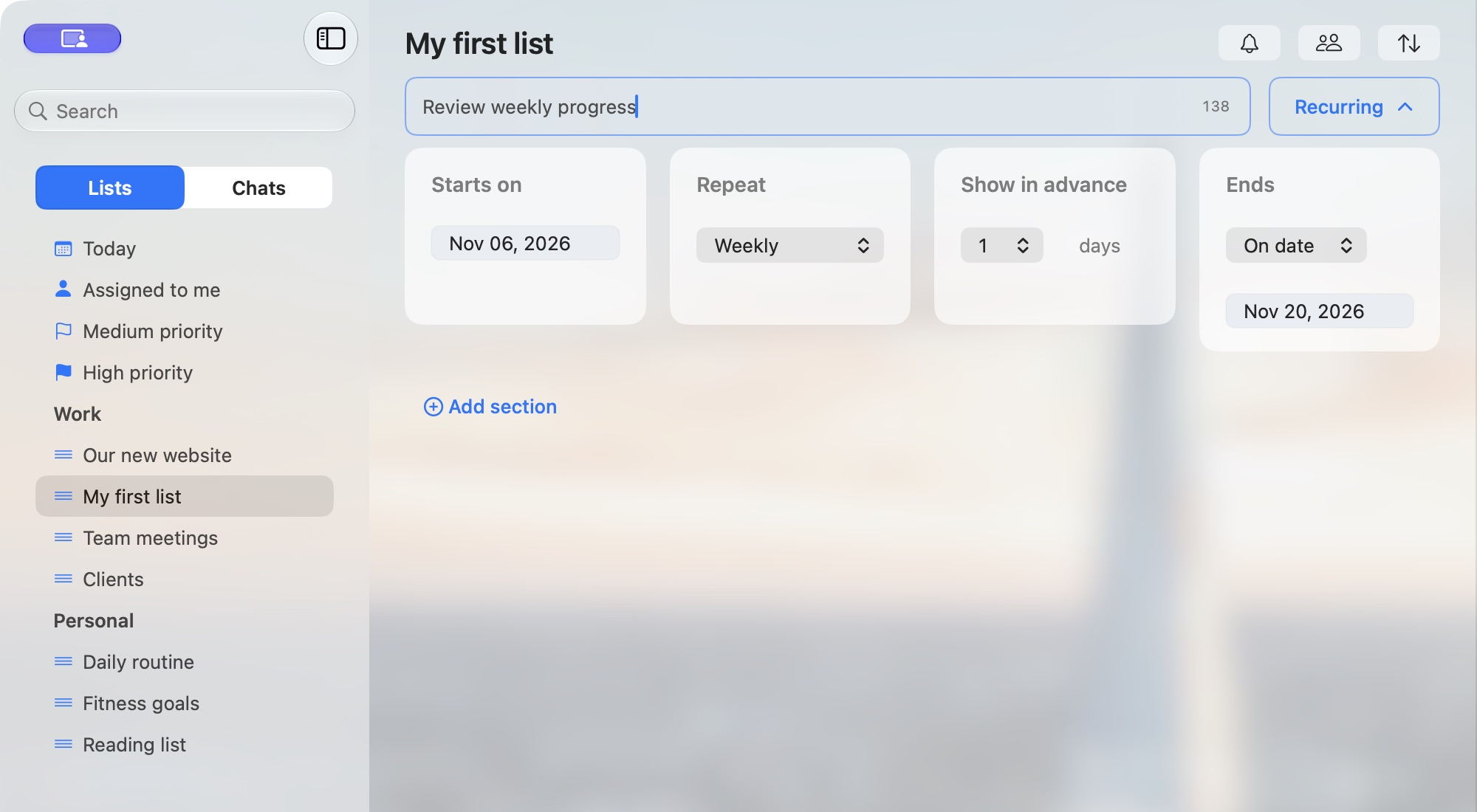
- On date: choose the day the schedule stops. This is a stop date: the last active day is the day before it. Do not rely on having that selected day available as a final occurrence.
For example, an On date setting of 20 November makes 19 November the final active day under the stop-date rule. If you need to work on 20 November itself, choose a later stop date.
When the schedule has finished
Once the schedule ends, the task leaves Show recurring tasks and moves to ordinary Show completed tasks. It no longer waits for another active period. This also applies when the final period expires without a tick; it does not mean that every occurrence was performed.
See View and reopen completed tasks for the ordinary completed-task group.
Check an existing schedule
In macOS, select the task and click its due-date control, marked with a repeat icon. The popover shows the repeat interval, end setting, days in advance and current due date.
This popover displays the schedule; it does not offer controls to edit or stop it. If you need help changing an existing schedule, contact support.
If a task does not appear or its date looks wrong
- Open the original list. A view such as Today is not the same as the full list: an active task can still have a future due date.
- Expand Show recurring tasks. Check whether it is waiting for its first or next period.
- Check the schedule. Compare Starts on, Repeat, Show in advance and Ends. Use the active-period example above to work out when it should return.
- Check your connection and allow time for the schedule update. If it still looks wrong, contact support rather than repeatedly removing and replacing the tick.
Send the task name, start date, repeat interval, advance setting, end setting, the date you expected and your time zone. You do not need to delete the task or recreate your list to ask for help.
