
Change themes, backgrounds and appearance sync
Choose a background, accent colour, icon style and light or dark appearance for TaskPal. Use Sync appearance across devices to share your look across your account or keep different looks on your devices.
Screenshots show the macOS app.
In this guide
Open Theme settings
- Click your profile icon at the bottom of the sidebar and choose Settings.
- Select Theme.
Changes apply as you choose them.
Choose a background
- In Theme, select Background in macOS, or Background image on Web and Windows.
- Browse the gallery and click the background you want. Scroll to see more choices.
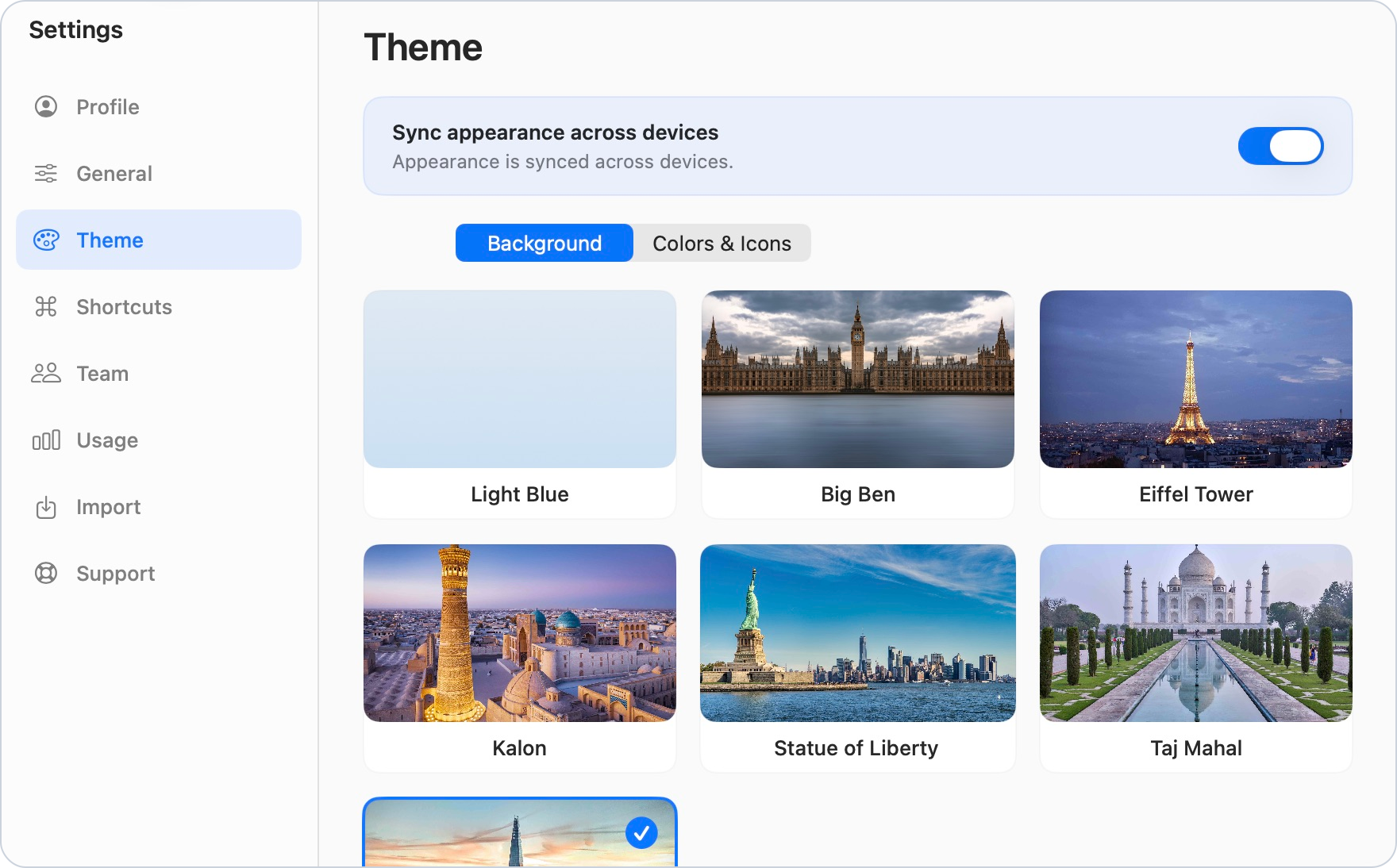
The Mac gallery includes Light Blue, Big Ben, Eiffel Tower, Kalon, Statue of Liberty, Taj Mahal and The Shard. You can choose another whenever you want.
Change colours and icon style
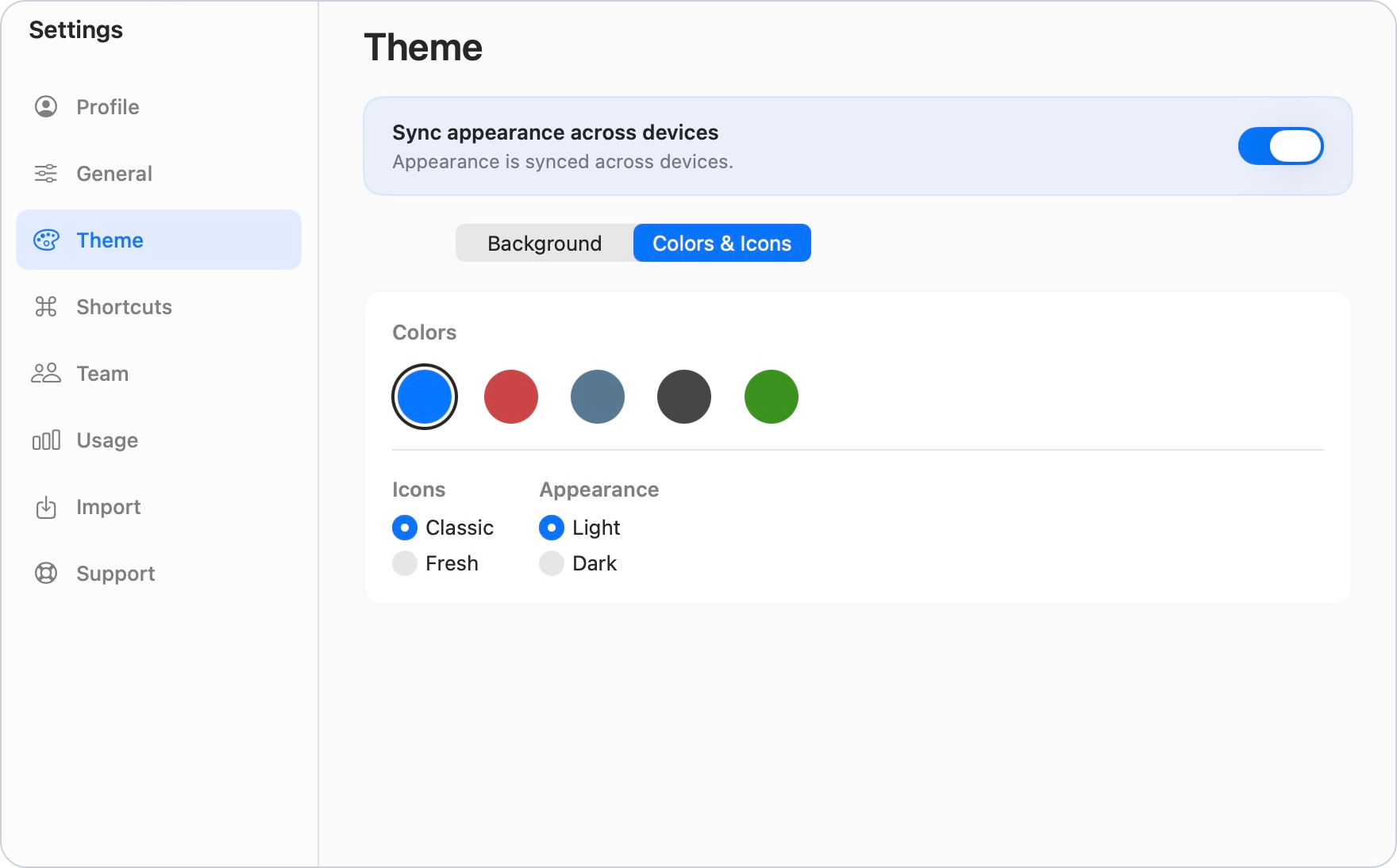
- Choose Colors & Icons in macOS, or Colour scheme on Web and Windows.
- Under Colors, click an accent colour.
- Choose Classic or Fresh under Icons in macOS, or Sidebar Style on Web and Windows.
Switch between light and dark appearance
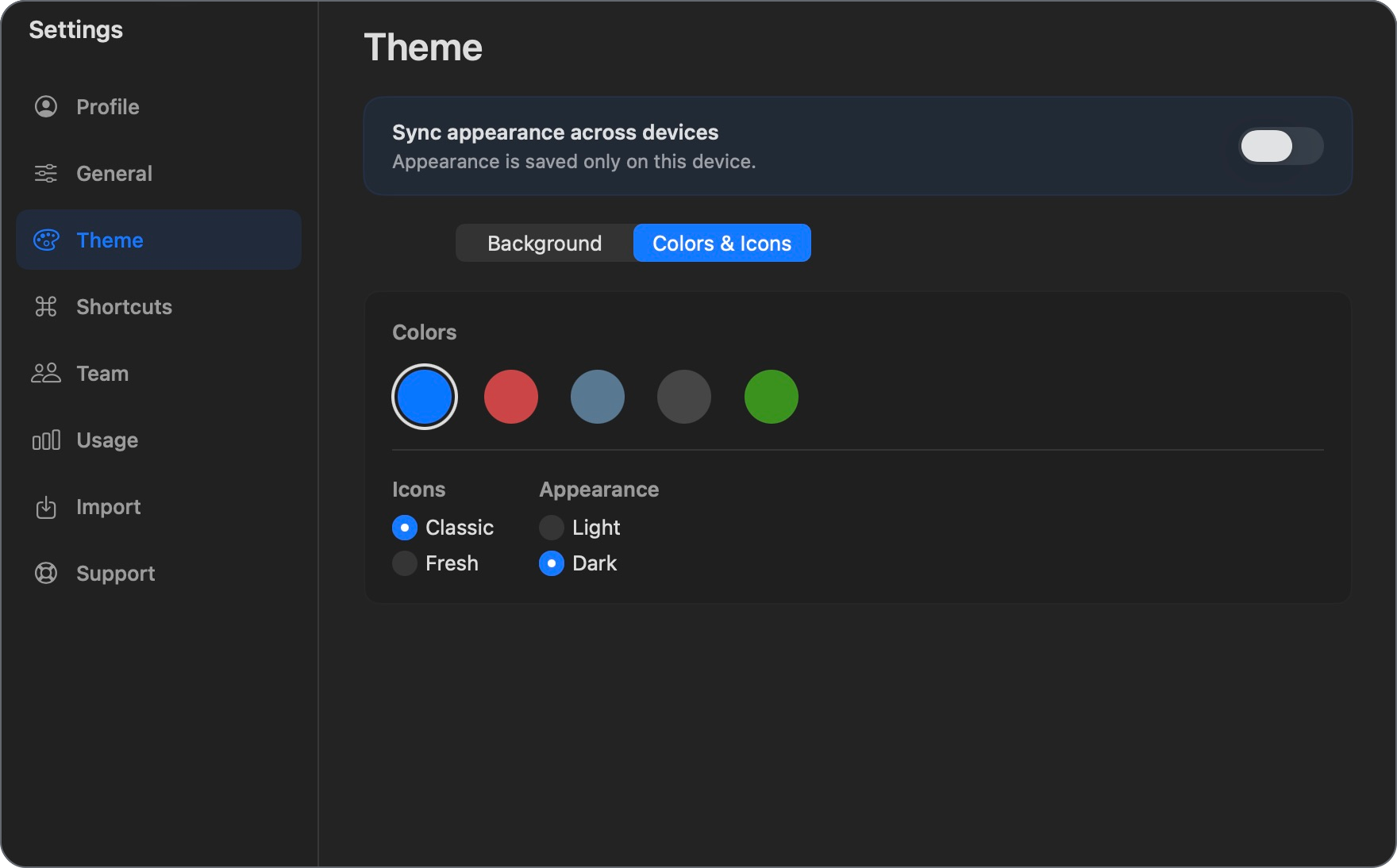
In the same tab, find Appearance and choose Light or Dark.
Sync appearance across devices
The Sync appearance across devices switch is at the top of Theme settings.
- On: your background, accent colour, icon style and light or dark appearance are shared across devices using the same TaskPal account.
- Off: appearance changes are saved locally, so your apps or browsers can keep different looks.
When you turn sync back on, the appearance you are currently using becomes the shared look. For example, if you want the look from your Mac to be used elsewhere, turn sync on from that Mac.
For a background that also works in the Mac app, choose one of the built-in gallery backgrounds. Custom photo backgrounds are currently available on Web and Windows.
Use your own photo on Web or Windows
- Open Settings → Theme → Background image.
- Click Upload photo, or Change photo if you already use a custom image.
- Choose a JPG or PNG image smaller than 1 MB and wait for it to upload.
To return to the gallery, use Remove photo and choose a built-in background. If TaskPal asks you to remove the custom photo when you select a gallery background, read the confirmation and choose Remove to continue.
