Get started with TaskPal
Create your first list, add a task and a note, then complete or reopen the task in TaskPal.
Screenshots show the macOS app.
In this guide
Before you start
Sign in to your TaskPal account in the web app or desktop app. To install the desktop app, visit the TaskPal download page.
1. Open Lists
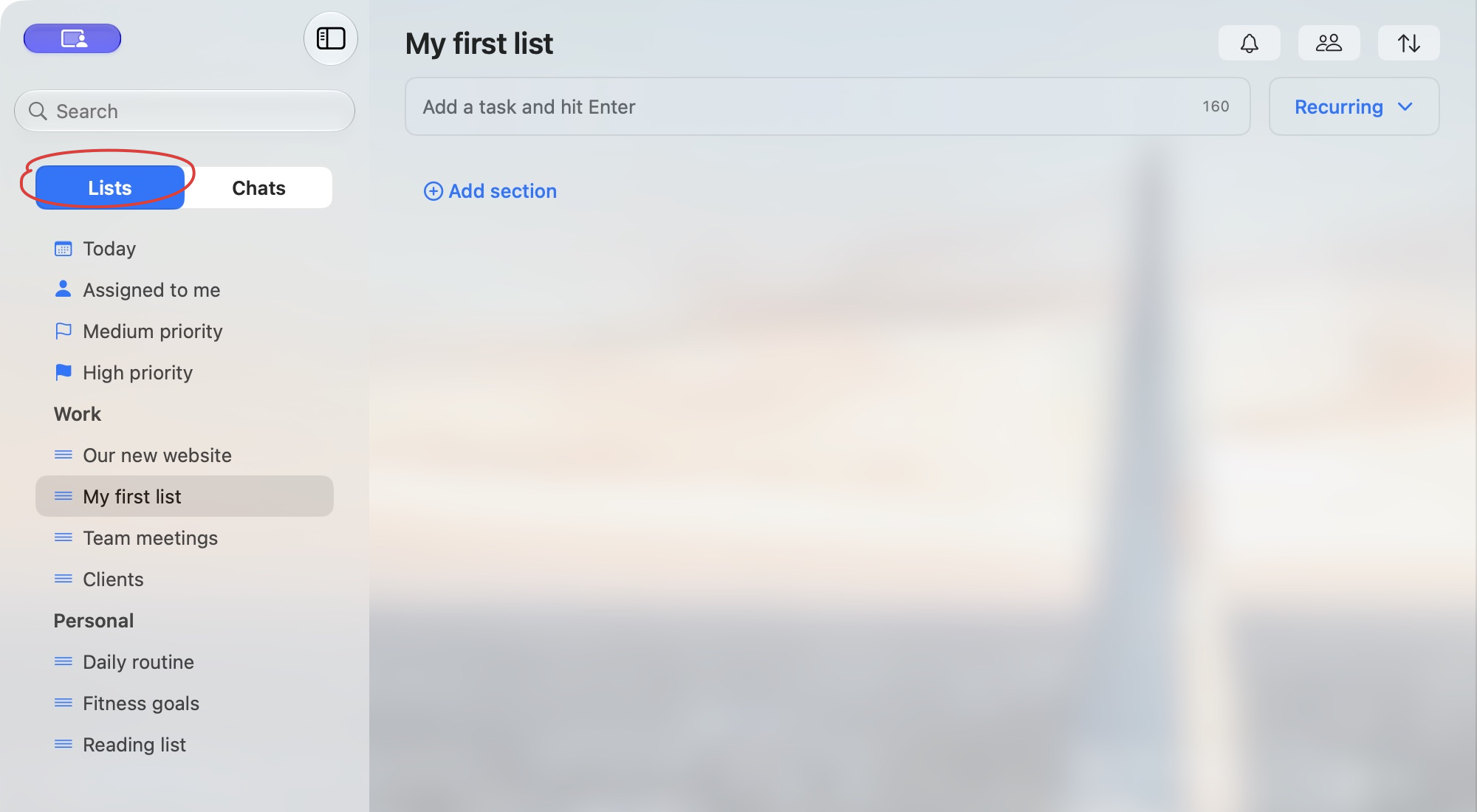
Choose Lists at the top of the sidebar. Your lists appear on the left, tasks in the middle pane, and the selected task’s details on the right.
If the sidebar is hidden on macOS, use the sidebar button near the top-left corner of the window to show it.
2. Create a list
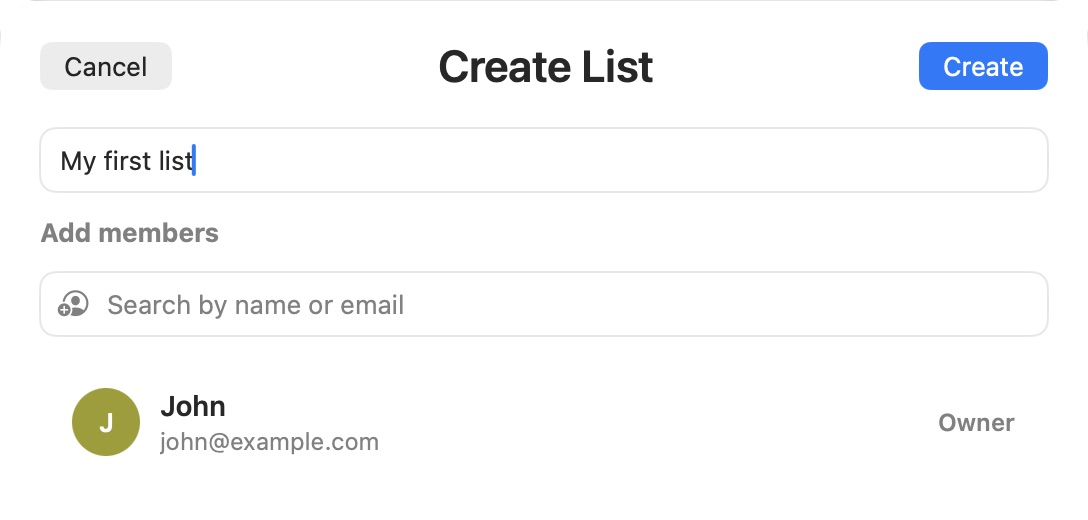
- Click the + button at the bottom of the sidebar and choose List.
- Enter a name, such as My first list.
- Click Create, then select your new list in the sidebar.
You can leave the member fields empty for your first list.
3. Add a task
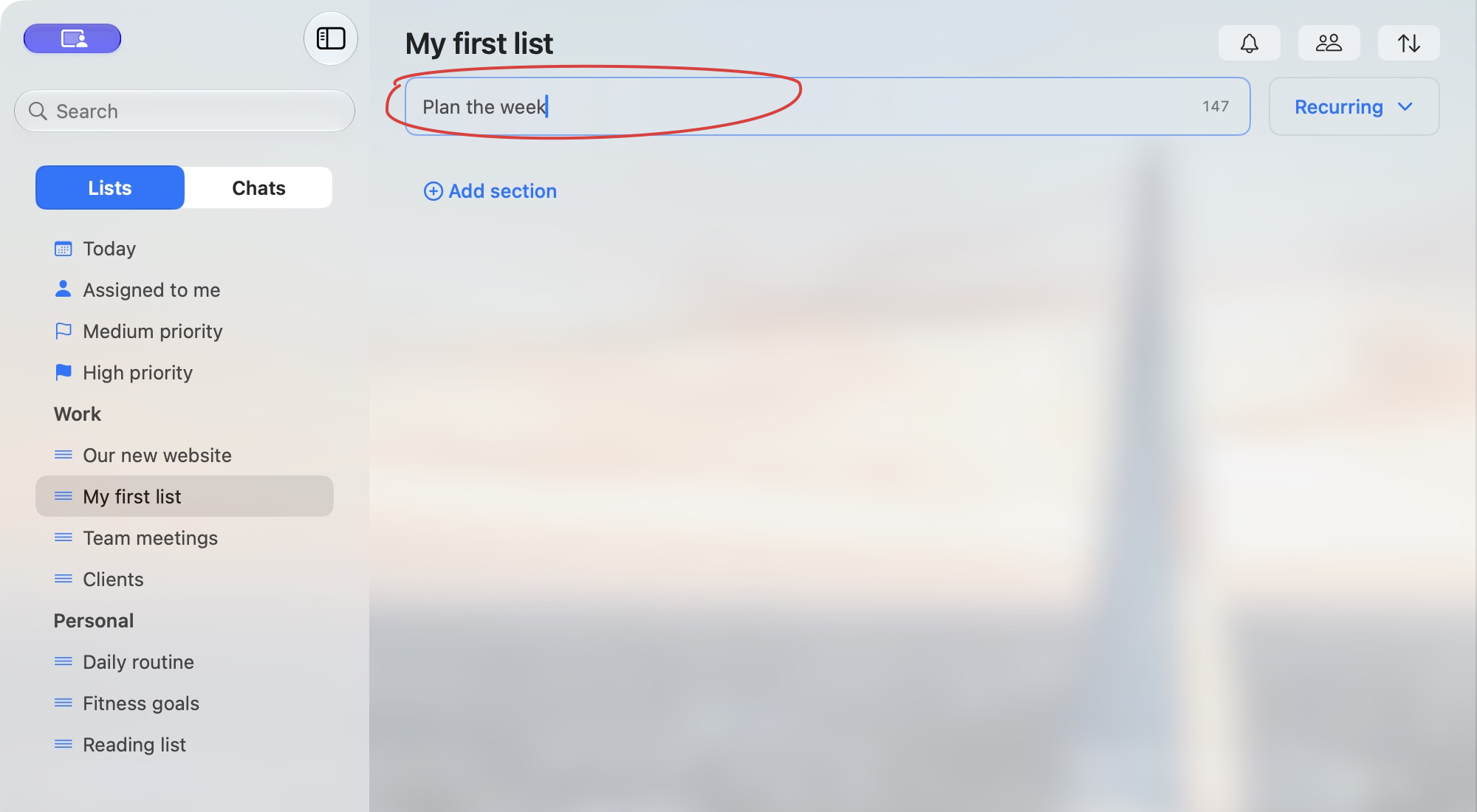
- With your list open, click the task-entry field at the top.
- Type a short title, such as Plan the week.
- Press Enter. Your task appears in the list.
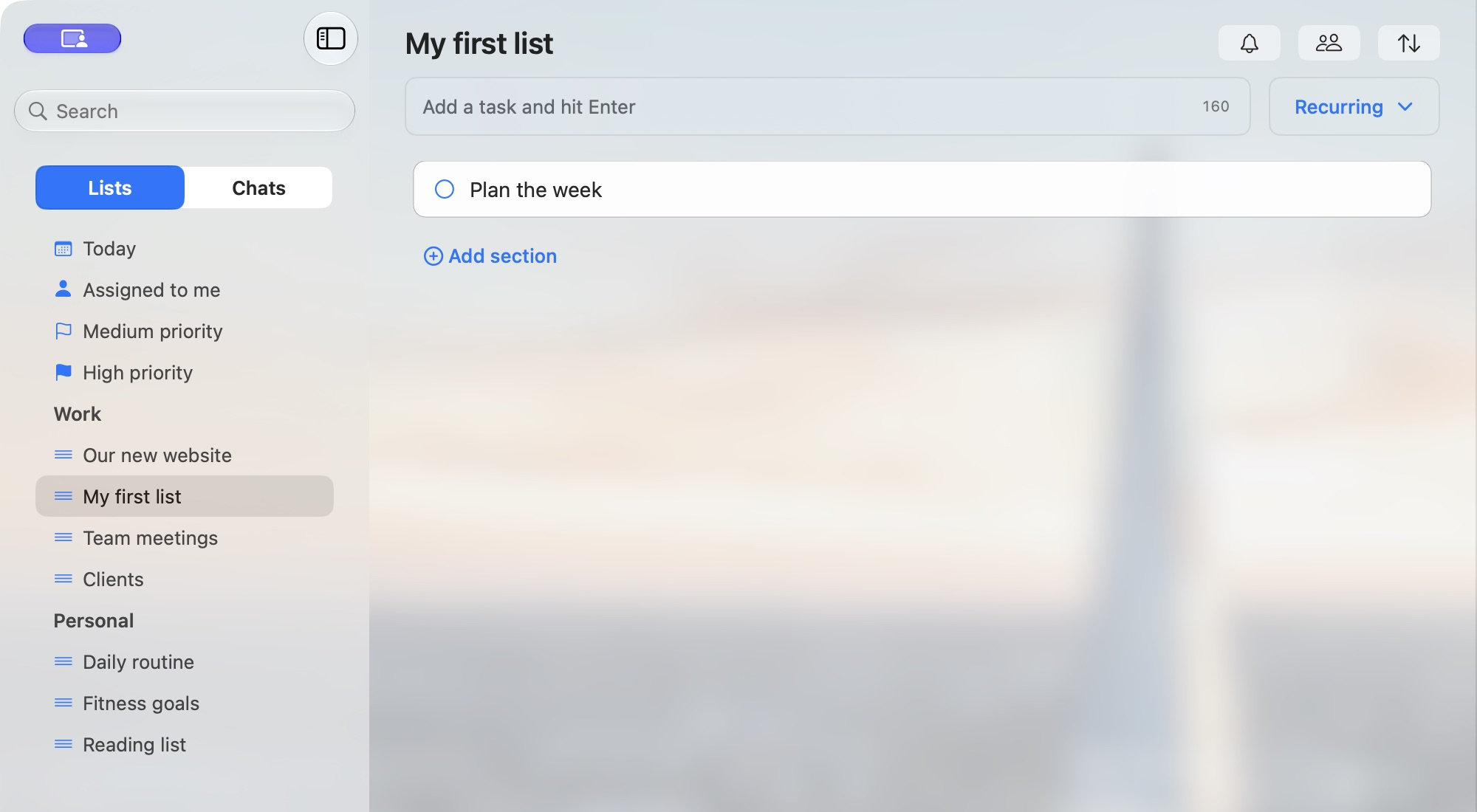
To add another task, use the same input field again.
4. Add a note
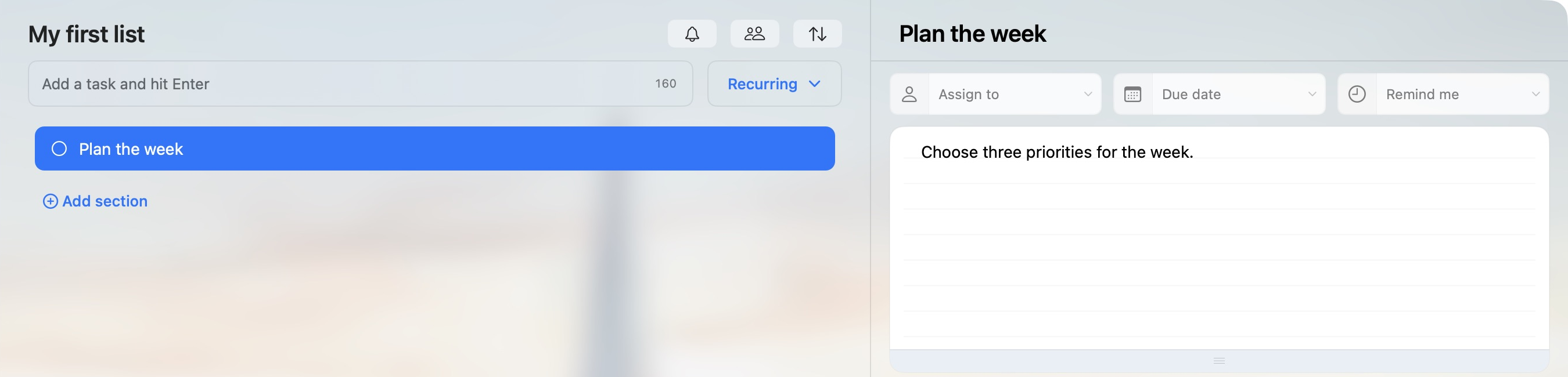
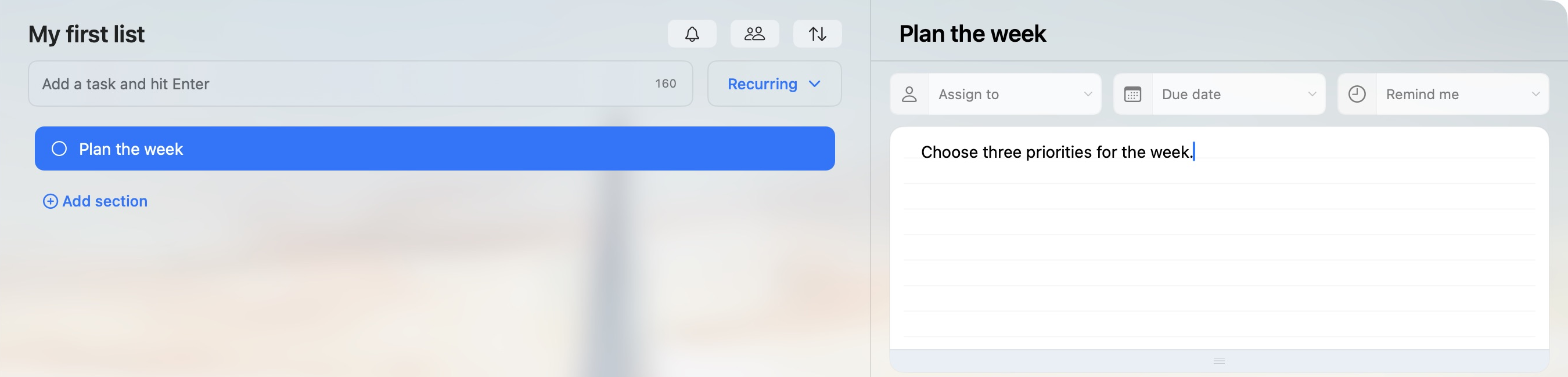
Select Plan the week to open its details. Click the notes area and enter Choose three priorities for the week.
When you finish, click outside the notes field. Web and Windows save when the field loses focus; macOS saves after about three seconds without typing. There’s no separate Save button for the notes area.
You can leave the assignment, due date and reminder controls empty for this task.
5. Complete the task
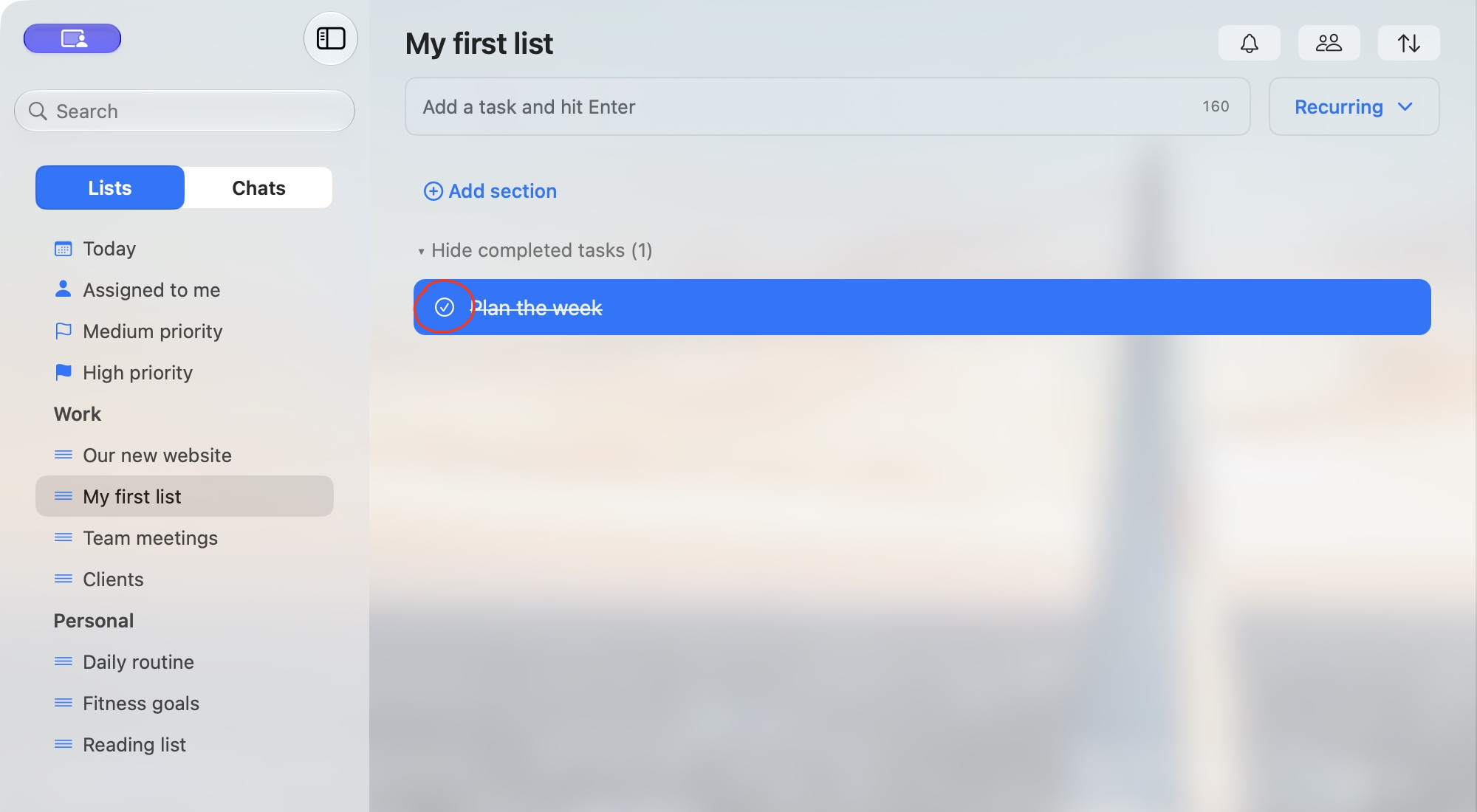
When you’re done, click the circle beside the task’s title in the list. The task is marked complete and appears in the completed tasks area below your active tasks.
Use Show completed tasks to expand that area. When it’s already expanded, the control reads Hide completed tasks.
6. Reopen a completed task
To work on the task again, open the completed tasks area and click the checked circle beside Plan the week. The task returns to your active tasks with its note intact.