
Search for tasks
Find a task by entering part of its title in sidebar Search. Results include active and completed tasks.
Screenshots show the macOS app.
In this guide
Search by task title
- Open Lists in the sidebar.
- Click Search and enter a word or part of a task’s title.
- Select a result to open its details.
Results update as you type and are grouped by list. You do not need to match capital letters. For example, the can find Plan the week and other titles containing those letters.
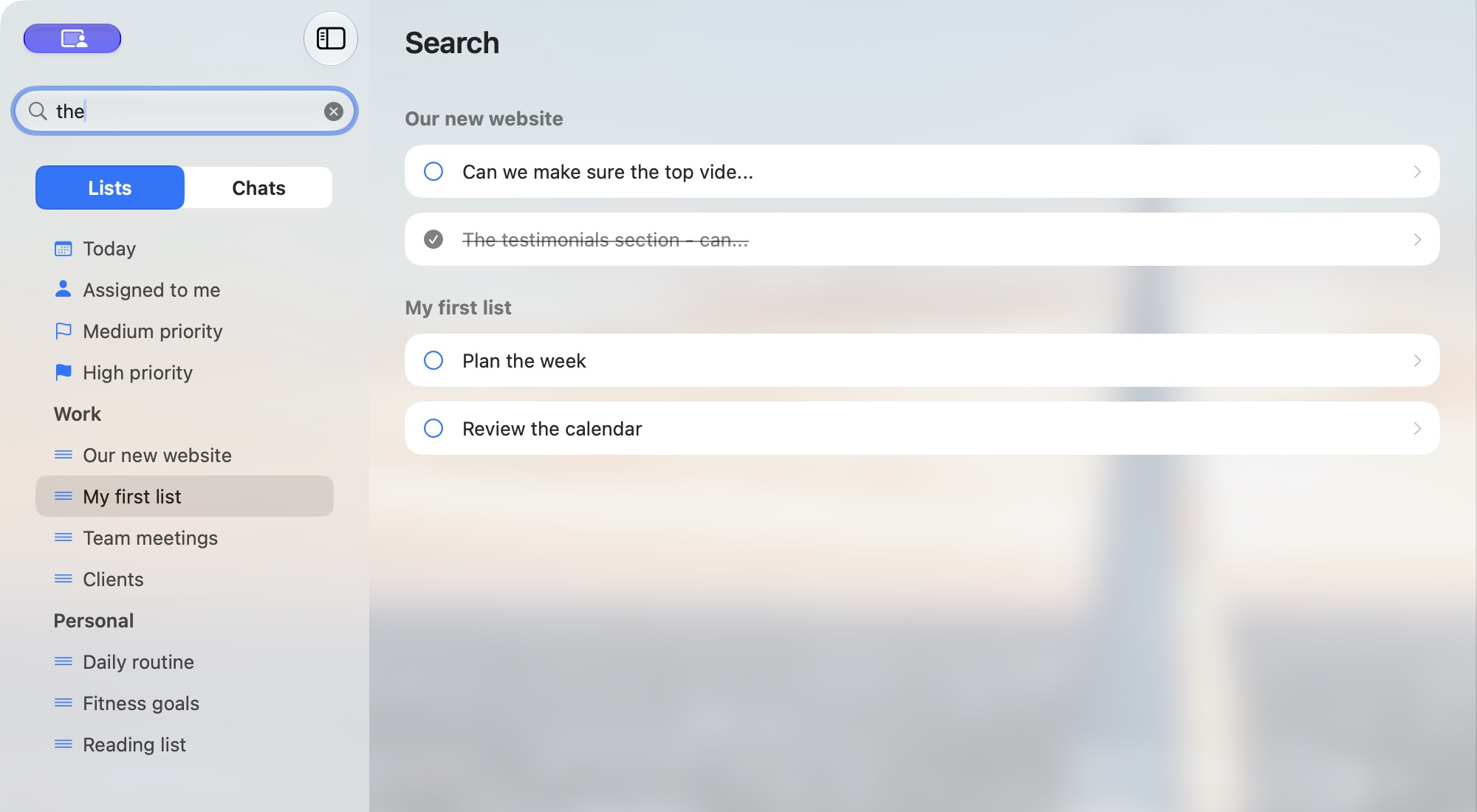
Find completed tasks too
A checked circle and struck-through title identify a completed result. Select it to view its details, just as you would an active task.
To return finished work to your active list, follow View and reopen completed tasks.
What Search looks for
Task search matches text in task titles across your lists. It does not search the text of notes, chat messages or attachments.
On Web and Windows, long result lists show a Show more button with the number of remaining matches. Click it to see more results.
Clear or change your search
Replace the text to try another title. Click the × in the Search field to clear it and return to your list.
If you cannot find a task
- Try a shorter part of the title and check the spelling.
- Use words from the title, rather than from a note or message.
- Check that you are signed into the account that has access to the task’s list.
Today, Assigned to me and priority views show only matching unfinished tasks. Search can help you find a completed task that no longer appears there. See Use task views.
